ankit tiwari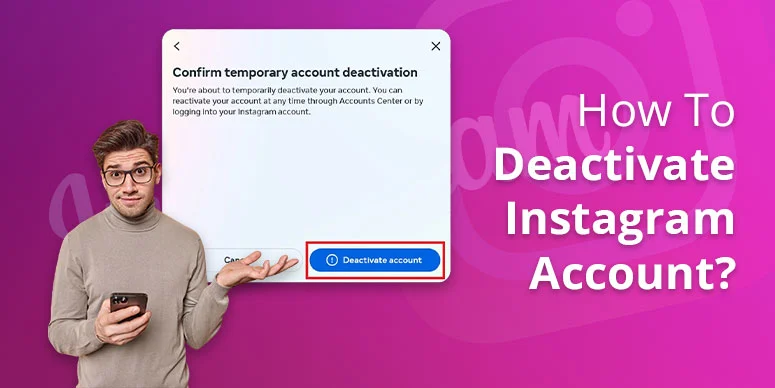
Do you want a temporary break from Instagram? It’s possible through Account Deactivation. When you follow the deactivation steps, your profile and related content will be frozen, and it will be inaccessible to your followers and other users. So, if you want to know how to deactivate Instagram account, then continue reading the post!
What Does Deactivating Your Instagram Account Mean?
In simple words, deactivating an Instagram account means hiding your profile, comments, likes, and all the other content from others temporarily. When you deactivate your Insta profile, no one can find you, even after searching for your profile. The primary motive to deactivate is to free yourself from the constant loop of Instagram usage.
Users can deactivate their accounts only once a week. The best part is that they can come anytime and reactivate their account by signing in either on the website or the Instagram app.
It wouldn’t be wrong to say that Instagram deactivation is an alternative to Account deletion. To know the difference between the two, refer to the next section.
Difference Between Deactivating and Deleting Instagram Account
| Deactivating Instagram Account | Deleting Instagram Account |
| A temporary freeze on the Instagram Profile | Permanent account deletion; no retrieval option is available. |
| Profile, photos, comments, and likes are hidden until reactivated. | Profile, photos, followers, comments, and likes are permanently erased. |
| Useful if you want a short break from Instagram. | Best if you no longer want to use Instagram at all. |
| Can be done once per week. | Can only be done once, no reversal possible. |
Things to Know Before Deactivating Your Account
Before you initiate the deactivation of your Insta ID, know some realistic facts about account deactivation on Instagram. Here’s everything for you!
- After you deactivate, your profile, comments, likes, and photos will remain hidden until you reactivate your profile.
- It’s a temporary pause to your account. You can anytime retrieve it and make decision.
- During this pause phase, your profile and its content will not be visible to others.
- Only once in a week you can deactivate your Insta profile.
- Deactivation is different from deleting profile.
How To Deactivate Instagram Account On Mobile (Ios & Android)
Here is the step-by-step guide to deactivating your Instagram profile. The steps are for iPhone and Android users.
Deactivate on iOS:
- Open Instagram & Log In.
- Select the profile icon from the bottom right of the screen.
- Clik ‘menu’ or ≡ from top right.
- Tap ‘Account center’>Personal Details
- Select Account ownership and control section and tap ‘Deactivation or deletion.’
- Select the particular account
- Tap deactivate account and click ‘Continue’
- Re-enter password and tap continue.
- Select the reason of deactivation and tap ‘deactivate account.’
Deactivate on Android:
- Open Instagram on your phone browser or application.
- Sign in.
- Pick your profile icon from bottom right corner.
- Select ≡ menu from top of the screen.
- Click Accounts center and then personal details.
- Select ‘Account ownership and control’ section.
- Tap deactivation or deletion and select your account to deactivate.
- Click deactivate account and tap continue.
- Mention the reason of deletion and tap continue.
- Finally, press ‘deactivate account’ and it’s done.
Note: The steps to deactivate Instagram profile are same for Android and iOS.
How To Deactivate Instagram Account On Desktop/Web
If you would like to deactivate account on your desktop, this is possible through the official Instagram website: Instagram.com. Follow the guide!
- On your desktop, visit Instagram.com and log in.
- Tap the three-line or More icon, followed by ‘settings’ option.
- Click personal details under Account Center.
- Tap Deactivation or deletion under the Account ownership and control
- Select the account you wish to deactivate.
- Click deactivate account and tap continue
- Enter your password and tap continue again.
- Mention the reason and finally tap deactivate account.
How To Deactivate Instagram Business Account
Deactivating Instagram Business account means switching it to the personal account.
While switching from business to personal, users can still keep their account information secure.
Here’s the guide:
- Log in to your Instagram business profile.
- Tap the profile.
- Tap menu icon or three lines from top.
- Click business tools and controls or Creator tools and controls.
- Tap switch account type.
- Tap switch to personal twice to confirm the same.
Note: Once you’ve switched to personal account, you can deactivate the profile with the same steps provided above.
How To Reactivate Your Instagram Account Later
Once you have taken a sufficient break from Instagram, and now are ready to come back, you can do so easily on Instagram platform. Just a ‘sign in’ is required for the recovery of your Insta ID from a deactivation.
Using your username and password, visit the official Instagram, enter details, and tap log in.
Your account will be restored as previously with all the data being as it is.
Common Issues While Deactivating Instagram and How to Fix Them
While proceeding with Instagram account deactivation, you might come across some issues. We have provided the most common issues faced by users, and their quick solutions. Check the table below:
| Problem | How to Fix |
| Deactivate button missing or unresponsive |
|
| Error message: “Try again later” |
|
| Ongoing ads or unresolved content reports block deactivation | Complete or pause ad campaigns, resolve content issues before trying to deactivate. |
| Difficulty deactivating Business or Creator accounts | Switch the account back to a personal account first, then deactivate. |
| Incorrect password input or forgotten password | Reset your password and use the new one to complete deactivation. |
| Two-factor authentication (2FA) issues | Ensure you can receive 2FA codes, check authenticator app or phone number, disable 2FA temporarily if needed. |
| Following wrong steps to deactivate | Use correct official path: Settings > Accounts Center > Personal Details > Account Ownership and Control > Deactivation. |
How To Delete Instagram Profile Permanently
- Visit Instagram.com and log in.
- Tap three-line icon or More from far left.
- Select settings option.
- Select Personal details under the Accounts center.
- Tap Account ownership and control>Deactivation or deletion.
- Select the account you want to delete.
- Tap delete account and continue option.
Note: once you delete your Instagram account, you will get 30-day period to rethink your decision and recover your account. After this grace period, your account details will be permanently erased.
Most Frequently Asked Questions
How long can you temporarily deactivate Instagram for?
There is no set number of days you can deactivate Instagram for. Depending on your choice, you can keep your account deactivated as long as you want as per current Instagram policy.
How to activate temporarily deactivated Instagram?
Just signing in with your existing account credentials will activate your Instagram profile after the deactivation. Either visit Instagram.com or Instagram app, and sign in.
Is it better to deactivate or delete?
Depending on the goal, you can select between the both. If you want to take a short break, deactivate your profile. However, for a complete account closure, deleting is the last choice.
Can people see your Instagram account if it’s deactivated?
Not possible! Your profile is hidden from others when you deactivate Instagram account. In fact, they will not find you after searching on the platform.
Do I lose everything if I deactivate Instagram?
Nothing is lost in deactivation. Everything will remain safe and as it is. Your profile, photos, post, comments, and even messages will still be there.
Is deactivating Instagram safe?
Absolutely safe! You can deactivate your Instagram profile anytime as an option for a temporary break. However, always follow the deactivation steps on the official portal.
Final Say!
If you’re bored with Instagram or are thinking to declutter, deactivating is the option you can opt for. Deactivating stops your account activity while freezing it for the time you want. In fact, it hides your profile from others. But you can hide your profile only one time in 7 days. To hide or deactivate account, log in to Instagram>select profile>menu>Account center>Personal Details. Tap Account ownership and control>Deactivation or deletion. Select the profile and continue.