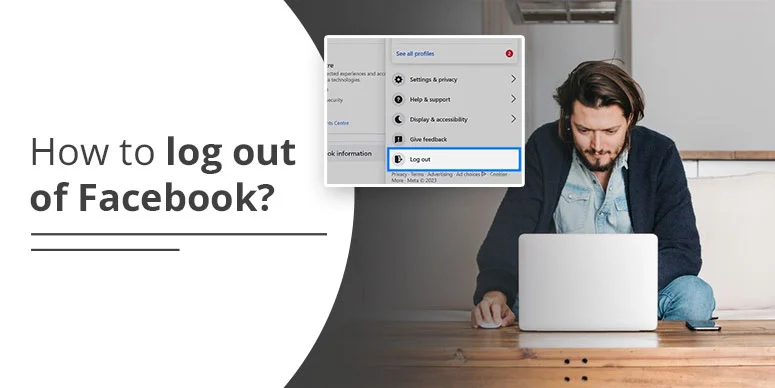
Quick Answer: Force-Log Out of Facebook on All Devices
If you need to act right away, use this path in Facebook’s settings:
Settings & Privacy > Settings > Accounts Center > Password and Security > Where You’re Logged In > Select your account > Select devices to log out > Select All > Log Out.
This is the most important step if you think your active Facebook session has been hijacked.
When You Should Use Remote Logout
Remote logout is useful anytime you believe your Facebook account is still active on a device you no longer trust.
- You received a login alert from an unknown city, browser, or device.
- You left Facebook signed in on a public, office, school, or shared family device.
- You suspect session hijacking and want to invalidate all active sessions immediately.
- You lost your phone, tablet, or laptop and want to remove account access before someone opens Facebook.
Signs of Unauthorized Facebook Session Access
Before logging out of all devices, check for warning signs that suggest someone else may still be using your account.
- Unknown devices listed under “Where You’re Logged In.”
- Login activity from places you do not recognize.
- Messages, likes, or posts you did not create.
- Security alerts about recent logins you do not remember.
How to Remotely Log Out of Facebook on All Devices Using the App
You can remove active Facebook sessions directly from the mobile app on Android or iPhone.
- Open the Facebook app and sign in to the affected account.
- Tap the menu icon. On iPhone, it is usually in the bottom-right corner. On Android, it is usually in the top-right corner.
- Tap Settings & Privacy, then tap Settings.
- Open Accounts Center at the top of the settings page.
- Select Password and Security.
- Tap Where You’re Logged In.
- Select your Facebook account to view all active sessions.
- Tap Select devices to log out.
- Tap Select All, then tap Log Out.
This removes your Facebook session from every listed device at once.
How to Remotely Log Out of Facebook on All Devices Using a Browser
If you still have access to Facebook on a desktop or mobile browser, you can perform the same security action there.
- Open Facebook.com in your browser and sign in.
- Click your profile picture in the top-right corner.
- Go to Settings & Privacy, then click Settings.
- Click See more in Accounts Center.
- Open Password and Security.
- Click Where You’re Logged In.
- Select your account to review active devices.
- Choose Select devices to log out or mark the sessions you want to remove.
- Click Log Out to end those sessions.
Why Remote Logout Matters in a Session Hijacking Situation
Changing your password is important, but it may not be enough if an unauthorized session is still active. Remote logout helps by ending those active sessions and forcing a fresh login on removed devices.
If you think someone is already inside your account, logging out all devices should be your first action before moving to password and recovery steps.
What to Do Immediately After Logging Out All Devices
Force-logging out all devices should be followed by a short security checklist.
- Change your Facebook password immediately.
- Review recent login activity and remove anything suspicious.
- Check your linked accounts inside Accounts Center.
- Turn on two-factor authentication if it is not already enabled.
- Review third-party apps and permissions connected to your account.
What If You Cannot Access Your Facebook Account?
If you cannot sign in because your account was hacked or locked, use Facebook’s official recovery process instead of waiting.
Go to facebook.com/hacked and follow the guided steps to recover and secure your account.
Frequently Asked Questions
How do I remotely force-log out of Facebook on all devices?
You can open Settings & Privacy and then go to Accounts Center. After that, tap the Password and Security option and open Where You’re Logged In to select your account. Choose selected devices to log out, tap Select All, and confirm Log Out.
Will logging out of all devices stop unauthorized Facebook access?
It is the fastest step to remove active access from devices already connected to your account. After that, you should still change your password and review your security settings.
Can I log out of Facebook on all devices from my phone?
Yes. You can do it from the Facebook app by opening Accounts Center, then going to Password and Security and Where You’re Logged In.
What should I do after removing all Facebook sessions?
You must change your password and review suspicious logins. After that, you can check linked accounts and enable two-factor authentication.