

TL;DR:
- You cannot completely remove Meta AI from the Facebook search bar, but you can mute it and reduce how often it appears.
- You can hide Meta AI prompts, mute the chatbot, and turn off AI comment summaries to make Facebook feel more “classic” again.
- Clearing or muting Meta AI is not the same as deleting your AI data, so privacy settings still matter.
- If privacy is your main concern, you should review Facebook’s privacy controls and AI-related settings, not just the search bar.
- Meta frequently changes layouts and AI placements, so Meta AI may appear again after updates, and you may need to manage it again later.
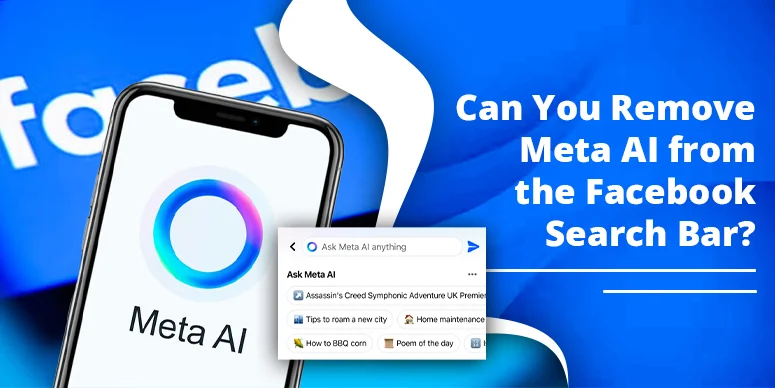
In the current AI-first era, Meta AI is turning into a persistent layer inside Facebook. From the search bar to comment summaries and chat suggestions. If you are tired of seeing the blue Meta AI ring or “Ask Meta AI” when you simply want to search on Facebook, then you are definitely not alone.
Meta wants to integrate Meta AI into the Facebook search bar so users can ask questions, get instant summaries, and receive smart suggestions directly from the same place where they used to type simple search queries.
From a user’s point of view, this can be helpful in some cases, but it also creates friction when you just want a clean, distraction-free search experience without AI.
Why people want to remove Meta AI from the Facebook search bar
Technology often makes processes easier, but at the same time, it can add noise and features that users never asked for. That is exactly what many Facebook users feel when Meta AI suddenly appears in the search bar.
Personally, there is a mixed opinion about whether Meta AI should stay inside the search bar. On one hand, it can answer quick questions; on the other hand, it changes a core element of the interface that people have used for years.
Here’s a clear POV on why users search for “Can you remove Meta AI from the Facebook search bar?”:
- Distraction & UX friction: The AI bubble appears even when you just want to find a friend, page, or group. It adds an extra step to basic search.
- Accidental AI chats: Many people tap the Meta AI icon by mistake and end up chatting with a bot instead of seeing normal search results.
- Privacy concerns: Meta AI is designed to improve with user interactions, which raises questions about what is stored and how it is used.
- Loss of control: There is no single global “Off” switch, so the AI feels forced rather than optional.
All of these reasons become stronger when AI is integrated into personal social spaces like feeds, comments, and private chats, instead of being a separate tool you can choose to use.
What benefits Meta AI offers in the search bar
Even though many users want to hide it, Meta AI is not useless. There are scenarios where it actually works well from inside the search bar.
Meta AI can:
- Summarise long comment threads on posts, which can save time for creators and page admins.
- Provide quick general answers to everyday questions directly from the search bar or AI chat.
- Help with discovery when you do not know the exact keyword, page name, or group name to search for.
However, the key problem is choice and control. Some users like this extra intelligence; others just want the simple magnifying glass and a normal search box.
Can you permanently remove Meta AI from the Facebook search bar?
Here, the word “permanently” is important.
For some people, “permanent removal” means never seeing Meta AI in the search bar again. For others, it means no data being used by Meta AI at all.
As of now, there is no official setting that completely removes Meta AI from the Facebook search bar. You can:
- Mute Meta AI so it stops sending notifications and responses.
- Hide or reduce AI prompts from your view.
- Turn off related features like comment summaries.
But the underlying AI layer still exists in the product. There is a critical distinction:
Muting or hiding Meta AI is not the same as deleting Meta AI from your account or Meta’s systems.
So the honest answer to your main keyword is:
“Can you remove Meta AI from the Facebook search bar?” — You can’t fully remove it, but you can effectively limit it, mute it, and make your search experience feel much cleaner.
How to reduce Meta AI in the Facebook search bar (step-by-step)
The process to minimise Meta AI is quite simple, but labels may change slightly with new app updates.
Here’s the general process most users follow to reduce Meta AI from the search bar:
- Open the Facebook app on your phone.
- Tap the search bar at the top of the screen.
- Tap the Meta AI icon or “Ask Meta AI” tile that appears in or near the search bar.
- Once the Meta AI chat opens, tap the info icon (small “i”) at the top right of the screen.
- On the Meta AI info screen, find and tap “Mute”.
- Choose “Until I change it” (or similar) to keep Meta AI muted indefinitely.
After this, Meta AI will stop sending proactive messages and suggestions. You may still see the icon in the search bar, but the AI will be quiet unless you manually unmute it again.
What happens after you mute Meta AI?
Once muted, Meta AI becomes silent:
- It no longer sends notifications or unsolicited replies.
- Accidental taps on the search bar are less likely to start an AI chat.
However, you should understand one thing:
Muting Meta AI does not remove the icon from the search bar or erase the AI feature from Facebook.
The AI entry point can still exist visually. You have silenced the chatbot, but you have not deleted it. If Meta redesigns the layout, some AI prompts may appear again and need to be managed once more.
Extra workarounds users commonly try
Because many users want an even cleaner experience, some of them try additional workarounds like:
- Blocking the Meta AI profile (some users report temporary success, but it may return).
- Using Facebook Lite, which often has fewer AI features and a more basic interface.
- Using the basic mobile site (mbasic.facebook.com) in the browser for a minimal version of Facebook.
- Installing older APK versions of the Facebook app before Meta AI was added, if they know what they are doing.
These methods are more advanced and may not be ideal for every user, but they show how strongly people feel about having a simple, AI-free search bar.
Privacy concerns people often forget
Many users want to remove Meta AI because of privacy concerns, not just design changes.
Here are the points people often ignore:
- Meta AI learns from interactions, and your prompts can be used to improve the system.
- Muting or hiding the icon does not automatically delete your past AI interactions.
- You should avoid sharing highly sensitive information (passwords, banking details, intimate personal data) with any AI chatbot.
If privacy is your main concern, then your actions should go beyond the search bar:
- Review your Facebook privacy settings carefully.
- Check any AI-related sections or privacy pages that Meta provides.
- Decide whether you want to limit or object to certain data uses where options exist.
In simple words: removing Meta AI from your eyes is not the same as removing Meta AI from your data.
How to turn off AI comment summaries on Facebook posts
Meta AI can also appear in the form of comment summaries on your posts. If you want less AI across Facebook, this is another important setting to check.
To turn off AI comment summaries:
- Open Facebook and go to Settings & privacy.
- Tap Settings.
- Scroll to the Audience & visibility section.
- Tap Posts.
- Find the option that says something like “Allow comment summaries on your posts”.
- Turn this option off.
By doing this, you stop Meta AI from automatically summarising comments on your posts, which removes one more AI layer from your Facebook experience.
If you ever face issues with your account while tweaking these settings, you can also learn how to contact Facebook support in detail here: How to Contact Facebook Support.
Best way to keep Facebook search clean
If your main goal is just a cleaner search bar without too much AI, the most effective approach is to combine several small steps instead of relying on one setting.
The best combo usually looks like this:
- Mute Meta AI inside the chat and select “Until I change it” for an indefinite mute.
- Clear Meta AI entries from your recent search history to keep the dropdown clean.
- Turn off AI comment summaries under Audience & visibility > Posts.
- Use Facebook Lite or basic mobile site if you want the least AI-heavy interface possible.
- After major updates, recheck your settings, because Meta may move or rename AI options.
This strategy does not erase Meta AI from Facebook entirely, but it helps you keep your day-to-day usage closer to the old, simple Facebook experience.
Frequently Asked Questions
Why does Meta AI keep showing up again in my Facebook search bar?
Because Meta continuously tests and updates its design, Meta AI can reappear in new positions or layouts. Even if you mute or hide it, a redesign might surface it again, and you may need to repeat the steps.
Does muting Meta AI improve my privacy?
Muting mainly improves your experience, not your privacy. It stops the chatbot from disturbing you, but it doesn’t automatically change how Meta uses your data. For privacy, you must also review the broader account and AI-related settings.
Can Meta AI use my Facebook activity?
Yes, Meta AI can use certain types of user activity and interactions to generate answers and improve future responses. That is why it is important not to share sensitive information and to understand how your data is treated.
Is removing Meta AI the same for every user?
No. Device type, app version, region, and experiments can affect how the Meta AI options appear. Some users see slightly different icons, labels, or paths to the mute and settings screens.
What should I do if I only want a cleaner search bar?
Focus on three things: mute Meta AI, clear AI from search history, and avoid clicking the AI icon when you type queries. This keeps your experience more focused on traditional search, even though the AI layer still exists behind the scenes.
Conclusion
If your goal is to remove Meta AI from the Facebook search bar, the realistic answer is:
You cannot completely remove it, but you can strongly limit and silence it.
By muting Meta AI, turning off comment summaries, clearing search history, and adjusting privacy settings, you can make Facebook feel much closer to the older, non-AI version.
If your true concern is privacy, then simply hiding the icon is not enough. You should understand what data Meta AI may still use, check your account-level privacy controls, and make conscious decisions about how you interact with AI features.
For some people, Meta AI inside the search bar is useful. For others, it is just an unwanted layer. If you fall into the second category, follow the steps above, keep watching for new updates, and regularly review your settings to maintain the level of control you want over your Facebook experience.
Related reads