An active status on Facebook is an indication that the account owner is currently using the app. This is a green dot on the profile, showing the person is active on the app. But here’s what most people are confused about: Messenger’s active status is wrong. That means, if it’s showing someone as online on their Facebook profile, that may not necessarily be true because the person is not available. I have personally tested this on my device. And found that the issue is real and it needs a real fix as mentioned.
But how is active status inaccurate?
It happens because of the background app usage. The Facebook app is still active when you just remove it from your device screen. And when the device is connected to the internet, the background app is not closed yet; it keeps notifying others that you’re still using it.
Quick Answer
Messenger’s active status is not always accurate. Facebook and Messenger can continue showing you or others as active due to background app refresh, delayed syncing, cached sessions, or because active status is still enabled on another Meta platform. Meta itself does not guarantee real-time precision for this feature.
Meta has officially stated that active status can remain visible if it’s still enabled on Facebook or another connected Meta app — even if you’re not actively using Messenger itself. That’s a key detail most people miss.
What Does Messenger Active Status Actually Mean?
Messenger’s active status is designed to show when someone was last using the app. A green dot means “Active Now.” A timestamp like “Active 2h ago” is called “Recently Active.” If you see no status at all, the person has either turned it off or there’s a sync issue.
Here’s the thing: these indicators are not real-time. They’re approximations, and they’re affected by background app behaviour, multi-device logins, and sync delays between Messenger and Facebook.
Why Messenger Active Status Is Wrong
1. Background App Activity Keeps Users “Online”
On both iPhone and Android, apps run tasks in the background even after you close them. Messenger checks for new messages, refreshes your feed, and processes push notifications — all of which can register as activity and keep your green dot lit up. On desktop, an open browser tab does the same thing.
2. Messenger and Facebook Sync Delays
Messenger and Facebook share presence data across Meta’s ecosystem. If you’re active on Facebook but not Messenger, Messenger may still show you as online. This sync doesn’t always update instantly.
3. Cached Sessions and Multi-Device Logins
Logged into Messenger on your tablet, old phone, and laptop? Any one of those devices running the app in the background can make you appear active to others. Old sessions don’t expire automatically, so stale logins are a frequent culprit.
4. Server Bugs and Meta Outages
Across Reddit, Twitter/X, and tech forums in 2025 and 2026, users have consistently reported widespread active status glitches — people showing as online for hours with no explanation, or active status freezing and not updating at all. These are often temporary server-side bugs on Meta’s end.
5. The Person Turned Off Active Status
If you can’t see someone’s active status at all, they may have simply hidden it. Messenger lets users turn off visibility selectively — they can hide their status from everyone, or just from specific people.
6. Battery Optimization and Background Restrictions
On Samsung and Xiaomi devices, especially, aggressive battery optimization can kill Messenger’s background process unpredictably — causing the app to show someone as active after it was force-killed, then suddenly offline. iPhone users in Low Power Mode see similar behavior.
Messenger Showing Someone Active When They’re Not — Is It Normal?
Yes, this is completely normal and very common. A green dot does not mean someone is sitting at their phone watching your message arrive. It often just means:
| What You See | What It Usually Means |
| Green dot for hours | Background app running / stale session |
| Active after you called them | VoIP wake-up triggered the app |
| Active but no reply | Not necessarily ignoring you |
| Last active timestamp missing | Status hidden or server glitch |
| Can’t see one specific person | They’ve hidden it, or privacy restriction |
How to Fix Messenger Active Status Problems
1. Toggle Active Status Off and Back If
This is the most effective first step. Here’s how to do it by platform:
On Android or iPhone:
- Open Messenger and tap your profile photo (top left)
- Tap Active Status
- Toggle Show when you’re active OFF, wait 10 seconds
- Toggle it back ON
On Desktop (messenger.com):
- Click the three-dot menu (···) in the Messenger sidebar
- Click Active Status
- Turn it off, wait, then turn it back on
2. Update the Messenger App
Outdated versions have known bugs affecting presence data. Check the App Store or Google Play for pending updates and install them before troubleshooting further.
3. Force Stop and Reopen Messenger (Android)
- Visit your device’s Settings
- select Apps
- Choose Messenger
- And then, tap Force Stop
This clears any stuck background session that’s keeping you appearing online.
4. Clear Messenger Cache (Android)
Go to Settings > Apps > Messenger > Storage > Clear Cache. This removes stale data that can cause presence indicators to freeze or show incorrect status.
5. Reinstall Messenger
If none of the above works, uninstall and reinstall the app. This wipes all cached sessions and forces a fresh login — often resolving persistent status bugs. You can do it easily by visiting app store.
6. Log Out of Other Devices
In Messenger, go to your profile > find Security and Login select See All and then tap Log Out of Other Devices. Any background session on an old device is then terminated.
7. Turn Off Active Status on Facebook Too
Most people miss this step. Turning off active status in Messenger alone may not be enough. If your Facebook active status is still on, it can sync back and make you appear online in Messenger. You need to disable it in both apps separately.
In the Facebook app: Menu > Settings & Privacy > Settings > Active Status > toggle off.
8. Disable Battery Optimization for Messenger
- On Samsung: visit Settings
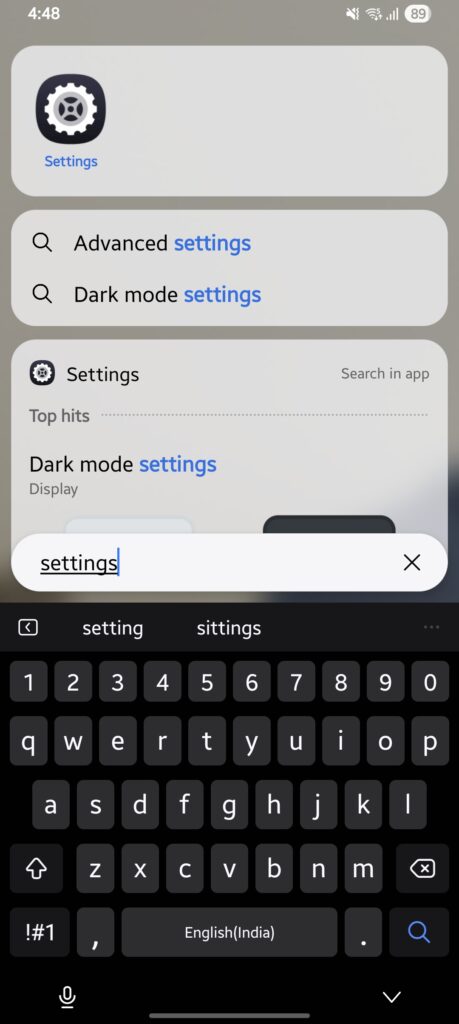
- Tap Battery
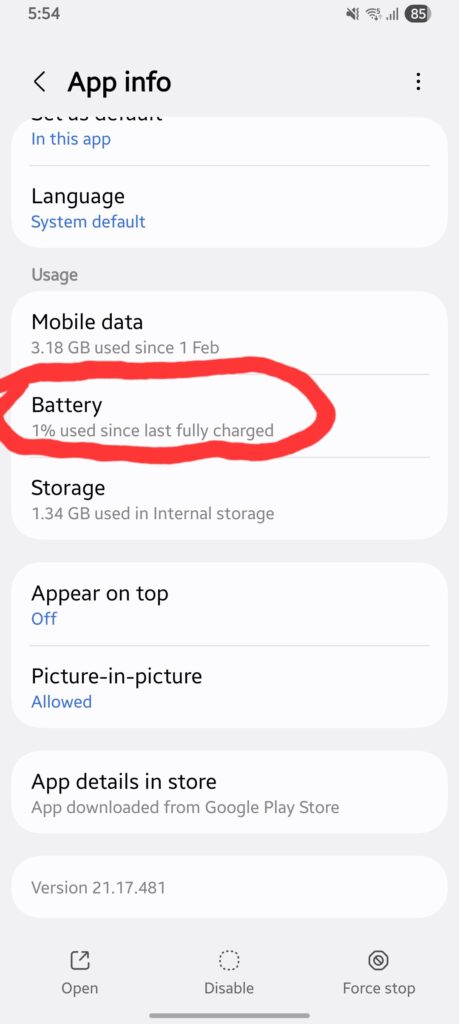
- Choose Background Usage Limits
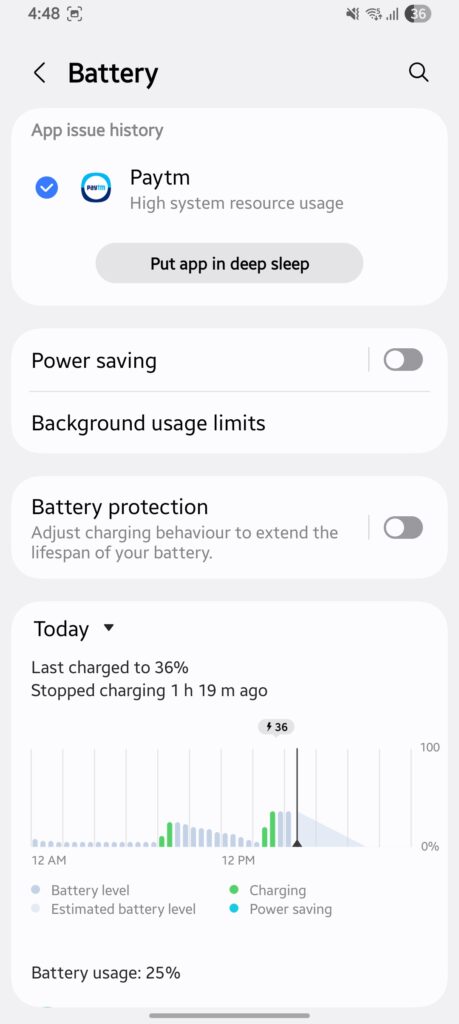
- Add the messenger to “Never auto sleeping apps”
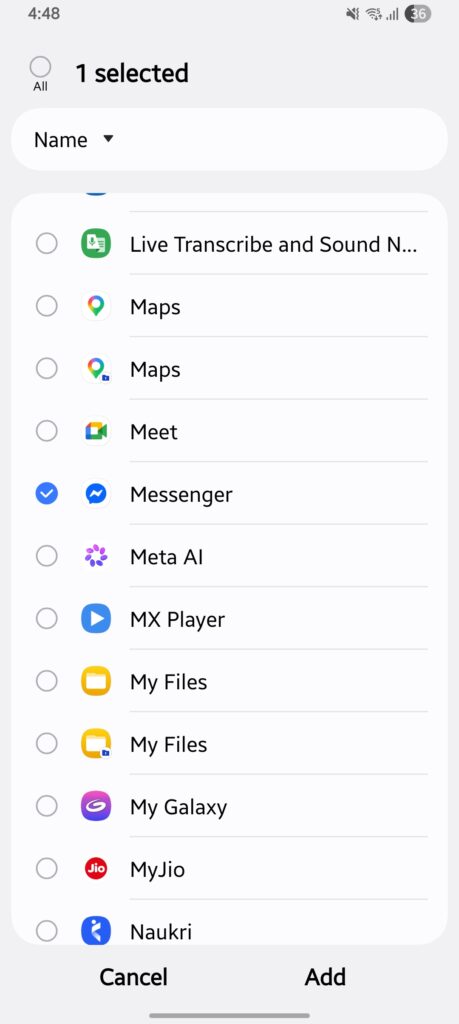
This prevents the OS from killing Messenger mid-session and causing erratic status behavior.
9. Wait for Meta Server Fixes
If the issue is widespread (check Downdetector or the Messenger subreddit), there may be nothing on your end to fix. Meta’s server-side glitches typically resolve within a few hours.
Messenger Active Status Wrong on iPhone
iPhone users face a unique set of causes. iOS aggressively manages background app behavior — especially under Low Power Mode and Focus/Do Not Disturb.
When Low Power Mode is on, iOS restricts background refresh, which can cause. Messenger to report stale presence data. And when a notification arrives, iOS briefly wakes the app, which can register as you being “active,” even if you never opened Messenger.
Quick Fix Checklist for iPhone
- Toggle active status off and on in Messenger
- Turn off active status in the Facebook app, too
- Go to Settings > Messenger > Background App Refresh > Off
- Update Messenger from the App Store
- Restart your iPhone to clear any stuck sessions
Messenger Active Status Wrong on Android
Android — especially on Chinese-manufactured devices — has some of the most aggressive battery optimization behavior in the mobile world. This directly causes erratic Messenger active status readings.
| Brand | What to Do |
| Samsung | Battery → Background Usage Limits → Sleeping Apps → remove Messenger |
| Xiaomi / Redmi | Settings → Apps → Messenger → Battery Saver → No Restrictions; also disable MIUI Optimization |
| OnePlus | Battery → Battery Optimization → Messenger → Don’t Optimize |
| Google Pixel | Usually fine; if issues persist, clear Messenger cache from App Settings |
How to Properly Hide Your Active Status
If you decide to hide your active status on Messenger, you need to disable active status on every Meta surface:
- Open Messenger > Profile > Active Status > turn OFF
- Open Facebook app > Menu > Settings > Active Status > turn OFF
- Log out of Messenger on any unused devices (Profile → Security → Log Out Other Devices)
- On desktop, turn it off at messenger.com AND facebook.com separately (on official website).
Privacy Best Practices
- Disable on both Messenger and Facebook — not just one
- Log out of old sessions on devices you no longer use
- Don’t mix settings (one app on, one off) — it creates unpredictable behavior
- After disabling, give it ~5 minutes before your status clears for others.
Frequently Asked Questions
1. Why does Messenger show me online when I’m asleep?
Your phone’s background refresh is keeping Messenger active. On Android, push notifications can wake the app periodically. On iPhone, Background App Refresh does the same. Turn off Background App Refresh for Messenger in iOS Settings, and check battery optimization settings on Android.
2. Does Messenger’s active status update instantly?
No. Active status can lag by anywhere from a few minutes to over an hour. Meta’s presence system is not built for real-time precision — it’s an approximation.
3. Does receiving a message make you appear active?
It can. When a message arrives, the notification wakes Messenger briefly, which can register as presence. You don’t have to open the app to appear active in some scenarios.
4. Can two people see different active statuses for the same person?
Yes. If someone has enabled selective visibility (hiding status from specific contacts), different people will see different things. Server sync delays can also cause two people to briefly see different presence indicators for the same user.
Read more Facebook Guides: