
If your Samsung Smart TV keeps buffering, freezing, or taking forever to open streaming apps, the problem may be hiding in the cache. This is one of those small TV issues that can feel big when you just want to watch something and the screen keeps loading.
The simple answer is that newer Samsung TVs let you clear the app cache from the menu. Older TVs are different, and sometimes the menu option is missing completely. That is why the fix can vary by Samsung TV model and software version.
Why this happens
Streaming apps save temporary files so they can open faster. These files are called cache. Over time, they can pile up and cause the app to slow down, freeze, or stop working properly.
Some users call it a buffering jam, others think the app is broken, but in many cases the real issue is just old temporary data sitting inside the TV. Samsung TVs run on the Tizen OS, not Android, so the cache menu is not the same across all models.
Real user cases
These real-world examples show why Samsung TV fixes are not always one-size-fits-all.
One Samsung Community thread about an older UN55MU8000 model shows that the Device Care option may be missing on some TVs. That is a good example of why older Samsung TVs often need a different fix than newer ones.
Another Samsung 7 Series support thread describes a TV with internal memory issues and failed app updates. In cases like that, clearing cache can help, but deleting heavy apps or using an external streaming device may be the better long-term fix.
A third Samsung Community buffering case shows a TV freezing and buffering so badly that the normal app steps were not enough. In that situation, a power reset or unplug reset can refresh temporary memory when the menu-based fix does not work.
The part that frustrates people
One of the biggest problems with Samsung TVs is that the official steps do not always match what people see on their screen. On newer TVs, the menu may be easy to find. On older or mid-range models, the Device CareDevice Care or Manage StorageManage Storage option may be missing.
That is where most people get stuck. They follow a step-by-step guide and then suddenly realize their TV does not even show the same buttons. If that has happened to you, you are not doing anything wrong. The model itself may simply handle storage in a different way.
Best fix for newer Samsung TVs
If your TV has the normal menu path, this is the first thing to try:
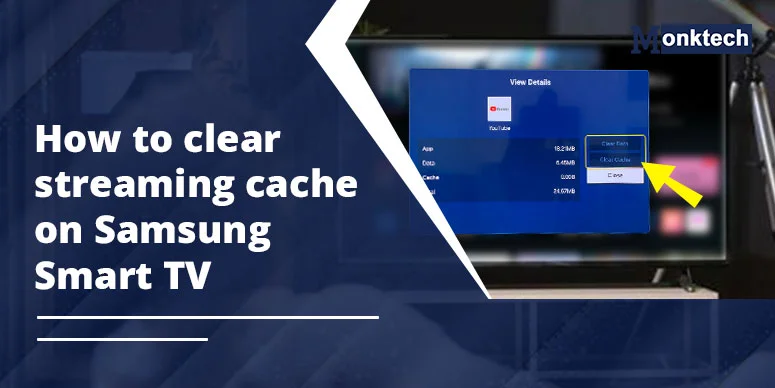
- Press the Home button on the remote.
- Open Settings, then go to All Settings.
- Select Support.
- Open Device Care.
- Choose Manage Storage.
- Select the app that is causing trouble.
- Open View Details.
- Tap Clear Cache.
If needed, you can also choose Clear Data, but only do that if clearing the cache alone does not help. Clear Data is stronger and may sign you out of the app.
What to do if the menu is missing
Some Samsung Smart TVs do not show the same options. This is common on older sets. If Device Care or Manage Storage is not there, do not waste time searching forever. Move to the next fix instead.
Many users find that a simple power reset works better than expected. It does not sound fancy, but it often helps when apps are frozen, the memory feels full, or the TV has become slow after long streaming sessions.
The 60-second unplug trick
This is the most common older-TV workaround:
- Turn off the TV.
- Unplug it from the wall socket.
- Wait at least 1 to 2 minutes.
- Plug it back in.
- Turn the TV on again.
This helps clear temporary memory and can refresh the TV when the app menu does not do the job. Many users say this is the first real fix that brings the TV back to life when streaming gets stuck.
The remote power button reset
There is another easy trick that often works on Samsung TVs. While the TV is on, press and hold the remote power button for about 5 to 20 seconds. Keep holding until the TV turns off and starts again with the Samsung logo or the startup screen.
This is a simple soft reset. It can help clear temporary glitches without going through a full factory reset. For many people, it feels like giving the TV a quick fresh start.
When storage is really full
If the TV keeps showing memory errors or apps refuse to update, the problem may be bigger than cache. At that point, deleting unused apps can help, but sometimes the better long-term fix is to move streaming to an external device like a Fire TV Stick, Roku, or Chromecast.
This works well because the TV no longer has to handle all the app load itself. The streaming device does the heavy work, and the TV just displays the picture. For older Samsung TVs, this can be the most practical solution.
What usually works best
From real-world user experience, the best order is simple:
- Try clearing the app cache first.
- If that fails, do the unplug trick.
- If the TV is still acting up, use the remote power reset.
- If the memory keeps filling up, delete heavy apps or use an external streaming stick.
This order saves time and avoids unnecessary changes. It also works well because it starts with the easiest fix and moves toward stronger solutions only when needed.
When to clear data instead of cache
Clear Cache removes temporary files. Clear Data goes deeper and can erase app settings, logins, and saved preferences. Use Clear Data only when the app still misbehaves after cache cleanup.
If your app keeps crashing, will not open, or keeps asking you to log in again and again, then Clear Data may be the next step. But for most people, cache cleanup is enough.
FAQs
Why is Device Care missing on my Samsung TV?
Some older Samsung TV models and software versions do not show the same menu options as newer TVs. If Device Care is missing, use the unplug reset or remote power reset instead.
Does clearing cache delete apps or sign me out?
No, clearing cache only removes temporary files. If you use Clear Data, it can remove app settings and sign-in details, so use that only if cache clearing does not solve the problem.
What if my Samsung TV still buffers after cache clearing?
If buffering continues, the issue may be related to low storage, a frozen app, or a temporary TV glitch. Try a power reset, remove unused apps, or use an external streaming device.
Should I use an external streaming stick on an older Samsung TV?
Yes, if the TV keeps slowing down, showing memory errors, or missing menu options, an external device like Fire TV Stick, Roku, or Chromecast can be a more stable long-term solution.
Related help
If you are using Netflix on the same TV and want to refresh the app setup, you may also need to sign out and sign back in. You can read this related guide here: How to sign out of Netflix on TV.
That can be useful when Netflix keeps loading old data or does not behave properly after a cache cleanup.
Why this guide is different
This article does not treat every Samsung TV like the same device. That is important, because real users often get stuck when standard instructions do not match their model. Some TVs show the full storage menu. Some do not. Some only respond after a power reset.
That is why this guide is written in a more practical way. It follows the official method first, then adds the real-world fixes people actually use when the menu path is missing or the TV needs a harder refresh.