If VUDU UHD 4K is not working on your 4K TV—skipping straight to HDX, hiding the 4K option, or stuttering while other apps like Netflix or Disney+ play fine—you’re not alone. This guide explains why VUDU falls back to HDX even on a 4K TV and walks you through a step-by-step fix list so VUDU UHD plays reliably again.
Quick visual walkthrough: see “VUDU UHD 4K playback troubleshooting on a 4K TV” on YouTube for a short demo.
What “VUDU UHD 4K Not Working” Actually Means
When users say “VUDU UHD 4K not working,” they usually mean one or more of these patterns:
- VUDU only shows HDX (1080p) even though the movie is labeled UHD.
- The 4K option is grayed out, missing, or disappears after a firmware update.
- The picture stutters, drops frames, or switches back to HDX during playback.
VUDU UHD requires three conditions simultaneously: a 4K-capable TV or device, an
HDCP-2.2-compatible HDMI path, and a stable enough internet connection to deliver the higher bitrate.
If any of these pieces breaks, the player silently falls back to HDX or refuses UHD entirely.
The fact that other apps play 4K fine is a strong sign the issue lies in
HDMI negotiation, VUDU settings, or network handling,
not in the TV’s panel or basic 4K capability.
What to Check First (Quick Diagnosis)
Before diving into cables and firmware, run this quick diagnosis checklist:
- Confirm your TV is actually playing 4K on other apps.Try Netflix, Disney+, or YouTube in 4K and verify the TV displays a 4K resolution badge or icon.
If those work, the panel is fine; the problem is app-specific. - Check that you’re on the correct HDMI port.Many 4K TVs have only 1–2 “true” 4K / HDMI-2.0 ports labeled HDMI 1 or
HDMI 2. If your streaming box or console is plugged into an older HDMI port,
UHD may not activate. - Inspect VUDU’s playback-quality setting.On many TVs and streaming boxes, there is a global “Video streaming quality” or
“Default playback quality” setting that can be locked to 1080p or HDX, which forces VUDU to ignore 4K.
Changing this is often enough to restore UHD. - Run a network speed test from the TV (if possible).Look for speeds above 25 Mbps under load, especially on Wi-Fi.
If only VUDU stutters, the issue is likely in HDCP or app settings, not raw bandwidth.
Common Causes of VUDU UHD 4K Not Working
Based on support threads, firmware changelogs, and user reports in 2025–2026, the most frequent causes cluster into five buckets:
Wrong HDMI port or cable
Many users run their Fire TV, Roku, or console through an AV receiver or HDMI switch that doesn’t fully pass HDCP‑2.2 or 4K bandwidth. In that case, SD and 1080p work fine, but VUDU UHD drops to HDX or refuses to play. Swapping HDMI ports or bypassing the receiver often restores 4K.
HDCP‑negotiation failure
VUDU’s UHD DRM depends on HDCP‑2.2 handshake between the streaming device, HDMI cable, and TV. If any link (especially an older cable or non‑4K HDMI port) fails negotiation, the player quietly limits output to HDX. This is why you may see “not playing in UHD” only on VUDU, even when other apps show 4K.
Playback‑quality setting locked to HDX or 1080p
Some TV and streaming‑box platforms let you fix the default quality to 1080p or HDX for “stability.” When that happens, VUDU honors the restriction and never offers 4K. Toggling between 4K → HDX → 4K is a well‑known workaround that resets the handshake and re‑enables UHD.
Network speed or Wi‑Fi congestion
Fandango at Home recommends a minimum of about 11 Mbps for 4K UHD, but in 2026 many users report smoother playback at 25 Mbps or higher. If your TV is on 2.4 GHz Wi‑Fi, or other devices are maxing out your link, VUDU may drop to HDX or stutter.
Outdated VUDU app or TV firmware
TV manufacturers and VUDU periodically patch HDCP, 4K, and HDR support. If your Sony, LG, Samsung, or Roku TV is running an older firmware build, UHD menus may vanish or playback may fail. Regular app‑store updates and TV‑firmware updates are often enough to restore 4K.
Device‑compatibility limits (not officially supported)
VUDU maintains a list of officially supported 4K devices. Some users own TVs or streaming boxes that are “4K panels” but still not fully supported for UHD playback. In those cases you can rent or buy UHD, but playback defaults to HDX or refuses to start.
How HDCP‑2.2 and HDMI ports affect VUDU 4K
VUDU UHD is protected by HDCP‑2.2 (High‑bandwidth Digital Content Protection), which must be supported by your TV, HDMI cable, and any AV receiver or HDMI switch in the chain. If any link fails the HDCP‑2.2 handshake, VUDU quietly drops to HDX or may refuse to play 4K at all.
Even if Netflix or Disney+ show 4K, they can fall back to different DRM or lower‑resolution streams, so seeing 4K on other apps while VUDU sticks to HDX is a strong sign that HDCP‑2.2 or HDMI negotiation is the real issue—not the TV’s panel.
Not every 4K TV can play VUDU UHD
Just because a TV is labeled “4K” doesn’t mean it can play VUDU UHD content. VUDU (Fandango at Home) maintains an official list of 4K‑compatible devices, including Apple TV 4K, Amazon Fire TV 4K, Roku 4K players, and specific smart‑TV models from Sony, LG, Samsung, and others. If your TV or box is not on that list, VUDU may fall back to HDX or SD even though the panel is 4K.
If you find your TV is not supported for UHD, consider using a 4K‑certified streaming box (Fire TV, Roku, Apple TV, NVIDIA Shield) instead of the built‑in app.
How to Fix VUDU UHD 4K Not Working on Your 4K TV
Use this numbered checklist as a structured workflow. Work through each step, then test VUDU again before moving to the next.
1. Confirm HDMI and HDCP are UHD-ready
- Move your source (Fire TV, Roku, console, or TV’s built-in app) to a clearly labeled 4K / HDMI-2.0 (or HDMI-2.1) port on the TV.
- If you use an AV receiver or HDMI switch, try connecting the source directly to the TV to rule out HDCP issues. If UHD suddenly works, the receiver or switch is the bottleneck.
Tip: Swap in a 4K-certified HDMI cable (look for “High Speed” or “Ultra High Speed” labels). Avoid old, bent, or dollar-store cables; even if they carry 1080p, they may not pass HDCP-2.2 cleanly.
Why this matters:
VUDU UHD relies on an HDCP-2.2 handshake between your TV, HDMI cable, and source device. A bad or older cable, or an HDMI port that doesn’t support 4K/HDCP-2.2, can carry 1080p but fail the 4K handshake, forcing VUDU to fall back to HDX.
2. Check VUDU playback-quality settings
- Open the VUDU / Fandango at Home app on your TV.
- Navigate to Settings → Video streaming quality (label varies by platform; sometimes “Playback settings” or “Default quality”).
- Ensure the option is set to Auto or 4K / UHD. If it’s fixed to 1080p or HDX, change it and restart VUDU.
Workaround: Try cycling: 4K → HDX → 4K. This forces a renegotiation and clears many latent handshake glitches.
Why this matters:
Many TV and streaming-box platforms let you lock the default video quality to 1080p or HDX. When that setting is active, VUDU honours it and never offers 4K, even if the movie is labeled UHD.
3. Switch to 5 GHz Wi-Fi or Ethernet
- If your TV or streaming box is on 2.4 GHz Wi-Fi, switch it to 5 GHz or, better yet, connect via Ethernet.
Tip: Use a built-in speed-test tool or run a streaming-based test (launch a 4K movie and watch for buffer icons). If only VUDU stutters, the issue is more likely HDMI/HDCP or app related than raw speed.
Why this matters:
VUDU UHD often needs steady 20–25 Mbps under load; 2.4 GHz Wi-Fi is more prone to interference and speed drops, which can trigger stutter or force a fall-back to HDX.
4. Update the VUDU app and TV firmware
- Open your TV’s app store or streaming-box store and check for updates to the VUDU / Fandango at Home app. Install any pending update and restart the app.
- Go to TV Settings → System → Software Update and install any available TV firmware.
Why this matters:
TV makers and Fandango at Home (VUDU) periodically patch HDMI, HDCP-2.2, and 4K playback logic. Outdated firmware or an old VUDU build can cause the 4K option to disappear or trigger playback errors.
5. Restart the app and the TV
- Force-close VUDU from the app switcher or TV’s “recent apps” menu.
- Power cycle the TV or streaming box (unplug for 20–30 seconds if possible).
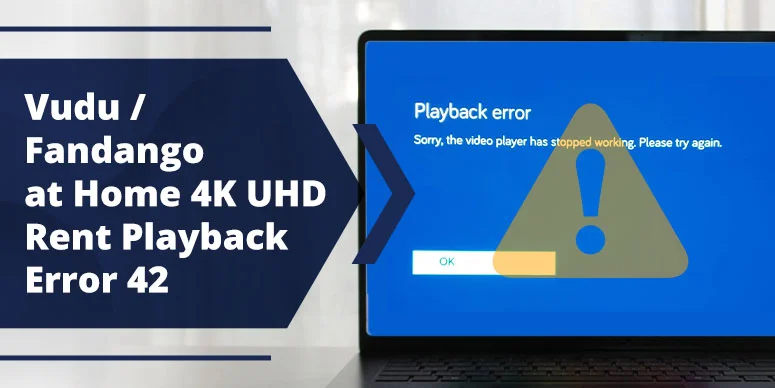
- Relaunch VUDU and try the same UHD title again; this often clears Playback Error 42 type glitches and resets HDCP state.
Why this matters:
A quick restart clears stale HDCP states, cached playback-error codes, and temporary app glitches that can block 4K even when the hardware and network are fine.
6. Try a different device if possible
- If you own a Fire TV Stick 4K, Roku 4K, Apple TV 4K, or NVIDIA Shield, install VUDU there and test the same UHD movie.
- If 4K works on that device but not on your TV, the issue is likely in the TV’s HDMI/HDCP path, app version, or firmware.
Why this matters:
If the same UHD title plays in 4K on another device but not on your TV’s built-in app, the problem is in the TV’s HDMI path, app layer, or firmware—not the movie or your account.
7. Verify you’re on VUDU’s 4K-compatible device list
- Check VUDU’s official 4K-compatible devices list to confirm your TV or streaming box is supported.
- Some 4K-only purchases will still fall back to HDX if the device isn’t on the list.
Why this matters:
VUDU maintains a curated list of 4K-compatible devices; if your TV or box is not on that list, playback may be limited to HDX or SD even though the panel is 4K.
Symptom vs Likely Fix (Zero‑Click Table)
If you want the fastest diagnosis, match what you see on‑screen to this table.
| Symptom | Likely cause | What to do |
|---|---|---|
| VUDU only shows HDX on 4K TV | Playback‑quality setting locked to HDX or 1080p, or HDMI/HDCP handshake broken. | Set VUDU to 4K/UHD quality; try cycling 4K → HDX → 4K. If still HDX, swap HDMI cable and port. |
| 4K option is grayed out or missing | Outdated VUDU app or TV firmware; TV not on official 4K‑device list. | Update VUDU app and TV firmware, then check VUDU’s 4K‑compatible devices list. |
| UHD plays but stutters or drops | Network speed or Wi‑Fi congestion under load. | Switch to 5 GHz Wi‑Fi or Ethernet; run a speed test while streaming to confirm 25+ Mbps. |
| UHD works on other apps but not VUDU | HDCP / HDMI or VUDU app‑layer bug specific to Fandango at Home. | Replace HDMI cable, change HDMI port, update VUDU, and restart TV or streaming box. |
| Dark / black screen during UHD playback | HDMI/HDCP handshake failure or app‑rendering bug. | Change HDMI port, update TV and VUDU apps, and temporarily drop to HDX if needed. |
| Only 1080p / HDX visible on Fire TV 4K Max | VUDU’s 4K option may be disabled or not activated on that device. | Check VUDU video‑quality setting; if still HDX‑only, contact VUDU support. |
FAQ – “VUDU UHD 4K Not Working on Your 4K TV”
These short Q&A blocks are designed to resonate with “People Also Ask” and Google snippets.
Why is VUDU 4K not working on my 4K TV?
VUDU 4K on a 4K TV usually fails because of HDCP‑2.2 / HDMI negotiation issues, incorrect playback‑quality settings in VUDU, or Wi‑Fi congestion that forces the app to back down to HDX. Cycling from 4K → HDX → 4K and checking network speed often fixes it.
Does VUDU need a 4K HDMI cable?
Yes, VUDU requires a 4K‑compatible HDMI cable that supports HDCP‑2.2 and 4K bandwidth. A cheap or older HDMI cable may carry 1080p just fine, but it can fail the HDCP handshake needed for UHD, causing playback to drop to HDX or stay grayed out.
Why does VUDU only play HDX on 4K TV?
VUDU may only play HDX on a 4K TV because the playback‑quality setting is locked to HDX or 1080p, your TV is not on VUDU’s official 4K‑device list, or there’s an HDCP / HDMI negotiation issue. Cycling modes, updating firmware, or switching HDMI cables often restores 4K.
Will updating my TV fix VUDU UHD not working?
Often yes. TV manufacturers and VUDU regularly patch HDCP‑2.2, 4K playback, and HDR support. Installing the latest TV firmware and updating the VUDU app can suddenly restore the 4K option or clear playback‑error‑style glitches. If 4K still doesn’t work, then check HDMI and network next.
How much speed do I need for VUDU 4K UHD?
VUDU recommends at least about 11 Mbps for 4K UHD, but in practice many users in 2025–2026 report smoother 4K playback around 25 Mbps or higher, especially on Wi‑Fi with other devices active. If only VUDU stutters, try Ethernet or 5 GHz Wi‑Fi to eliminate network jitter.
Has VUDU removed 4K support on 2024–2026‑year TVs?
No, VUDU has not removed 4K support on 2024–2026 TVs. However, VUDU maintains a curated list of 4K‑compatible devices, and not every “4K‑ready” TV or box is included. If your newer TV is not on the list, you may be limited to HDX even though the panel is 4K.
Can I watch VUDU UHD movies on a non‑4K TV at all?
Yes, but only in HDX (1080p) or lower. VUDU UHD‑only movies won’t play at 4K on a non‑4K TV, but they usually fall back to HDX or SD if your device otherwise supports the title. If you’re having problems on a 4K TV, the issue is almost never the TV’s resolution alone, but rather HDCP, HDMI, or settings.
When to contact VUDU support
If you’ve tried all of the steps above—confirmed HDCP‑ready HDMI, updated the app and TV, tested on another device, and checked that your TV is on the 4K‑compatible list—and VUDU UHD still won’t play, it may be an account‑ or title‑specific issue. In that case, contact VUDU / Fandango at Home support and share your TV model, streaming device, and the exact error or behavior you see.