If you see Disney+ Error Code 83 on your iPhone or iPad in the USA, it usually means a device, network, or login issue—not your account. In 2026–2027, this error still pops up for users on iOS 15–17 and supported iPhone/iPad models, especially when using VPNs, outdated apps, or unstable Wi‑Fi.
This guide explains what Error Code 83 actually means, why it happens on modern iPhones and iPads, and walks you through a complete, step‑by‑step fix list you can use today. By the end, you’ll know exactly how to prevent it in the future and keep your Disney+ streams smooth on any Apple device.
Quick Check Before Troubleshooting
Is Disney+ down? Check Downdetector or Disney+ status page. Server outages can mimic Error 83.
Verify account: Log in via web browser on another device. If blocked, it’s account-side, not device.
What Does Disney+ Error Code 83 Mean?
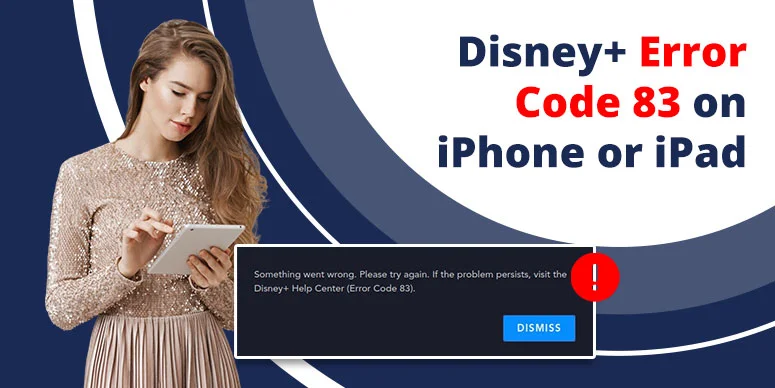
When Disney+ displays “Error Code 83: Something went wrong. Please try again”, it signals that the service has detected either:
- An incompatible or unsupported device,
- An outdated operating system or app,
- A network, VPN, or login problem.
Sources like Disney+’s own help page and third‑party streaming guides (KeepStreams, Reviews.org) describe Error Code 83 as a device‑compatibility or network‑verification error, not a permanent account ban.
For most iPhone and iPad users, the error is temporary and disappears after a quick device or app reset. If you’ve seen this on newer devices like iPhone 14/15 or iPad Air (2023–2025 edition), the cause is almost always one of the fixes we outline below.
Why You’re Seeing Disney+ Error 83 on iPhone or iPad in 2026
Under the 2026–2027 streaming landscape, Disney+ still aggressively checks device compatibility and network behavior before allowing playback. Common triggers on iPhone and iPad include:
- Out‑of‑date iOS (older than Apple’s current supported versions).
- Out‑of‑date Disney+ app from the App Store.
- Using a VPN, proxy, or public Wi‑Fi (hotels, schools, Wi‑Fi networks that appear “suspicious”).
- Corrupted app cache or login tokens after having the app open for long periods.
Community reports from r/DisneyPlus and KeepStreams show that Error Code 83 often clears after a device restart or switching to a different network.
6-Step Fix for Disney+ Error Code 83 on iPhone & iPad (iOS 15–17)
Works for both; do in order. Each targets a verified cause.
Step 1: Update iOS/iPadOS
Why: Old OS fails DRM/compatibility checks.
Settings → General → Software Update → Install → Restart device.
Step 2: Update Disney+ App
Why: Outdated app mismatches server login/DRM.
App Store → Search Disney+ → Update → Relaunch.
Step 3: Disable VPN/Proxy
Why: Disney+ blocks VPNs for geo-enforcement.
Settings → VPN → Off. Test home Wi-Fi (no public).
Step 4: Restart App & Device
Why: Clears corrupted cache/login tokens.
App switcher → Close Disney+. Side/Top + Volume → Restart → Relaunch.
Step 5: Switch Networks
Why: Unstable Wi-Fi fails bandwidth verification.
Wi-Fi off → 5G/hotspot. Compare Wi-Fi vs cellular.
Step 6: Reinstall App
Why: Resets full app state/DRM.
Hold icon → Delete → Reinstall App Store → Login.
iPhone vs iPad Notes
- iPhone: Restart Side + Vol Up/Down; VPN under main Settings.
- iPad: Restart Top + Vol; VPN Settings → General → VPN.
When to Contact Disney+ Support About Error Code 83
If you’ve:
- Updated iOS/iPadOS,
- Updated the Disney+ app,
- Turned off VPN,
- Tried a different network, and
- Reinstalled the app,
and you’re still getting Error Code 83, it may be an account‑wide or region‑specific issue. In that case, contact Disney+ Support through the app’s “Help” section or their website to confirm that your account is in good standing. [web:111][web:211]
Frequently Asked Questions – Disney+ Error Code 83 on iPhone and iPad
What causes Disney+ Error Code 83 on my iPhone?
Error Code 83 is usually caused by an outdated iOS version, an outdated Disney+ app, using a VPN, or being on an unstable network. It is not a permanent account ban.
How to fix Disney+ Error Code 83 on iPad?
On iPad, update iPadOS and the Disney+ app, turn off VPN, restart the app and device, and try a different network. If the error persists, delete and reinstall Disney+ from the App Store.
Does Disney+ Error Code 83 mean my account is blocked?
No. Error Code 83 indicates Disney+ thinks there may be a device, network, or login issue, not that your account has been banned or flagged for long‑term restrictions.
Will Error Code 83 go away after restarting my iPhone or iPad?
Often yes. Restarting your device and the Disney+ app can clear temporary glitches and outdated login tokens, which are common causes of Error Code 83.
Does Disney+ Error Code 83 require a VPN to disappear?
No. In fact, VPNs often cause Error Code 83. Turn your VPN off and use a direct, trusted network instead.
Is Error Code 83 related to Disney+ regional restrictions?
Sometimes. If you’re accessing Disney+ from a country where the service is limited, or through a VPN that Disney+ detects as suspicious, you may see compatibility‑type errors. The best practice is to use a local, supported account and network.
How to Prevent Disney+ Error Code 83 in the Future
To avoid Error Code 83 on your iPhone or iPad going forward:
- Keep your iOS/iPadOS up to date from Settings → General → Software Update.
- Allow automatic app updates for Disney+ in the App Store.
- Limit VPN use when streaming Disney+; use it only when absolutely necessary.
- Regularly restart your devices and apps after major updates.
In the 2026–2027 streaming environment, where Disney+ continues to refine its device‑verification logic, staying on the latest supported versions is the single best way to avoid “Something went wrong” errors.
Pro Tip: Enable auto-updates in App Store → Profile → App Updates for zero-downtime fixes.
YouTube Video: How to Fix Disney+ Error Code 83 (2026)
For a visual walkthrough of Error Code 83 fixes, check out this 2026‑style tutorial:
The video walks through multiple solutions, including restarting your device, updating apps, switching networks, and disabling VPN—same principles that we’ve outlined in this written guide.