On Android, YouTube may stop working, and a lot of users wonder what the reason is. If you are the one facing YouTube not working on Android, this post is for you specifically. You will get easy ways to fix the error through this post.
When YouTube stops playing, one of these errors comes your way:
- An error occurred. Please try again later.
- Something went wrong.
- We are experiencing problems with our servers. Please try again later.
- This video requires payment.
Basically, multiple reasons can trigger this issue. You need to figure out what affected you; you can do so using this guide.
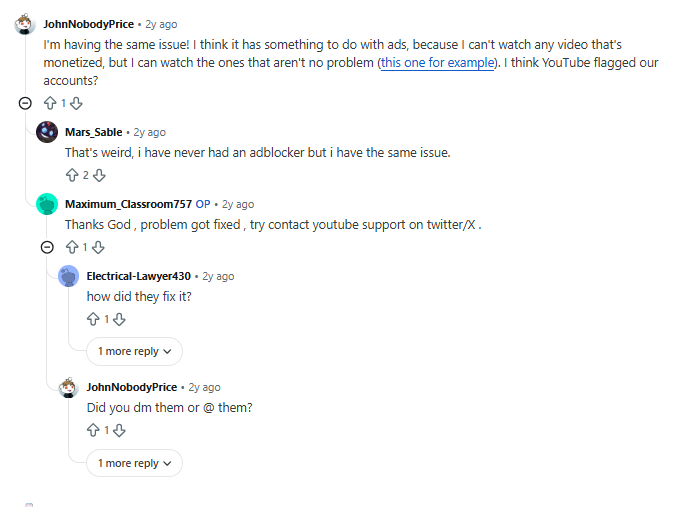
When I researched this query, a lot of users’ points of view came to my notice. One said that the ad blocker is the real cause behind the error.
Let’s get straight to the fixes and the reasons afterwards.
Quick Fixes For YouTube Playback Error On Android
1. Change the internet connection:
The poor connection is always problematic for YouTube’s functioning. Thus, replacing it with another one is recommended. Basically, you can change your network from Wi-Fi to Mobile data and vice versa. This takes a few seconds. Reload the app after you replace the internet.
2. Clear YouTube’s Cache:
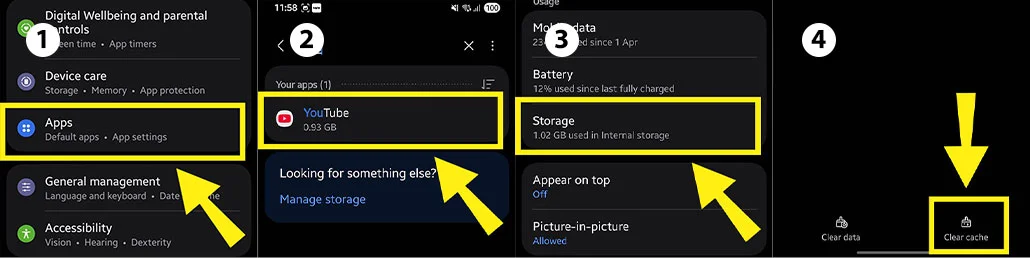
Focus on clearing the caches from the YouTube app. These might be holding you back. Clearing caches will reset your app’s activity and make it fresh to load again. The simple step is: Open device settings > select ‘Apps’ > choose ‘YouTube’ and click ‘Storage’ and ‘Clear Caches.’
3. Reload the page:
Simply reloading or refreshing the page may sometimes fix the glitch and regain functionality of your YouTube video. Simply press the back button on your Android and play the video again. You can also use the reload icon on your desktop and replay the video.
Use shortcuts: F5 or Ctrl + R
4. Update YouTube and Browser
In case your YouTube is outdated or the browser is running on an older version, it may trigger the playback error. So, in this case, open your device’s app store (Google Play Store) or App Store and search for YouTube. Press the ‘Update’ option.
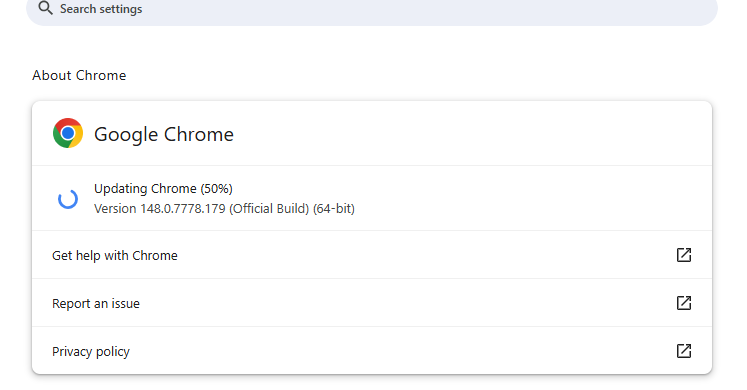
For the browser, you can visit the settings of your browser (let’s say Chrome) and scroll down to the About Chrome option. As you click it, your browser starts updating automatically. As the image shows you:
5. Disable Adblocker:
When you use an ad blocker, it affects YouTube’s functionality. That means you may notice constant lagging or glitches. The best is to turn off the ad blocker. Simply toggle off.
6. Adjust video quality:
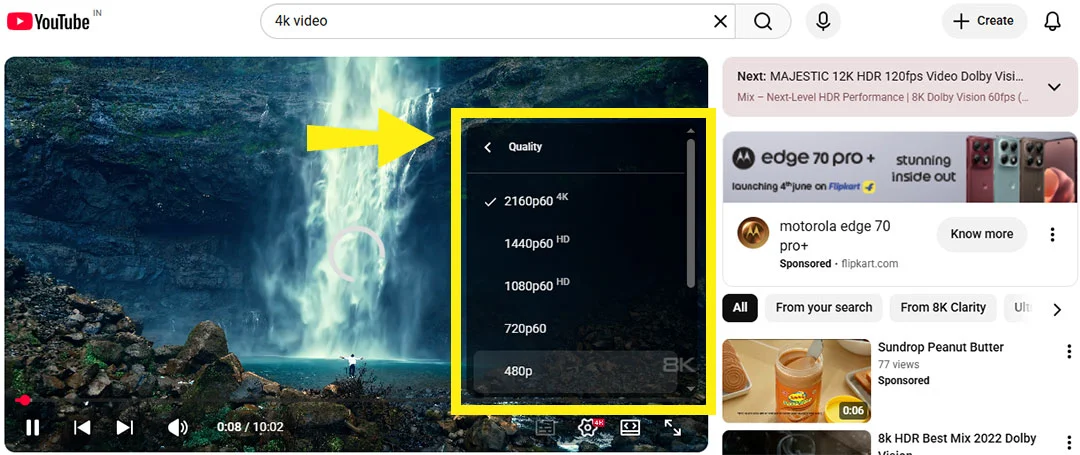
Your YouTube video quality may be the culprit that’s causing a playback error. Ensure you lower the video quality by selecting the gear or settings icon displayed on the YouTube video. And adjust (reduce) the quality accordingly.
Check if the account is hacked
Your YouTube account. might have been compromised, which is why you often see the lag while using it. Know how to recover it.
Contact YouTube Support:
In case nothing seems to be working to fix the YouTube playback glitch, finding help from the officials is the ideal practice. You can take direct help from YouTube and resolve the issue. Or better, send feedback to YouTube about what you’re facing.
Real Reasons for YouTube Playback Issues
Corrupted or jacked caches:
Your video is affected because your app’s corrupted caches and cookies caused it.
Slow internet:
Your device is connected to a slower internet connection, causing video to load longer than usual.
Outdated app or device:
The app you are using is outdated. An outdated app can flag the video functionality because it’s not the capability to handle the video at the handle. That’s why you face the error.
Adblocker hinders:
Enabling an ad blocker will affect normal video playing on YouTube. This happens because it affects video playing by restricting ads on the video. The problem can last longer until you turn off the ad blocker from your browser.
Frequently Asked Questions:
How to fix YouTube error on Android?
The simple idea to get YouTube back on your Android is to reload the YouTube app while you’re playing the video, update the app, check the internet connection, disable ad blockers or remove any kind of third-party restrictions from the video.
Why is YouTube TV giving me a playback error?
YouTube TV keeps flashing the playback error because it senses the scarcity of a proper internet connection, device updates on time, and the need to clear the app.
How do I clear my YouTube cache?
If you run YouTube on your mobile, simply clear the caches like this: Visit Settings > Apps > YouTube > Storage > Clear Caches.
Why does YouTube keep stopping playback?
YouTube needs a smooth path to run videos. If it notices a connection hurdle, corrupted caches’ interruptions, or external restrictions like an ad blocker, it will surely flag the video playing.
Final Remark
YouTube runs smoothly on its supported devices until something causes the error. It may be that your device is outdated. YouTube app’s corrupt caches. Adblocker restrictions. A normal playback glitch or the device’s failure to run YouTube. Luckily, you can fix all of this just by focusing on the right kind of steps, which you will discover in this post.