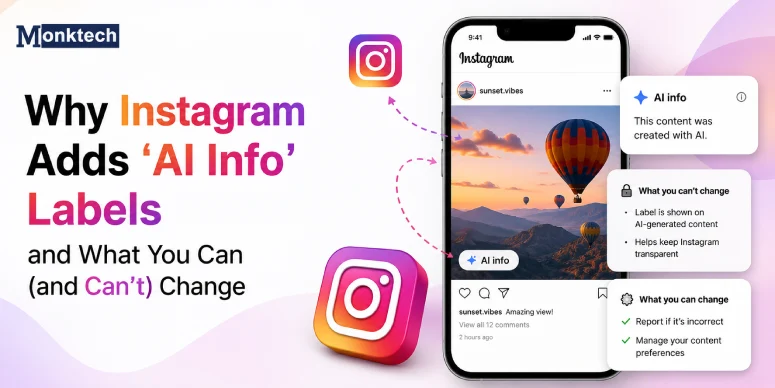
Being a creator for over a decade on Instagram, I usually edit my photos or videos from various third-party tools, such as Canva, Photoshop, or even Lightroom. I don’t get any “AI Info” or “Made with AI” labels on any of my posts. However, while researching for you, I found that many users have the same question: after posting content, why does Instagram automatically add “AI Info” labels without the option being enabled?
So, let’s see what most users have said about that and understand the prime reason behind it.
Why Meta Thinks Your Camera Shot is “Fake”
While doing deep research for this article, I found that Tracy Lee clearly explained what the main components are that Meta AI algorithms look for.
So let me tell you those key factors in a very short, descriptive manner.
- Unnatural patterns: AI-driven images may showcase the following unusual patterns. These can be:
- Unnatural structures or shapes.
- Extremely constant colors or textures.
- Compression images: The AI algorithm may release compression-like artifacts, like:
- Pixelated or blocky regions.
- Halos or ringing around borders.
- Physical inconsistencies: AI-powered images of bodies or faces that may display the following:
- Unnatural portions of the body.
- Inconsistent facial expressions.
- Unnatural audio patterns: If the sound follows the same patterns or there are some unnatural spectral characteristics.
- Lip Sync Issues: If there are lip sync errors within the video or unnatural mouth movements.
So, if you are doing any of them, Meta AI’s algorithm will automatically think that your uploaded content is totally fake. Moreover, it will label the post as ‘Made with AI.’
Why Does Simple Object Removal Break the Scanner?
If you are utilizing any third-party tools, such as Lightroom or Photoshop, to erase straight hair, remove a pimple, or even clean sensor dust from your lenses, AI will assume your photo is AI-powered.
According to one user in the Facebook community, if you are trying to remove any specific thing within your Instagram post through Photoshop, Instagram will automatically detect AI in its metadata.
Plus, there is one common reason behind this:
During the research, I figured out that users are missing out on the brands’ partnerships because companies assume that their work is fully AI-generated.
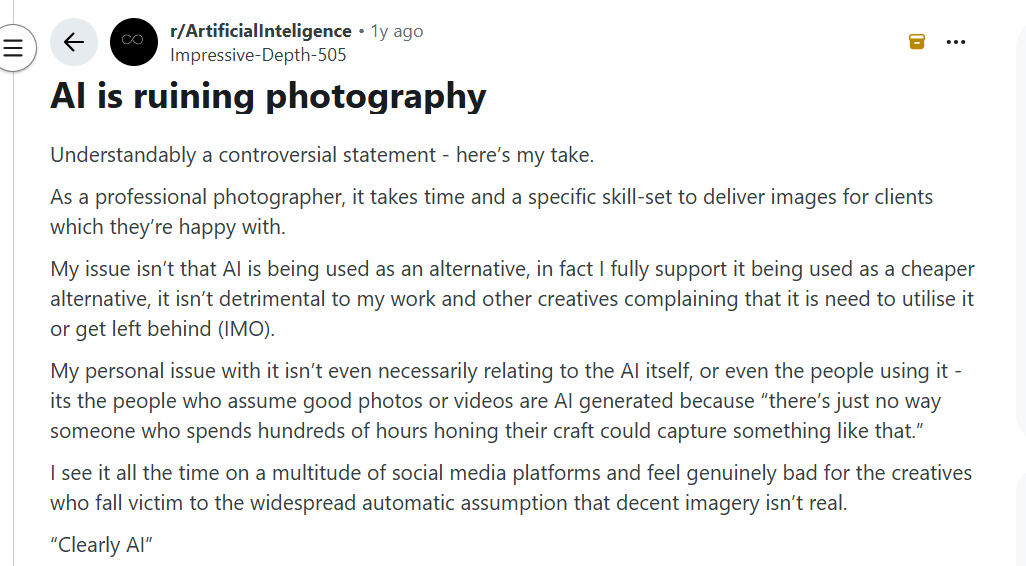
If I talk about my point of view, Meta follows a very strict AI-labeling system because it recognizes normal day-to-day life edits. In addition, it includes even if you are trying to remove a single piece from your content.
How to Fix Your Images Without Triggering Instagram’s Automated AI Tag?
As per my experience, I have discovered some effective troubleshooting solutions for you that can help you to bypass Instagram’s automated AI tag.
Solution 1: Take a Screenshot (Most Recommended)
So, first let me walk you through the easiest approach that doesn’t take your enough time. Plus, there is a high chance that this method will surely work for you. If it doesn’t, don’t worry! I will also cover some other techniques.
- Open your AI-generated image on your device.
- Capture the screenshot of the particular picture.
- Crop it so it can miss unwanted edges.
- Then, try to post the screenshot to your Instagram account that you have edited now.
Solution 2: Utilize Third-Party Metadata Removers
If by any chance the above method is not working for you, you can try to go with the third-party tools that will help you to erase metadata.
- Visit Pics.io Metadata Remover.
- Upload your image or video.
- Download the resultant file to your device.
- Now, you can upload the content to your IG profile.
Check whether it is still showing you the same problem or not. If yes, you can also try another method.
Solution 3: Turn Off Export Settings If You Are Using Photoshop
Sometimes, users use a third-party tool to enhance the image quality. So, in that scenario, you should disable the export settings within your Export Settings in Adobe.
- Access Photoshop.
- Go to Preferences and then Technology Previews.
- Make sure to remove the tick mark from Content Credentials.
- Otherwise, you can disconnect your device from the computer before exporting the final output to bypass AI metadata.
(Note: Automated tags can occasionally glitch completely; if you find that Instagram labeled your friends as AI instead of your images, it requires a different account-side fix.)
When Does Instagram Actually Let You Turn It Off?
While searching for this query, I discovered one YouTube video that clearly explains how you can actually disable this Add AI Label option. But there are some limitations that you need to keep in your mind.
- You are only allowed to remove AI Info from your existing posts, not from your drafts.
Note! For that, your post must have the Add AI Label option. After that, you can only remove it.
- If you are mislabeling your post as wholly AI-generated, Instagram’s algorithm will assume you are violating its platform guidelines. Plus, there is a high possibility that Instagram will permanently or temporarily suspend your account.
So, now understand that I have provided you with details on how to turn it off.
- Open your Instagram profile.
- Choose the image that is labeled as AI Info.
- Tap on the three vertical dots.
- Tap on Edit.
- Now, go to AI Info that is located at the top.
- Here, you will get three options:
- Add location
- AI Info.
- Add music.
- Choose the AI Info option.
- If it is enabled, you need to turn it off.
- Tap on Done to see whether the AI Info label is removed.
Does “AI Info” Label Reduce Your Organic Reach?
No! If you are using the AI info label in your Instagram post, it will not harm your organic reach. Moreover, according to Instagram’s Creators page, it clearly states that by mentioning this label, it shows transparency. Plus, it doesn’t impact how the Instagram algorithm actually distributes the content.
However, it indirectly reflects the numbers in the following ways:
- As per Natasha Adefala, 56% of users don’t like to view AI-generated content. So, if they skip your post, the Instagram algorithm will automatically lower the engagement. As a result, your post will be visible to a limited number of people.
- AI casually decreases your content’s originality, and your AI-generated content does the same thing.
Quick Pre-Post Checklist
Take a look at the following pre-post checklist so that you can play it safe on the side.
- Consider uploading the original content, and be sure to verify that it does not contain any AI-assisted filters that can trigger this type of label.
- If you are posting content that seems to be AI-generated, you can simply manually turn on the Add AI Label option. As a result, it shows transparency.
FAQs
Why does Instagram add AI Info to edited photos?
Because Meta may detect AI-related signals in the file or metadata, even if the image does not look obviously AI-generated.
Can I turn off AI Info on every post?
No. The option is not guaranteed on every post, and the available controls can vary.