Usually, users complain that their YouTube is interrupted due to the lack of internet or something, but sometimes users’ queries are like: why is my YouTube buffering with fast internet on my phone? This query is genuinely asked by users across the forums and YouTube video comments, and I have discovered the solution for it. So, keep reading!
Why Is My Youtube Buffering With Fast Internet On My Phone
Wireless Issue:
If your device is connected to Wi-Fi, it may be slow and cause the issue. On the other hand, maybe your router is kept far away from your device, which causes a poor signal.
Router or modem problems:
Your router or firmware may be outdated or overheating, which may cause malfunctions.
Low Device Performance:
Your device may be experiencing an issue due to corrupted caches, insufficient memory, or other reasons.
DNS or routing problems:
Your DNS resolution may be inconsistent, and suboptimal routing may increase loads. If that happens, it may disrupt the functionality of YouTube.
How to Fix YouTube Buffering on Your Phone Even With Fast Internet
It’s time to understand how to fix the buffering issue. Many users assume that a fast internet connection automatically guarantees smooth YouTube streaming. However, internet speed is only one part of the equation. Your device, app settings, network quality, and even YouTube’s servers can affect playback performance.
Below are some practical solutions to eliminate buffering problems on your YouTube App.
1. Check Your Actual Internet Speed
Many people believe they have fast internet simply because they are subscribed to a high-speed plan. However, the actual speed reaching your phone may be much lower.
Use a reliable speed-testing application or website to check your download and upload speeds. For smooth YouTube streaming, you generally need:
- 5 Mbps for HD videos
- 20 Mbps or higher for 4K videos
- Stable latency and low packet loss
Even if the speed appears high, unstable fluctuations can still cause buffering. Therefore, test your connection multiple times throughout the day.
2. Move Closer to Your Wi-Fi Router
One of the most overlooked causes of YouTube buffering is poor Wi-Fi signal strength.
Walls, furniture, electronic devices, and long distances between your phone and router can weaken the signal. As a result, your phone may struggle to maintain a stable connection despite having access to a fast internet plan.
Try these steps:
- Move closer to the router.
- Avoid thick walls between the router and your device.
- Place the router in a central location.
- Keep the router elevated rather than on the floor.
If buffering disappears when you are near the router, the issue is likely related to signal quality rather than internet speed.
If you use Xfinity Wi-Fi and face issues, read the blog.
3. Restart Your Phone
Sometimes the simplest solution works best.
Your phone continuously runs background processes, applications, and services that consume memory and processing resources. Over time, these processes can affect the performance of apps such as YouTube.
Restarting your phone can:
- Clear temporary glitches
- Refresh network connections
- Free up RAM
- Improve app performance
After restarting, open YouTube again and check whether videos load normally.
4. Clear YouTube App Cache
Corrupted or excessive cache files can interfere with the proper functioning of the YouTube app.
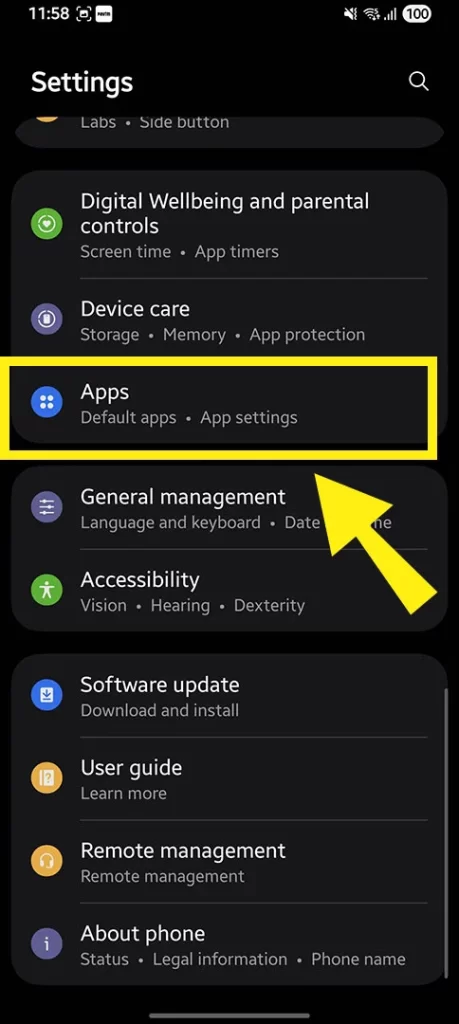
To clear the cache on Android:
- Open Settings and click Apps.
- Select YouTube.
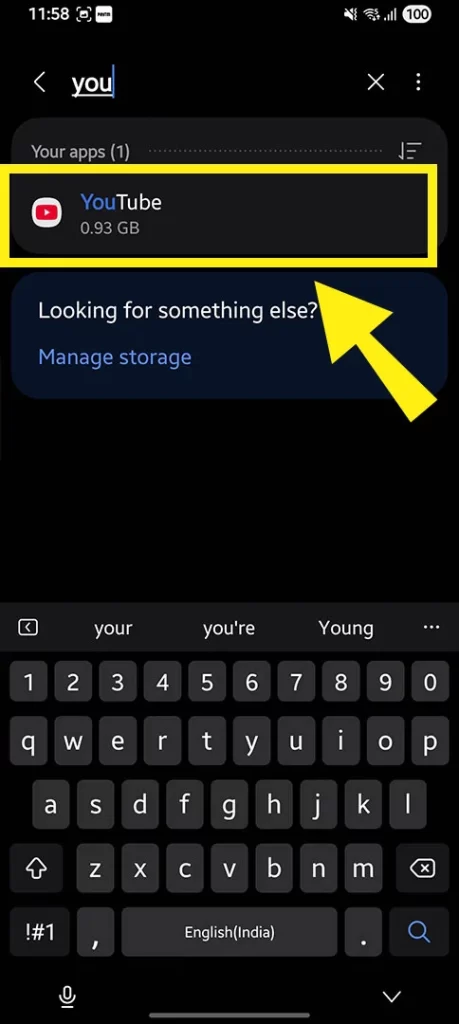
- Tap Storage.
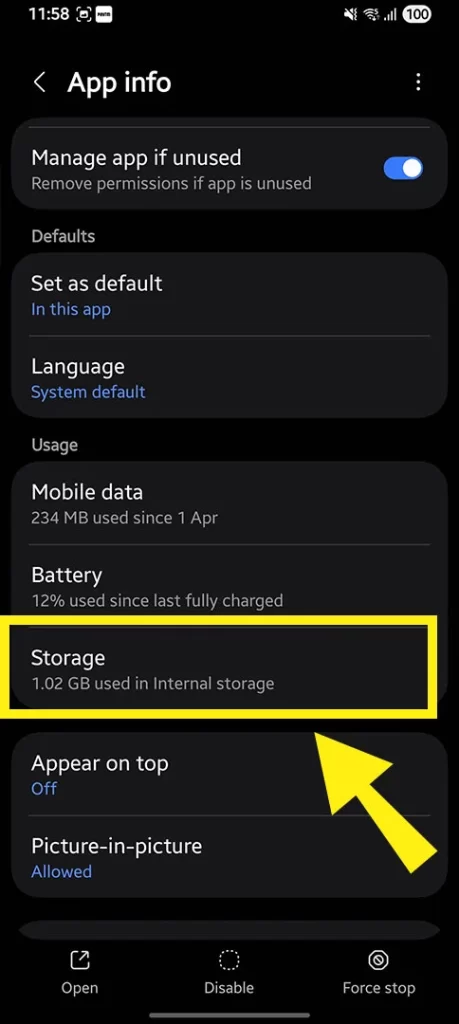
- Choose Clear Cache.
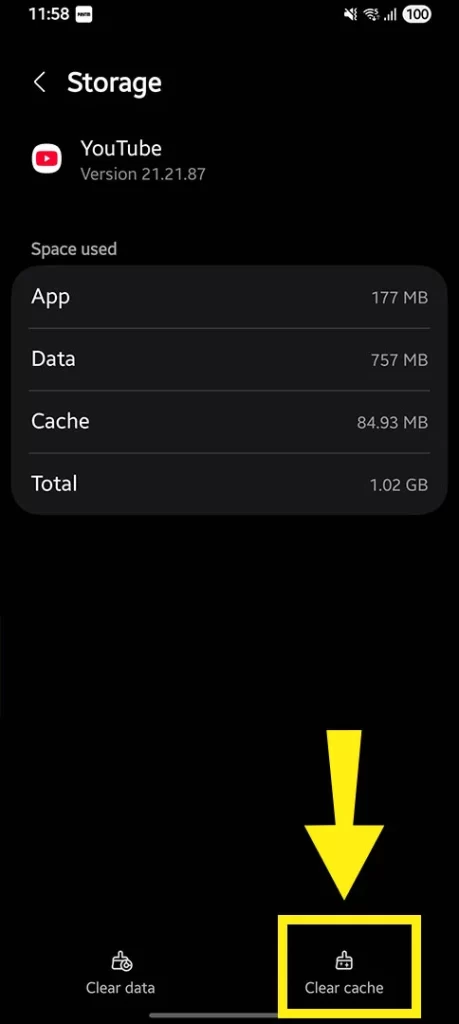
For iPhone users, clearing the cache may require reinstalling the app since iOS manages app data differently.
Once the cache is removed, launch YouTube again and test video playback.
5. Update the YouTube Application
Running an outdated version of YouTube may create compatibility issues, bugs, and streaming problems.
Developers regularly release updates to:
- Improve performance
- Fix playback issues
- Enhance stability
- Resolve security concerns
Visit the Google Play Store or Apple App Store and check if an update is available. Installing the latest version often solves unexplained buffering issues.
6. Disable VPN Services
VPN applications can sometimes slow down your connection to YouTube.
Although your internet speed may remain high, routing traffic through distant servers can increase latency and create delays in video streaming.
If you are using a VPN:
- Temporarily disconnect it.
- Restart YouTube.
- Test a few videos.
If buffering stops, the VPN is likely contributing to the problem.
7. Reduce Video Quality Temporarily
YouTube automatically adjusts video quality based on your network conditions. However, the automatic setting is not always perfect.
If you are experiencing buffering:
- Open the video.
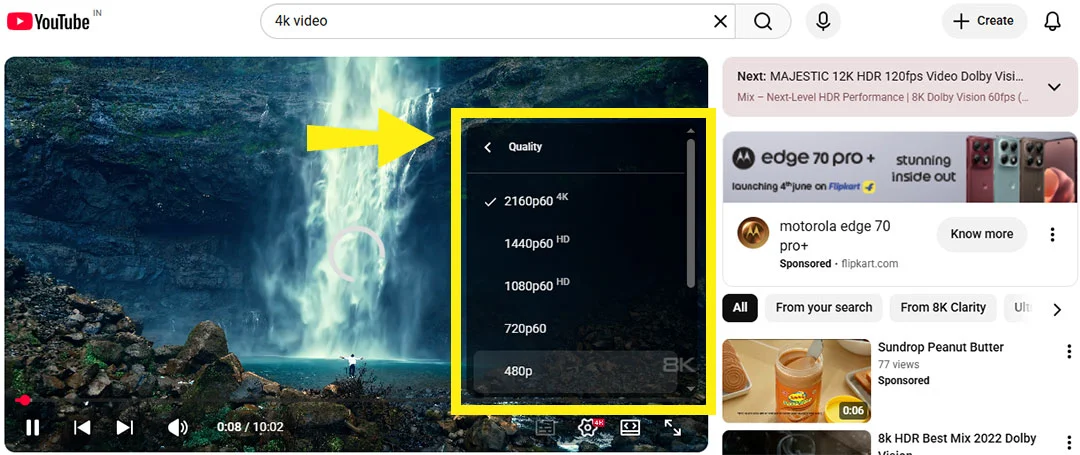
- Tap the settings icon.
- Select Quality.
- Choose a lower resolution.
Switching from 1080p to 720p or 480p often reduces buffering significantly, especially on unstable networks.
8. Close Background Applications
Many apps continue using internet bandwidth even when you are not actively using them.
Examples include:
- Cloud storage apps
- Social media platforms
- Automatic backups
- Streaming services
- Large downloads
When multiple applications compete for bandwidth, YouTube may not receive enough resources for uninterrupted playback.
Close unnecessary apps and test YouTube again.
9. Disable Data Saver Mode
Many smartphones include data-saving features designed to reduce internet usage.
While helpful in certain situations, these settings may limit background activity and streaming performance.
Check whether Data Saver or Low Data Mode is enabled:
For Android:
- Settings
- Network & Internet
- Data Saver
For iPhone:
- Settings
- Cellular
- Low Data Mode
Turn these features off temporarily and see if buffering improves.
10. Switch Between Wi-Fi and Mobile Data
Sometimes the issue is specific to one network.
If YouTube buffers while connected to Wi-Fi:
- Disconnect Wi-Fi.
- Switch to mobile data.
If buffering occurs on mobile data:
- Connect to Wi-Fi.
This simple test can help identify whether the problem is related to your internet provider, router, or cellular network.
11. Check Available Device Storage
A phone with extremely low storage space may struggle to perform efficiently.
Insufficient storage can affect:
- App responsiveness
- Temporary file creation
- System processes
- Streaming performance
Try maintaining at least a few gigabytes of free space on your device.
Delete:
- Unused apps
- Duplicate photos
- Old videos
- Large downloads
After freeing up storage, restart the device and test YouTube.
12. Update Your Phone’s Operating System
Operating system updates often contain important bug fixes and performance improvements.
An outdated Android or iOS version may cause compatibility issues with modern applications.
To check for updates:
Android:
- Settings
- Software Update
iPhone:
- Settings
- General
- Software Update
Install any available updates and monitor YouTube performance afterwards.
13. Reset Network Settings
If network-related configurations have become corrupted, resetting network settings may help.
This process typically restores:
- Wi-Fi settings
- Bluetooth configurations
- Mobile network settings
Be aware that saved Wi-Fi passwords may be removed.
After the reset, reconnect to your network and test YouTube again.
14. Check Whether YouTube Is Experiencing Server Issues
Sometimes the problem is not on your side at all.
YouTube occasionally experiences outages, server slowdowns, or regional disruptions. During these periods, videos may buffer regardless of your internet speed.
Signs of a server-side issue include:
- Multiple videos buffering simultaneously
- Playback failures across different devices
- Reports from other users online
Waiting for YouTube to resolve the issue is often the only solution in such cases.
15. Disable Battery Optimization for YouTube
Battery optimization settings can restrict app performance to conserve power.
While useful for extending battery life, these restrictions may interfere with streaming applications.
On Android:
- Open Settings.
- Go to Battery.
- Select Battery Optimization.
- Find YouTube.
- Choose Don’t Optimize.
This allows YouTube to operate more efficiently.
16. Reinstall the YouTube App
If none of the above solutions works, reinstalling the app may help.
A fresh installation removes:
- Corrupted files
- Misconfigured settings
- Damaged cache data
Simply uninstall YouTube, restart your phone, and install the latest version from the official app store.
Why YouTube Buffers Even With a Fast Internet Connection
Many users focus solely on internet speed when troubleshooting YouTube issues. However, buffering can occur because of several factors working together.
For example:
- High speed but weak Wi-Fi signal
- Fast internet with high latency
- Overloaded router
- Outdated app version
- Device performance limitations
- Background bandwidth consumption
- DNS issues
- Temporary YouTube server problems
This is why two users with the same internet speed can experience completely different streaming performance.
Advanced Troubleshooting Tips for Persistent YouTube Buffering
If you have tried all the basic solutions and YouTube is still buffering on your phone, it may be time to look deeper into the problem. Some issues are not immediately obvious and require a more detailed approach to diagnose.
Check Network Congestion During Peak Hours
Internet speed tests may show excellent results during certain times of the day, but network congestion can significantly affect performance during peak usage hours.
For example, if many people in your area are streaming videos, downloading files, or gaming online simultaneously, your internet provider may experience temporary congestion. This can result in buffering despite having a high-speed internet package.
To determine whether congestion is the issue:
- Test YouTube at different times of the day.
- Compare playback performance in the morning, afternoon, and evening.
- Monitor whether buffering occurs only during busy hours.
If the issue consistently appears during peak periods, contacting your internet service provider may help identify network-related limitations.
Verify Whether Other Streaming Apps Work Properly
A useful troubleshooting method is to test other video streaming platforms on the same device and network.
Try watching content on:
- Netflix
- Disney+
- Amazon Prime Video
- Facebook Videos
- Instagram Reels
If all streaming platforms experience similar buffering problems, the issue is likely related to your network or device. However, if only YouTube is affected, the problem may be specific to the YouTube application or its connection to your region.
This simple comparison can save a lot of time when identifying the root cause.
Change DNS Settings
As mentioned earlier, DNS issues can sometimes interfere with YouTube’s ability to load videos efficiently.
DNS servers help your device locate websites and online services. If your ISP’s DNS servers are slow or unreliable, video requests may take longer to process.
Many users report improved performance after switching to public DNS services such as:
- Google DNS
- Cloudflare DNS
Although DNS changes do not directly increase internet speed, they can improve connection efficiency and reduce delays when accessing YouTube content.
Avoid Using Too Many Connected Devices
Even a fast internet connection has limits.
If multiple devices are connected to the same network and actively consuming bandwidth, YouTube may struggle to stream smoothly on your phone.
Common bandwidth-heavy activities include:
- 4K streaming on smart TVs
- Online gaming
- Video conferencing
- Large file downloads
- Cloud backups
If several devices are competing for bandwidth, disconnect unnecessary devices temporarily and test YouTube again.
Many users discover that buffering disappears once network traffic is reduced.
Monitor Device Temperature
Overheating is another surprisingly common reason for poor smartphone performance.
When a phone becomes excessively hot, it may automatically reduce processor performance to protect internal components. This process, known as thermal throttling, can affect app responsiveness and video playback.
Your device may overheat due to:
- Extended gaming sessions
- Charging while streaming
- Direct sunlight exposure
- Running multiple heavy applications
If your phone feels unusually warm, allow it to cool down before testing YouTube again.
Consider Router Upgrades
If your router is several years old, it may struggle to handle modern streaming demands.
Older routers often provide:
- Weaker signal coverage
- Slower wireless standards
- Reduced device capacity
- Less efficient traffic management
Upgrading to a newer router can improve overall network stability and enhance streaming performance across all connected devices.
This is especially beneficial in larger homes where Wi-Fi coverage is inconsistent.
Signs That the Problem Is Not Your Internet
Many users immediately blame their internet connection when YouTube buffers. However, there are situations where the internet is functioning perfectly.
Some indicators that the issue may lie elsewhere include:
- Speed tests consistently show excellent results.
- Other apps stream videos without interruptions.
- Buffering only occurs on specific YouTube videos.
- The problem started after a recent app update.
- Multiple users report similar issues online.
Recognizing these signs can help you avoid unnecessary troubleshooting and focus on the actual cause.
Frequently Asked Questions
Can YouTube Buffer Because of My Phone?
Yes. Low RAM, insufficient storage, overheating, outdated software, and app-related issues can all contribute to buffering.
Is 100 Mbps Internet Enough for YouTube?
Absolutely. A 100 Mbps connection is more than sufficient for YouTube streaming. If buffering occurs, the issue is usually related to network stability, device performance, or app settings.
Does Clearing Cache Fix YouTube Buffering?
In many cases, yes. Corrupted cache files can interfere with the YouTube app and cause playback problems.
Can a Router Cause YouTube Buffering?
Yes. Outdated firmware, overheating, poor placement, weak signal strength, or hardware issues can all affect video streaming quality.
Final Thoughts
You now know “Why is my YouTube buffering with fast internet on my phone?” The internet speed is only one part of the streaming experience. Weak Wi-Fi signals, router problems, app glitches, device limitations, DNS issues, and server-side problems are all combined reasons behind the error.
These issues can be fixed using the solutions discussed above. Start by checking your network stability, clearing the YouTube cache, updating the app, and ensuring your phone has enough resources available.