
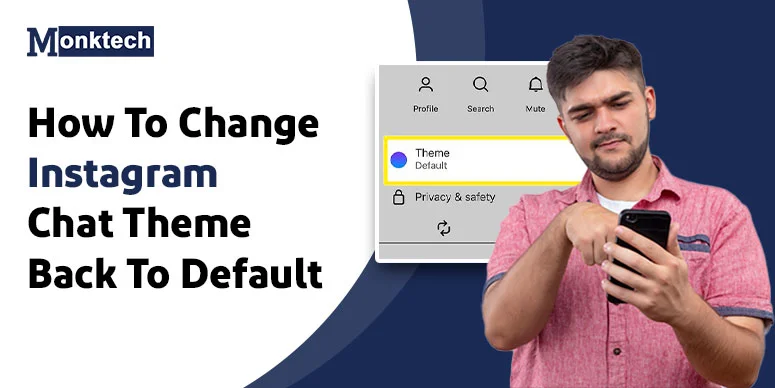
Instagram chat themes are fun until they aren’t. A neon color you picked last month, or a seasonal theme that arrived automatically, can make your DMs feel cluttered and distracting. If you want to restore the original Instagram chat appearance, you can switch any conversation theme back to Default in just a few taps.
Quite a few users find that the Theme option is harder to locate in 2026 due to the ongoing Messenger integration rollout, redesigned settings menus, and frequent app updates. But we put this guide together — tested on both Android and iPhone — to walk you through exactly what to do and what to try if things aren’t working.
Quick Steps to Reset Instagram Chat Theme
- Open Instagram and tap the arrow icon (DM section) in the middle of the screen.
- Select a specific chat conversation you want to change the theme for.
- Tap the contact name or profile picture at the top of the chat.
- Scroll down and tap “Theme” (or Colors & Themes on newer versions).
- Select the “Default” theme and click the “Select” icon.
Change Instagram Chat Theme on Android
These steps work on Android phones running Instagram version 310 or later (the current version as of mid-2026).
- Open Instagram and tap the paper airplane icon to access your Direct Messages.
- Select the conversation you want to reset the theme for.
- At the top of the chat, tap the person’s name or profile picture. This opens the chat info panel.
- Select the “Theme” option. (On some Android versions in 2026, this may be labeled“Colors & Themes.”)
- Tap on it. You’ll see a grid of theme options.
- Tap the tile labelled as “Default”
- The chat updates instantly. You’ll see the standard dark/light interface return
Change Instagram Chat Theme on iPhone
The process on iPhone (iOS 17 and iOS 18) is essentially the same, but the menu placement can differ slightly depending on whether Messenger integration is active on your account.
- Open Instagram on your iPhone.
- Tap the Messages icon at the top right of the home feed.
- Open the conversation you want to change.
- Click the particular name at the top to open the info screen.
- Look for “Theme” in the list. (it may appear under a section called “Customize Chat.”)
- Tap Theme and choose “Default.”
- The change applies instantly to you. Your chat partner will also see the update once their app refreshes.
Is repost option missing on your account?
Why You Can’t Change Instagram Chat Theme Back to Default
This is where most guides fall short. If the steps above didn’t work for you, here’s what’s likely going on.
1. Theme Option Is Missing
This is the most common complaint we see. If you tap the chat name and don’t see a “Theme” or “Colors & Themes” option at all, the likely causes are:
- Outdated app — Instagram’s theme settings moved in the 2024–2025 redesign. Users on older versions see a different menu layout.
- Messenger integration not enabled — Some accounts still on the non-Messenger DM experience have a stripped-down chat info panel.
- Regional rollout — Instagram occasionally A/B tests UI changes, so some users see a different interface than others.
2. Instagram Theme Not Changing After You Tap Default
You tap “Default,” the theme tile gets highlighted, but the chat still shows the old color. This is usually a temporary display bug. Try these:
- Close the chat and reopen it.
- Check your internet connection — theme changes sync to Instagram’s servers.
- Force-close and restart the Instagram app.
3. Chat Still Shows Old Theme After You Changed It
If the theme changed on your end but your friend still sees the old one (or vice versa), this is a sync delay. Both users need to have a working connection and a recent version of the app. The theme typically updates on the other person’s screen within a few seconds to a minute. If it doesn’t update after a few minutes, ask them to restart the app.
4. “Default” Theme Option Not Appearing in the List
On certain Instagram versions rolled out in early 2026, the Default option is not the first item shown — the grid now opens on a “Suggested” or “Seasonal” section. Scroll left or tap “All Themes” to find the Default tile. It is typically the first tile in the full list, marked with Instagram’s standard gradient logo.
Fix Instagram Chat Theme Problems
| Problem | Fix |
| Theme option not visible | Update Instagram to the latest version |
| Theme change not saving | Clear app cache (Android) or offload app (iPhone) |
| Chat still shows old theme | Both users should restart the app |
| Default tile missing from list | Scroll to “All Themes” — it’s the first tile |
| Theme keeps reverting | Log out, log back in, then reset theme |
| Nothing works | Reinstall Instagram |
Fix 1: Update Instagram
On Android, open the Google Play Store, search “Instagram,” and tap Update. On iPhone, open the App Store → your profile → scroll to Instagram → Update. Most theme-related bugs are fixed in current releases.
Fix 2: Clear Cache (Android Only)
Go to Settings → Apps → Instagram → Storage → Clear Cache. This removes temporary data that can cause display glitches. Your account and messages are not affected.
Fix 3: Log Out and Back In
In Instagram, go to Profile → three-line menu → Settings → Log Out. Sign back in. This refreshes your account session and often fixes sync issues with themes and other settings.
Fix 4: Reinstall the App
If nothing else works, delete Instagram and reinstall it from the App Store or Google Play. Your account data is stored on Instagram’s servers, so you won’t lose messages or followers. Make sure you remember your login credentials before deleting.
Fix 5: Enable Messenger Features
Some Instagram accounts — particularly older ones or those in certain regions — haven’t been migrated to the Messenger-integrated DM experience. Without this, the chat customization menu is limited. To check: go to your DMs → tap any chat → look for a “More” or “Settings” option at the top. If Instagram prompts you to upgrade to the new messaging experience, accepting it should unlock the full Theme panel.
Frequently Asked Questions
Can the other person see the theme change?
Yes. Instagram chat themes are shared between both users in a conversation. When you change the theme — including switching back to Default — the other person sees the same change on their end, usually within seconds.
Does changing the theme affect both users?
It does. Unlike chat wallpapers in some other apps, Instagram themes are applied to the entire conversation for everyone in it. You do not need the other person’s permission to change or reset it, but they will see the result.
Can you reset all Instagram chats at once?
No. As of 2026, Instagram does not have a bulk “reset all themes” option. You need to reset each conversation individually. If you have many chats with custom themes, this means going into each one and selecting Default manually.
Why did Instagram remove chat themes?
Instagram hasn’t removed themes — the option may just have moved or is hidden behind the Messenger integration update. Chat themes are still fully available in 2026. If you can’t find the option, the troubleshooting steps above should help you locate it.
Are chat themes available in every country?
Chat themes are available in most countries where Instagram operates. However, not all theme designs roll out simultaneously worldwide. The Default theme is universally available — if you can’t access it, the issue is typically an outdated app or the Messenger integration not yet active on your account.
What is the original Instagram chat theme?
The original (Default) Instagram chat theme features no background color or image. Sent messages appear in the Instagram gradient (purple-to-orange-pink), and received messages show in grey bubbles. The overall background matches your phone’s light or dark mode setting.