
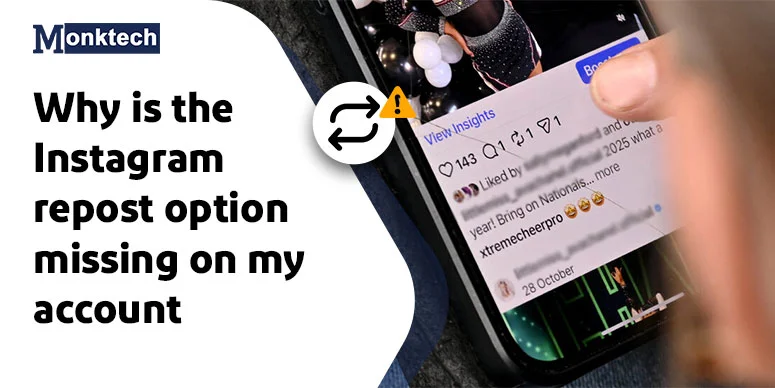
Users are complaining about repost option is missing on Instagram. This has a reason: the Instagram Repost feature is not appearing on your account because of an outdated app, internet issues, or not following the correct way to enable it. Here we discuss what users have noticed on their device, and what could be the fastest fix for this Instagram issue.
Quick Answer: If the repost option is not visible on your Instagram account, you can try this: repost the content and then comment on it. Also, after reposting, you can close the app entirely and reopen it and try afterwards. Then check; you will see the option inside your profile.
What Users Have Experienced About Repost Missing Option
The frustration is widespread among users. Many say they cannot access the repost feature on their profile in different ways:
User 1: One user said that he has repost access on his alternate Instagram profile, but it’s missing on his main account.
And when we look at the bottom, many users are saying the same thing. That means a lot of users are facing this issue.
User 2: One user is saying that the repost feature is rolling out slowly and users should wait for it.
A lot of confusion is spread around this topic. So, I decided to test the feature on my device and give you the real fix.
Here’s what I have discovered.
My Real Testing for the Instagram Repost feature:
Since I use a Samsung device (version Android 15), that would be useful for most users currently facing the repost not showing on Instagram. What I have discovered is something interesting, and probably no one will tell you.
Scenario 1 (Simply Reposted): I opened the Instagram app. Just Reposted one post and checked my profile section. The option was not available there. I could not find the reason until I tried another activity.
Scenario 2 (Commented After Reposting): This time I opened the app, reposted any random content, and Commented also. And this time, I followed the process on my friend’s Android device (Poco M4 5G): 14 up1a.231005.007. Luckily, it worked, and the Repost option started featuring on this device.
Scenario 3 (Commented and Reopened App from scratch): Then I wondered why the repost feature is not available on my device and tried the same: Opened the app > reposted content > commented on it. The feature was not available until I did something interesting: Just removed the app from the background and reopened it. This time, I could see the repost option within my Instagram profile.
Check this out if your Instagram account suspended
Allow Others to Repost Your Content On Instagram
Here I have performed these steps on two different devices. You can clearly see the difference in their steps:
Device 1: Samsung F14 (5G)
Step 1: Opening Instagram App
Clicked the Pink rectangle and circle icon with a dot. I am using version 431.0.0.47.82 of my Instagram app. Recently updated and opened the app directly.
Step 2: Profile Selection
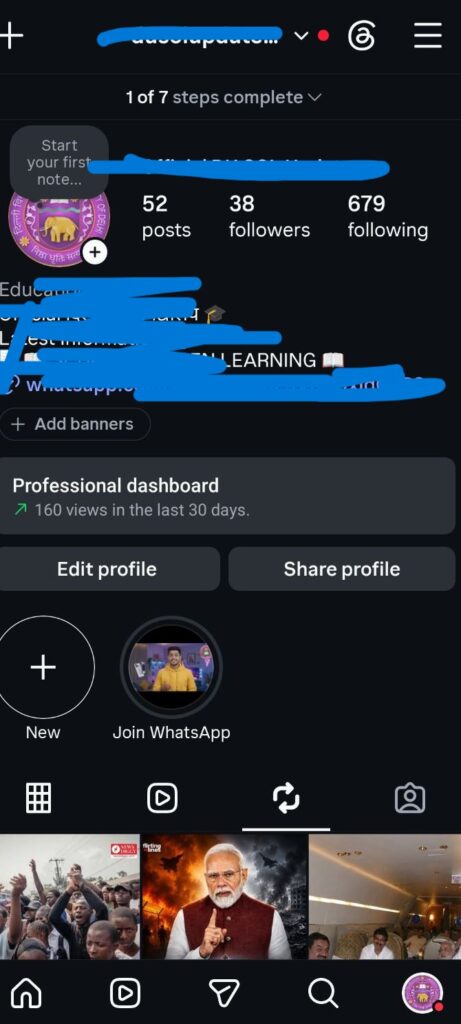
I visited my profile (located in the bottom-right corner). This will show my profile interface.
Step 3: Clicking ‘Hamburger’ or Three Horizontal Lines
Click the ‘Three-line icon’ at the top right corner. This will open up several options for you.
Step 4: Finding “Sharing” option
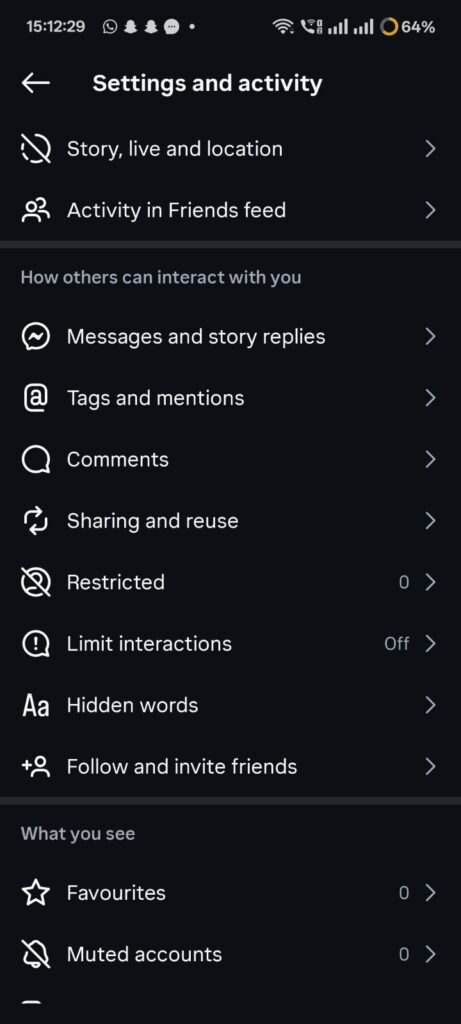
Once you’re in settings and activity section, scroll to find the ‘Sharing’ option. This will be under the “how others can interact with you”
Step 5: Toggling “On” Story options
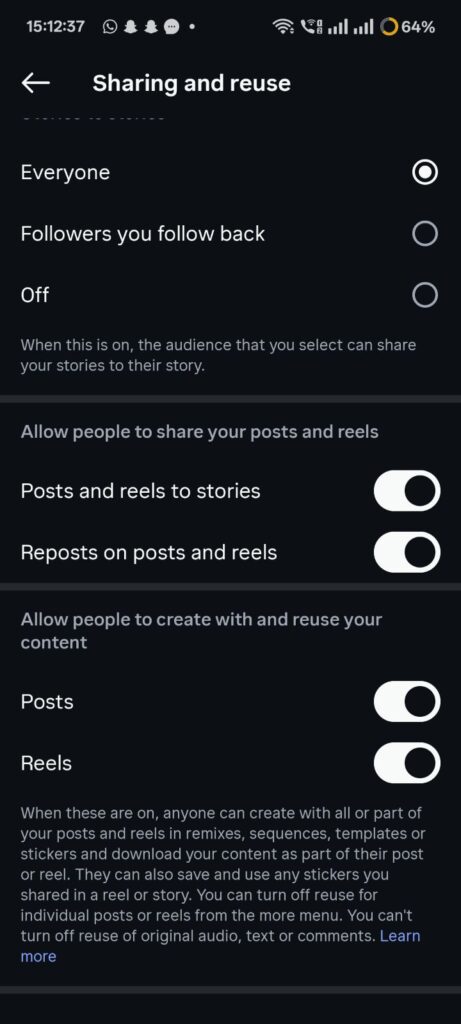
Just tap the toggle to turn on beside 1.) Stories they’re mentioned in 2.) Story shares.
Device 2: Realme 12 Plus (5G)
Here are device-specific (Realme 12+) steps to allow sharing your Instagram content
- Open Instagram and Visit the Profile
- Inside Settings and activity, select Sharing and Reuse.
- Toggle on: post and reels to stories and reposts on posts and reels.
How the Instagram Repost Feature Works
When the feature is available on your account, you’ll see a repost icon (usually two circular arrows) below public posts and Reels.
You can:
- Repost feed posts
- Repost public Reels
- Add your own caption or reaction
- Share content to followers through a dedicated Reposts tab
The original creator’s username remains attached to the reposted content.
Difference Between Repost and “Add to Story”
Many users confuse reposting with story sharing.
Instagram Repost
- Shares content to followers in-feed
- Appears in your Reposts tab
- Works like a social repost/retweet
Add to Story
- Shares content only to Stories
- Disappears after 24 hours
- Does not create a permanent repost feed entry
Frequently Asked Questions
1. How to enable repost on Instagram 2026?
You can enable repost by making sure you’re using the latest Instagram version, your internet connection is fine, the repost option is available on the post, etc.
2. Did Instagram remove the repost feature in 2026?
No, the platform still supports reposting for many users, but the feature appears inconsistent across accounts. So, you may be missing it if you’ve not commented after reposting.
3. Why do some Instagram accounts have repost while others don’t?
This is because Instagram rolls out features gradually. Maybe it’s not available for your location as of now. Other reasons like account type and app activity could hold you back.
4. Why can’t I repost someone’s Reel or post?
You may be unable to repost because:
- The account is private
- Sharing permissions are disabled
- The post is sponsored or branded
- Instagram restricted reposting for that content