
I can feel this pain because I have personally faced this situation myself. As a creator, when you have built a certain number of followers and reach, and suddenly get the message, “We have suspended your account on May 23, 2026.”
What would be your condition? It can only be understood by someone who has faced it himself.
There’s one more thing that no one tells you. Suppose one of your accounts gets suspended due to any policy violation—then all the accounts logged into the same device can also get affected and may eventually be suspended too. Whether it happens because of the same IP address or because the device gets flagged, many videos and sources also claim that even a new account you create afterward can get automatically suspended.
However, I did not try creating a new account till now because my previously suspended IDs are very precious to me, and I only focused on trying to recover them.
In this comprehensive guide, I will share step-by-step screenshot proof of exactly how I recovered my Instagram accounts after they were deactivated for no reason.
Can a Suspended Instagram Account Be Recovered?
Short answer: Yes — a suspended Instagram account can often be recovered.
In my personal experience, I was able to recover 4 suspended Instagram accounts by completing Meta’s official identity verification and appeal process.
However, recovery is not guaranteed in every case. It depends on the type of suspension and whether your account was flagged due to a genuine policy violation or an automated system error.
If the suspension is caused by AI moderation, device flags, or false spam detection, there is still a strong chance that your account can be restored.
NOTE: This kind of suspension is not limited only to creator or business accounts. Even personal accounts can get affected if Instagram’s automated system wrongly detects a policy violation.
How My Instagram Account Was Suspended And What I Did To Recover It.
As a content creator in several niches, I had several different Instagram accounts that I used to share information. These included education, public-based question answering, and more. I also had my personal account included among them.
On the 23rd of May, in the evening, I suddenly received a message stating that my chats had been restricted for 7 days on one of my education accounts. During these days, I could not send any messages to anyone.
After half an hour, when I was operating one of the accounts for posting content, it suddenly displayed the message:
“This account has been logged out due to changing the password.”
I assumed it might have been an Instagram glitch or possibly some scam activity, because of which Instagram automatically logged out my account for privacy reasons.
I clicked on the “OK” button on the screen, and that account disappeared.
Again, I switched to another account, but it showed the same message, and that account also disappeared.
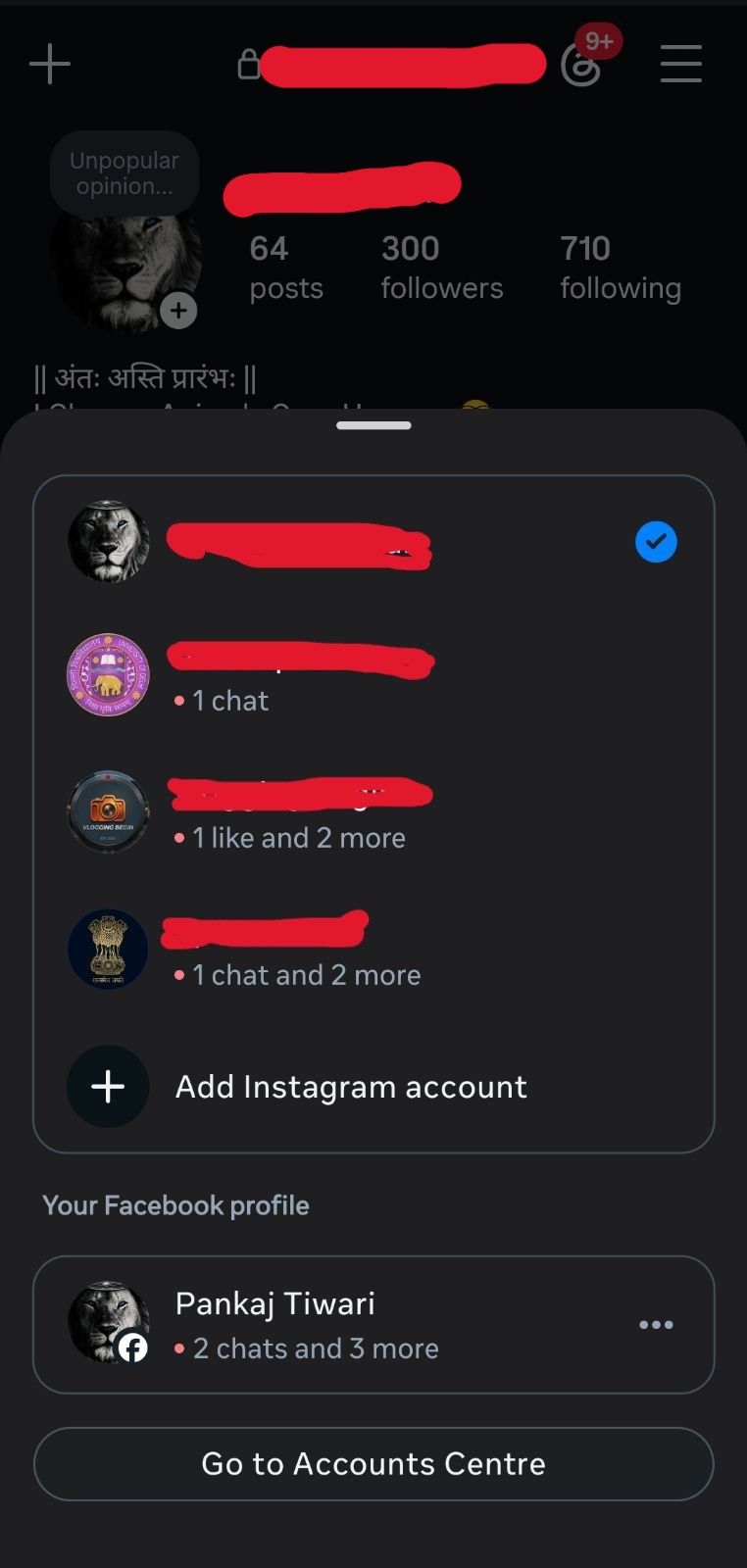
As I have attached screenshots below, all these accounts were logged in on my device, and they disappeared one by one.
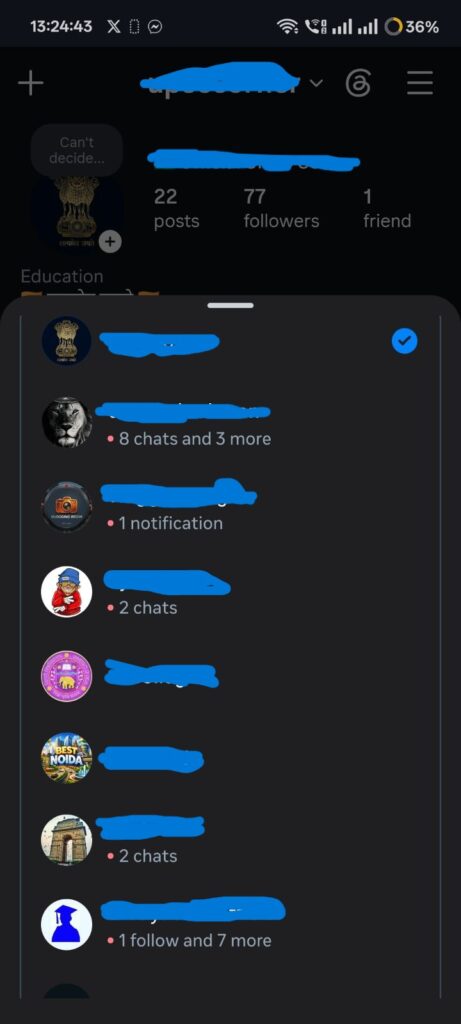
When all the accounts got logged out, I logged in to those accounts again one by one, and every account screen shows “We suspended your account.” It simply means that because of my one account, which was suspended due to any reason, all other accounts that were connected with the account center, including my Facebook, got deactivated. (This automated cross-platform link often triggers various Meta glitches, much like when your Messenger active status shows wrong information due to profile syncing errors).
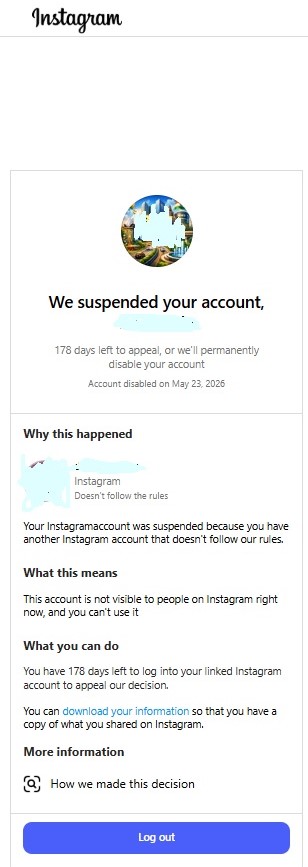
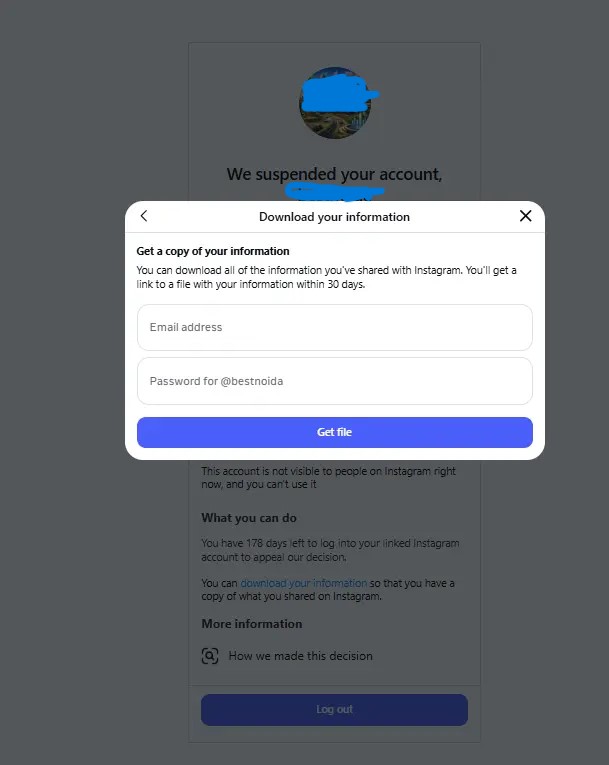
Here, if you noticed, there is the option that is showing “You can download your information…”
As shown below, “Get a copy of your information,” where you have to fill in your registered email and password to get all the data/information that you shared on your account. You can get this information within 30 days.
I recommend you recover all the data from your account for future use, just as I did.
How I Appealed to Recover My Instagram Account
After all, the accounts were suspended as explained above. Now, I have to recover all my accounts. But, as you might notice—and I was also surprised—there was no appeal option or button available for this account.
What does it mean? When I researched it, it also mentioned for this account, “Your Instagram account was suspended because you have another Instagram account that doesn’t follow our rules.”
It directly indicated that I first have to go with that main account where such an issue occurred. The first 7 days’ chat was banned, and then suddenly the account was gone. Here’s the step-by-step guide that I followed to appeal for my account.
Step 1:
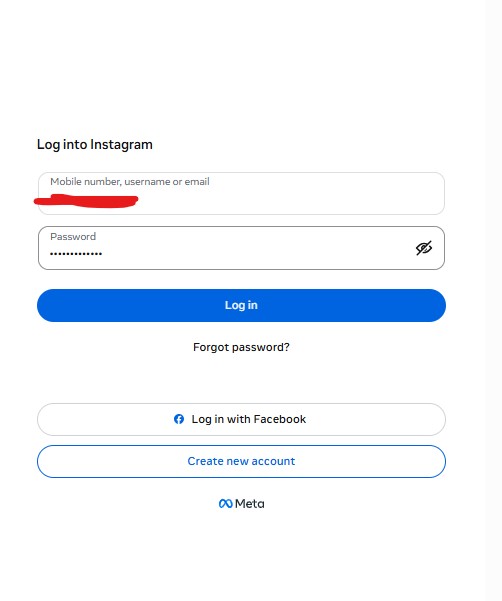
Log into my account using my credentials.
Step 2:
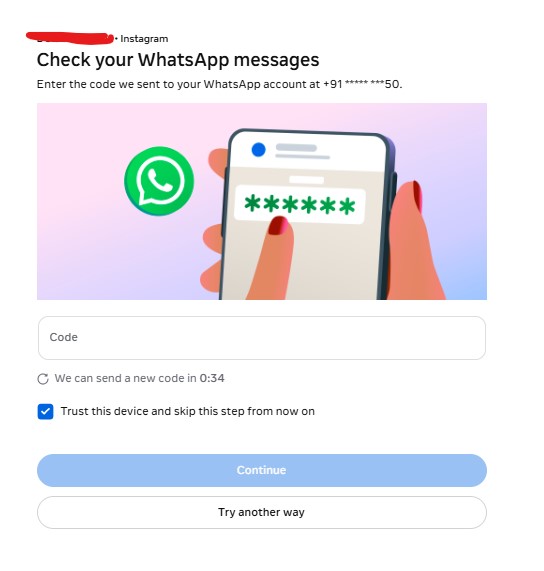
After clicking on the log-in button, the “Check your WhatsApp messages” window appeared, which directly sends the OTP to my registered phone number.
Step 3
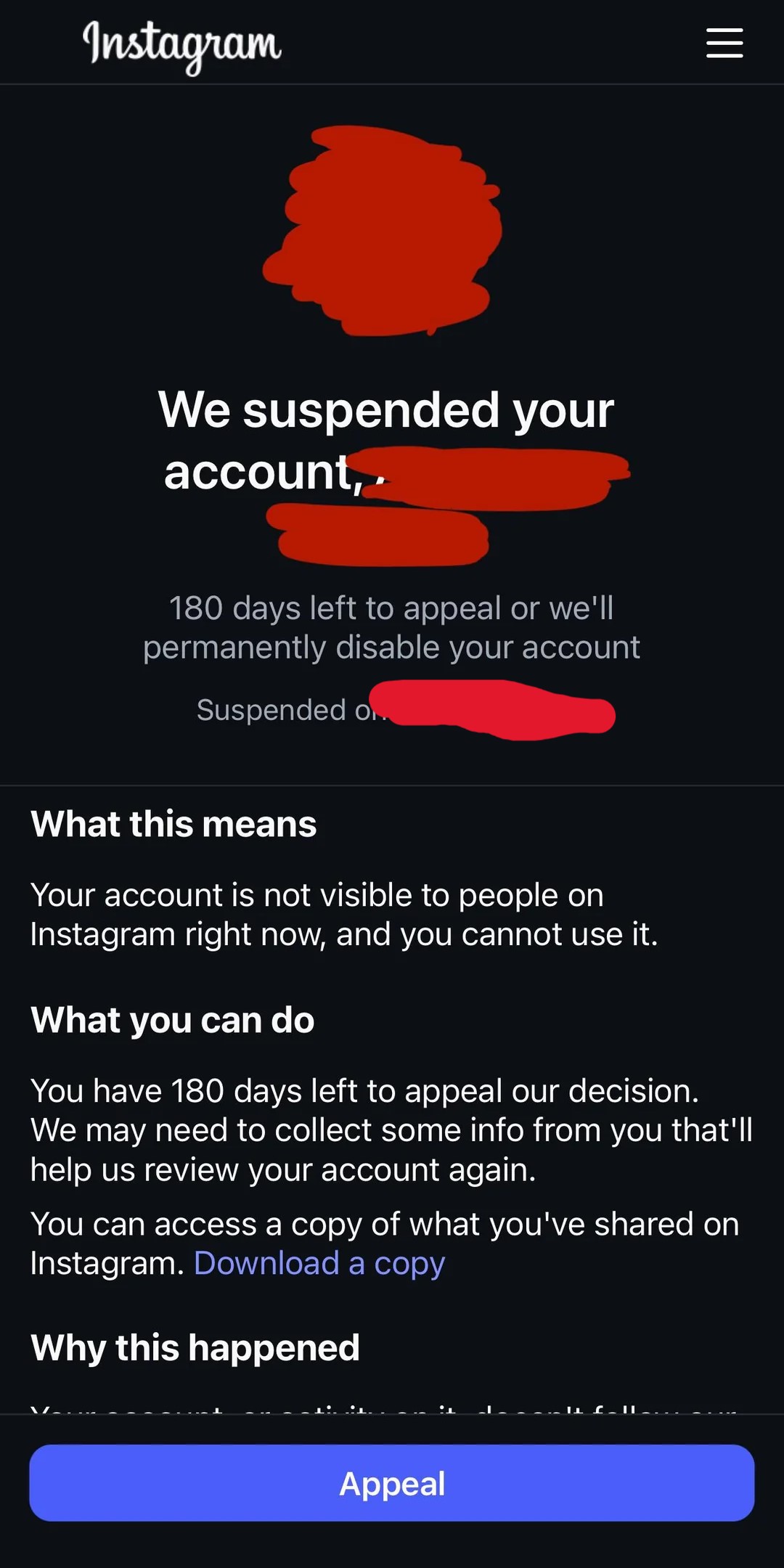
After entering the OTP, the final suspension screen appeared. When I tapped the “Appeal” button, it took me straight to the official identity verification form required to recover a business profile. Here is exactly what I had to do:
-
I filled in my details: I entered my full legal name (matching my ID), my official business email, and my suspended
@username. -
I uploaded my ID proof: Next, I took a clear photo of my government-issued ID (Aadhaar Card) showing my Date of Birth and Physical Address, making sure all four corners were visible in the frame.
-
I did the video selfie: I followed the on-screen prompts to slowly turn my head. This live biometric scan proves to Meta’s system that a real human is managing the account.
-
I submitted the statement: In the final text box, I wrote a quick, professional note: “My business account was flagged in error. I follow all Community Guidelines. Please review my official ID and restore access.” Then, I hit submit.
Step 4
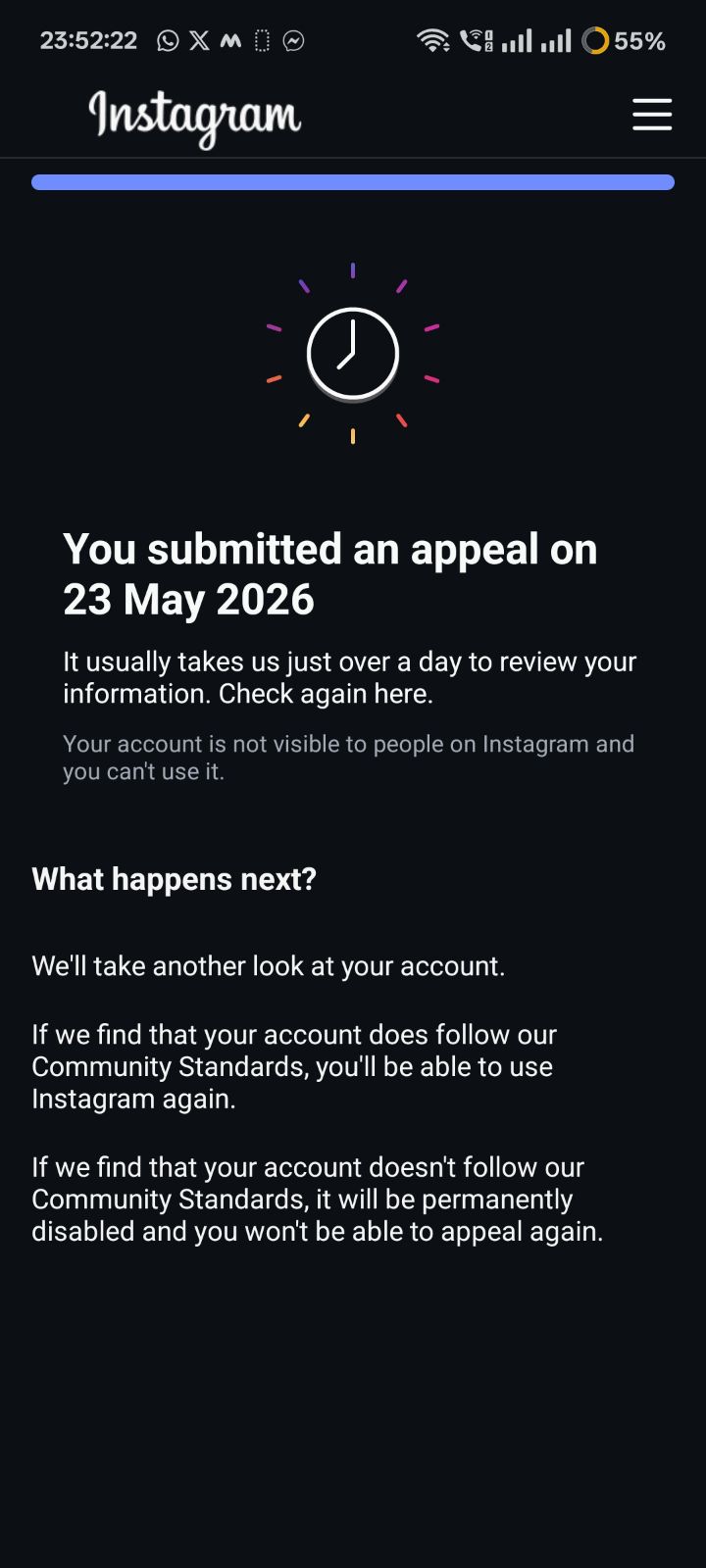
After filling in all the information asked for the appeal, I clicked on the submit button, and the page looked like this. It says, “It usually takes us just over a day to review your information. Check again here.
Step 5
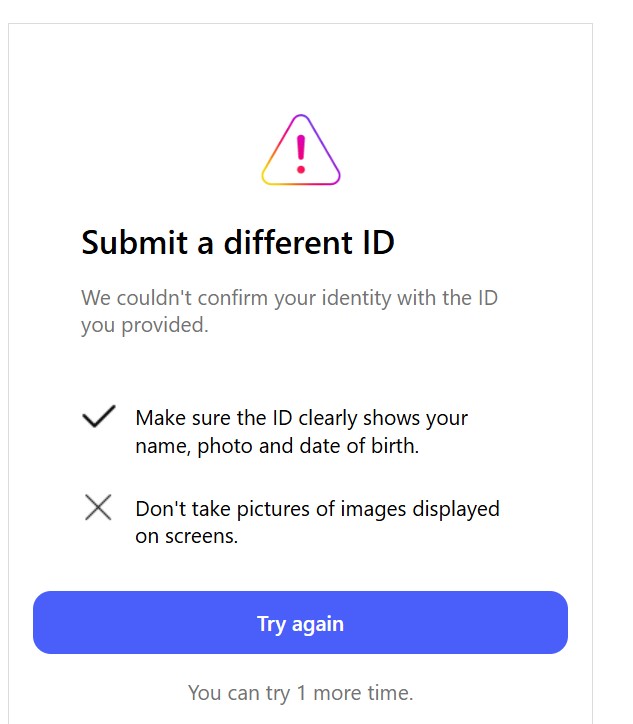
After a few hours, I got a notification to resubmit my ID because they could not verify it. After opening the screen, the window looked like this. I clicked on the “Try again” button.
Step 6
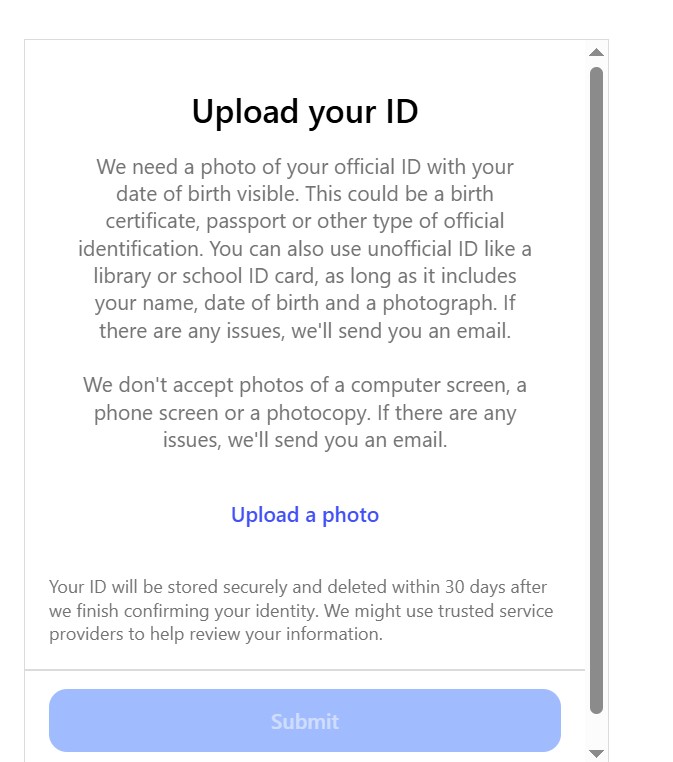
The window looked like this, as showing below, to upload your ID. This time I uploaded my driving license as a document because the previously uploaded Aadhaar Card didn’t work for me, and then I submitted it.
Step 7
Now, within minutes, I got a notification from Instagram, and it showed, “We verified your account and confirmed you are a real person,” and my four Instagram accounts were recovered.
Key Takeaways: What I Discovered During My Struggle
During the process of resolving my issues, my research into why this is happening led me to discover these major things:
- The AI Bot Fingerprinting Trap: Users in community threads like Reddit’s r/Instagram point out that Meta doesn’t just block your IP address anymore. They use advanced device fingerprinting to track your phone model, hardware data, and SIM details, meaning changing your network won’t stop the automatic ban loop.
- The Connected Profile Domino Effect: Fellow creators on r/Instagram discussions confirm that if you have multiple profiles logged onto one phone or linked via Account Center, a single automated flag can cause Instagram to slowly flag and suspend all your secondary accounts one by one.
- The App Cache Loop: Researching tech deep-dives on Medium guides shows that a glitchy loop is often tied directly to the local Instagram app identity storage on your specific device, which is why logging in through a standard web browser bypasses the restriction (similar to the known glitch where an Instagram incorrect password error shows on the app but works perfectly on a browser).
- The “Slow Down” Bug Strategy: According to shared user recovery timelines on FixMyInstagram forums, if your account gets stuck on an appeal error screen, your best bet is to leave the app completely untouched for 3 to 7 days to let the system’s security cooldown pass.
- The Privacy Team Workaround: When standard links fail, creator case studies on r/Instagram legal tips mention you can bypass broken app prompts by using the Meta Privacy Center Data Request tool to submit an external request to restore a wrongly disabled account.
- The Official Verification Pipeline: Meta’s official guidelines via the Instagram Help Center reinforce that before trying drastic hardware wipes, your priority must be to follow the on-screen video selfie or phone verification flow directly at login.
But still, my main suspended account is pending, and 6 more accounts are still in pending mode. I am waiting for a notification from Instagram to recover these accounts as well.
Frequently Asked Questions & Pro-Tips to Keep Your Accounts Safe
Since going through this nightmare and successfully recovering four of my profiles, I have answered a few common questions that fellow creators always ask about this specific Meta glitch:
1. Should I link all my profiles in the same Meta Accounts Center?
Absolutely not if you want to be safe! While it is convenient to link everything, having all your profiles connected in the Meta Accounts Center creates a major risk. If one account gets flagged by an automated bot, it triggers a domino effect that can instantly deactivate all linked pages, including your Facebook. For your most precious business or backup profiles, keep them completely separate.
2. Can I use a different account to contact live support for my suspended ID?
Yes, this is one of the best secret workarounds! If your suspended account has no appeal option, you can log into a secondary, active profile and purchase a Meta Verified subscription. This officially opens up the Enhanced Support feature under your settings, allowing you to access a 24/7 live chat or email help option with a real human agent. You can then explain your situation, share your screenshot proof, and ask them to manually review your disabled IDs.
3. What should I do if my identity verification fails the first time?
Do not panic if Meta rejects your first document submission. As I experienced, my initial upload of my Aadhaar Card was rejected because the automated system couldn’t verify it properly. Switching to an alternative official government document, like a Driver’s License or Passport, often clears the system instantly. Always ensure all four corners of the document are visible and there is no glare from overhead lights.
4. How can I safely back up my data while my account says it is suspended?
If you see the option on your screen that says “You can download your information”, click it immediately! You will be prompted to enter your registered email and password to get a copy of your information. Meta allows you to download this data within 30 days of the suspension notice—do this right away so you don’t lose years of your hard work, content, and memories.
5. What is the best way to handle the video selfie verification step?
When prompted for a live biometric scan, stand in a well-lit room with a completely plain background. Move your head slowly and smoothly following the on-screen arrows. This proves to the automated security bots that a real human is managing the account and not an automated bot script—preventing aggressive system bugs like the one where your real Instagram friends are incorrectly labeled as AI accounts or your reels stop sending entirely.
Quick Checklist for Creators Facing the “Domino Effect”
- Disconnect your accounts immediately: If one of your profiles gets a warning or restriction, temporarily unlink your other profiles from the Account Center to prevent a chain reaction ban.
- Try a clean desktop browser log-in: If your mobile app is stuck in an endless error loop, clearing your app cache or logging in via a standard web browser on a PC can sometimes bypass local device glitches.
- Give the system a cooling-off period: If your appeal button is throwing errors, leave the app completely untouched for 3 to 7 days to allow the system’s security cool-down timer to reset.