
TL;DR (Quick Answers)
- Your 2FA code not working is usually caused by a time sync issue, a glitch after deactivation, or lost access to your phone/authenticator app.
- Try these in order: Check time sync → Use backup codes → Video selfie verification → Data access form → instagram.com/hacked → Keep submitting until a human responds.
- Instagram has no direct email or phone support. Persistence through their in-app forms is your only real path.
- Real users on Reddit report getting back in within 7 days by submitting a selfie with a code and the data access form together.
- If your phone number is lost and tied to your account, you’ll need Instagram to send a recovery link to your email manually — request this clearly in your support message.
Being locked out of your own Instagram account is incredibly frustrating.
You feel stuck, confused, and desperate to regain access.
Fortunately, you are not alone in dealing with these 2FA glitches.
This guide breaks down the real, working steps to bypass these errors.
Take a breath and follow these steps to reclaim your profile.
Why Is Your Instagram 2FA Not Working in 2026?
You type in the code. It fails. You try again. Nothing.
If you’re stuck on Instagram can’t login 2FA not working, you’re facing a widespread platform glitch — and you’re not doing anything wrong.
The frustrating truth is: Instagram’s two-factor authentication has a known glitch. It’s been reported across Reddit, Facebook groups, and tech forums for years, and it’s still happening in 2026.
Here’s why it breaks:
- You reactivated a deactivated account — codes stop registering during deactivation, and the glitch sometimes carries over.
- You got a new phone or reset your old one, breaking your authenticator app link.
- Your SMS code is going to a lost or reassigned phone number.
- Your authenticator app (Google Authenticator, Duo Mobile, Authy) lost its sync after a phone change.
- Time sync is off on your device — TOTP codes are time-based and fail if your clock is even 30 seconds off.
- Your backup codes simply don’t work — another reported bug, especially after account deactivation.
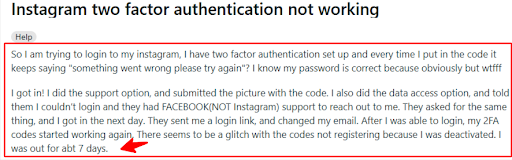
“There seems to be a glitch with the codes not registering because I was deactivated. I was out for about 7 days.” — Reddit user who recovered their account
Step 1 — Fix the Easy Stuff First (Before Panicking)
Before going through account recovery, check these quick fixes. Many people solve it right here.
✅ Fix Your Phone’s Time Sync
If you use an authenticator app like Google Authenticator or Authy, the codes are time-sensitive. Even a 30-second clock difference makes them invalid.
On iPhone: Go to Settings → General → Date & Time → Set Automatically → toggle ON.
On Android: Go to Settings → General Management → Date and Time → Automatic date and time → ON.
Then open your authenticator app and try the code again immediately.
✅ Try a Different Network
Sometimes Instagram’s SMS delivery fails on certain mobile carriers. Switch from mobile data to Wi-Fi (or the other way around) and request a new code.
✅ Wait 60 Seconds and Try Again
Instagram 2FA codes expire fast. If you waited even a minute before typing it, the code is already dead. Request a fresh code and enter it within 15 seconds.
✅ Reinstall the Authenticator App (With Caution)
If you use Duo Mobile or Google Authenticator — do not delete the app without first checking if your account is cloud-backed.
- Duo Mobile: Sign in with the same Gmail used at setup and your codes may sync back automatically.
- Google Authenticator: Check if Google Account sync is enabled before reinstalling.
- Authy: Authy backs up to the cloud — reinstall and log in to restore codes.
Step 2 — Use Backup Codes (If You Have Them)
When you first set up 2FA, Instagram gave you 8-digit backup codes. Did you save them?
If yes — go to the Instagram login screen, tap “Get help logging in” → enter your username → and look for the option to use a backup code.
Important: If your backup codes aren’t working, it may be because of the deactivation glitch mentioned above. Keep reading — this is fixable.
If you never saved your backup codes, or they’re not working — move to Step 3.
Step 3 — The “No Longer Have Access?” Path
On the Instagram login screen:
- Tap “Get help logging in”
- Enter your username
- When it asks how to verify you, look for “No longer have access to these?” (small text at the bottom)
- Tap it
This is where many people get stuck — it often loops back to the lost phone number. If that happens, don’t stop here.
Also check: if you’re facing a different login error, like an incorrect password that works on browser but not the app, that’s a separate issue with its own fix.
Step 4 — Instagram Video Selfie Verification
Instagram may offer you a video selfie option as an alternative to the SMS code. This is one of the most reliable recovery paths — but it requires patience.
Here’s what one Reddit user reported after weeks of trying:
“My video authentication finally went through after trying it like 40 times. I was in the midst of getting back in via Instagram support when it got approved.”
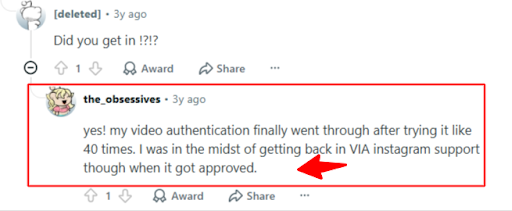
Although this was reported 3 years ago but still works.
How to access it:
- Go to the 2FA screen during login
- Tap “Get support” when your code fails
- If offered, choose the video selfie option
- Follow the on-screen instructions
Keep submitting even if it fails. Multiple submissions are normal. It can take days.
Step 5 — The Data Access Form (This One Actually Works)
This is the method that real users in Reddit threads confirm worked for them — and it’s the most overlooked.
Instagram has a privacy data request form — and when you tell them you can’t access your data because you’re locked out, their privacy team forwards your case to Instagram support. That team actually has humans who respond.
Here’s exactly what to say in the form:
“I am unable to request access to my data because I cannot log into my account. I am locked out due to a two-factor authentication issue. My backup codes are not working, and I no longer have access to my phone number linked to 2FA. Please escalate this to Instagram account support.”
This works because the privacy team operates separately from regular support — and they can contact Instagram on your behalf.
“I also did the data access option, and told them I couldn’t login… they had Facebook (NOT Instagram) support reach out to me. They asked for the same thing, and I got in the next day.” — Reddit user, confirmed recovery

Step 6 — Report Your Account as “Hacked” at instagram.com/hacked
Even if your account isn’t actually hacked, this page opens a formal support path.
Go to: instagram.com/hacked in your browser (not the app).
Select: “I can’t access this email or phone number”
When you get to describe your issue, write clearly:
“I lost access to my phone number linked to 2FA. My backup codes are not working. I still have access to my email [your email]. Please send the account recovery link to my email instead of my old phone number.”
This is the specific request that can unlock your account — asking Instagram to redirect the recovery link to your email instead of the lost phone number. Be direct and clear about this.
No form showing up? Try using a browser in incognito mode, or switch between the Instagram app and the mobile browser.
Lost Phone Number? Here’s Your Exact Situation
If Instagram verification code is not coming because it’s going to a lost or reassigned number, here’s the reality:
- Try to recover the number from your carrier first. If it’s been reassigned to someone else (as happened to a user in the JustAnswer thread we found), this won’t work — but it’s worth one quick call.
- Your Threads account may help. If your Threads account is linked to Instagram, check Settings → Security → Two-Factor Authentication in Threads. However, Meta may block security changes if they feel you haven’t used the device long enough — a frustrating but known limitation.
- Meta Verified can speed things up. If you have Meta Verified, your support request gets human review faster. Even without it, keep submitting.
- The key message to send Instagram: “My phone number linked to 2FA has been reassigned to another person. I cannot receive SMS codes. Please send the account recovery link to my email address.”
Step 7 — Submit the Photo Verification (With ID)
After submitting any of the above forms, Instagram may send you an automated email asking for:
- A selfie photo holding a piece of paper with a handwritten code they provide
- A copy of your government ID
This is legitimate. Do it carefully:
- Write the code clearly on white paper
- Take the selfie in good lighting
- Make sure your face, the paper, and the code are all clearly visible
- Reply to their email with the photo attached
“I got an auto-response asking for a picture holding up a piece of paper with a code — hopefully that works.” → “I got in today!!!” — Two Reddit users confirmed recovery

One user reported it took exactly 7 days from first contact to receiving the login link.
What If Nothing Is Working? (Last Resort Options)
If you’ve tried everything above and it’s been more than a week:
Keep submitting. Seriously. Multiple users confirmed that submitting the video selfie or the support form repeatedly is what finally got a human response. Instagram’s automated system can take time to escalate.
Try from a recognized device or location. Instagram’s system is more likely to offer recovery options if you log in from a device or IP you’ve used before. Try a friend’s Wi-Fi you’ve connected to previously.
Check if 2FA is down site-wide. Search Twitter/X for “Instagram 2FA not working” to see if others are experiencing it right now. Occasionally it’s a platform-wide issue — not just yours.
Ask a mutual follower for help. One user in a Facebook group confirmed recovery by getting a mutual follower to vouch for them within Instagram’s support flow.
FAQ — Your Questions Answered
Why is Instagram 2FA not working?
The most common reasons are: a time sync error on your authenticator app, an account deactivation glitch, a lost phone number, a new phone that broke your authenticator link, or an expired code you typed too slowly. All are fixable with the steps above.
How to fix Instagram 2FA not working?
Start with time sync, then backup codes, then the “No longer have access?” path, then video selfie verification, then the data access form, then instagram.com/hacked. Work through each step in order.
What to do if Instagram 2FA code is not working?
Don’t keep trying the same code. Request a new one and enter it within 15 seconds. If codes consistently fail, your issue is likely the deactivation glitch — use the data access form and the hacked account form to reach a human.
Can I recover Instagram without 2FA?
Yes, but only through Instagram’s identity verification process (video selfie + ID). You cannot bypass 2FA without going through Instagram support.
How to recover Instagram after losing phone?
Reinstall your authenticator app (Authy or Duo Mobile sync to the cloud). If you can’t, use backup codes. If those fail, submit the data access form and request recovery to your email at instagram.com/hacked.
Why is Instagram sending code to old number?
Because your old number is still linked to 2FA. Instagram can’t automatically redirect it. You need to request this manually through the hacked account form, clearly asking them to send recovery to your email.
Is Instagram 2FA down today 2026?
Check real-time status at downdetector.com or search Twitter/X. If it’s a platform-wide outage, all you can do is wait.
How long does Instagram 2FA lockout last?
Most users who submit the data access form and selfie verification get back in within 7–10 days. Some took longer — keep submitting.
Can Instagram support remove 2FA?
Yes, but only after verifying your identity. They will send you a login link and may update your email in the process. Once you’re back in, immediately remove the old phone number from 2FA.
Is there an Instagram support email?
No. Instagram does not have a public support email. All contact is through their in-app Help forms, instagram.com/hacked, or Meta Verified support if you’re subscribed.
What to Do the Moment You Get Back In
Once Instagram confirms your identity and sends a login link, do these things immediately:
- Change your 2FA method — switch to an authenticator app (Authy is best — it cloud-backs your codes).
- Save your new backup codes — screenshot them and store in a secure notes app or password manager.
- Add your email and verify it — this gives you an extra recovery path.
- Remove the old phone number from your security settings.
- Enable login alerts so you’re notified of any new logins.
Also worth knowing: Instagram sometimes adds AI labels to accounts or flags accounts during recovery — if you see unusual labels after getting back in, that’s a separate issue with its own fix.
Avoid This Problem in the Future
This entire nightmare is preventable. Here’s how to protect yourself:
- Use Authy (not Google Authenticator) — Authy backs up your codes to the cloud. If you lose your phone, your codes are safe.
- Save backup codes the day you set up 2FA — store in Google Keep, Apple Notes (locked), or a password manager.
- Link a verified email — not just a phone number.
- Don’t deactivate your account unless you can log back in immediately — the deactivation glitch is real.
If you’re also dealing with other Instagram problems like your account being suspended for no reason or your Instagram Live option not showing, those have separate guides worth checking out.
Final Word
Instagram can’t login 2FA not working is one of the most frustrating tech problems of 2026 — mainly because Instagram gives you almost no direct way to reach a human.
But here’s what actually works, confirmed by real users across Reddit and tech forums:
- Fix time sync first
- Try backup codes
- Submit the data access form
- Use instagram.com/hacked and request recovery to your email
- Submit the selfie photo with your ID
- Keep going. Most people get back in within 7–10 days.
You haven’t lost your account. You just need to outlast Instagram’s automated system until a human sees your case.
Don’t give up after one try. Submit again tomorrow.