
Netflix error TVQ-PB-101 on a Samsung TV usually means the TV can’t reach Netflix properly, or the app has a data problem.
Start by fully restarting the TV and router, then sign out of Netflix and sign back in. If the error remains, update the TV software or reset Smart Hub.
The right fix depends on the code shown in brackets.
The message on screen is usually “We’re having trouble playing this title right now.” The numbers in brackets can point to a more specific cause, so check them before troubleshooting.
Let’s start there.
Quick Fixes for Netflix Error TVQ-PB-101 on a Samsung TV
Work through these in order. Test Netflix after each one.
- Unplug the TV for at least 30 seconds, then plug it back in.
- Unplug your modem and router for 30 seconds, plug them back in, and wait a minute.
- Run Netflix’s Check your Network test.
- Sign out of Netflix and sign back in.
- Update your TV’s software if a new version is available
- Delete and reinstall the Netflix app, if your TV allows it.
- Reset Smart Hub as a last resort.
What Does Netflix Error TVQ-PB-101 Mean on a Samsung TV?
TVQ-PB-101 is a general playback error. Netflix says the plain version of the code happens when an issue with data stored on your device stops Netflix from playing. Check the numbers in parentheses, because they can change the cause and the fix.
If your screen says TVQ-PB-101 (5.2.101), Netflix describes it as a network issue that stops your device from reaching Netflix. For Samsung TVs, Netflix recommends restarting the TV and, if needed, resetting Smart Hub.
| Code on your screen | What Netflix says it means | Where to start |
|---|---|---|
| TVQ-PB-101 (5.2.101) | Network issue. The TV can’t reach Netflix. | Restart the TV, then the router |
| TVQ-PB-101 (no numbers) | Stored data on the device is blocking playback. | Restart, then sign out of Netflix |
| TVQ-PB-101 (3.2.503) | Network issue. Netflix points to custom modem, VPN or proxy, and custom DNS settings. | Turn off VPN or custom DNS |
| TVQ-PB-101 (E104) | Device isn’t certified for Netflix, per Netflix’s help page. | Contact the device maker |
So TVQ-PB-101 (5.2.101) is not usually a sign that your TV is too old or that your Netflix account has a problem. It points to a connection or app-state issue, which you can often fix at home.
What Should You Check Before Changing Any Settings?
Check whether the problem is limited to Netflix, affects the whole TV, or comes from your internet connection. This takes only a few minutes and can save you from resetting things you didn’t need to reset.
- Try another show or movie. For one version of this code, Netflix’s own message says to try again later or pick a different title. One stubborn title doesn’t always mean a broken TV.
- Open YouTube or another app. If every app fails, the TV’s internet connection is the problem. Skip ahead to the router step.
- Look at Netflix’s Is Netflix Down page. If Netflix is having an outage, nothing on your end will fix it.
- Test Netflix on your phone. If it plays fine on the same Wi-Fi, the issue is probably on the TV.
If other Netflix problems show up too, our general Netflix troubleshooting checklist covers the wider picture.
How Do You Fix TVQ-PB-101 on a Samsung TV Step by Step?
Go in the order below. The early steps are quick and low risk. The later ones wipe more data, so save them for when the easy fixes fail.
Step 1: Power-cycle the TV
Unplug the TV from the wall and wait at least 30 seconds. Plug it back in and turn it on. Don’t just use standby. Netflix asks you to make sure the device is completely off, not asleep, and Samsung’s own app troubleshooting tips suggest unplugging for 30 seconds if the remote method doesn’t work.
You can also hold the power button on the Samsung remote until the TV shuts off and restarts. A full restart clears the temporary memory that apps lean on.
Step 2: Restart your modem and router
- Turn off the TV, then unplug your modem and router.
- Wait 30 seconds.
- Plug them back in and wait about a minute.
- Turn the TV on and open Netflix.
Netflix lists these exact steps in its 5.2.101 guide. Some modems take longer than a minute to come back, so give yours a little extra time before you decide it didn’t work.
Step 3: Test your connection from inside Netflix
Open Netflix, press Back on your remote, then choose Get Help and Check your Network. Netflix says a failed check usually means the device isn’t connected to the internet.
Speed matters too. Netflix recommends 3 Mbps for HD, 5 Mbps for Full HD, and 15 Mbps for 4K. A TV that sits far from the router can fall below those numbers even when your phone looks fine. If you can, move the router closer or try a wired connection to the TV.
Step 4: Sign out of Netflix and sign back in
This clears the saved app data that the plain TVQ-PB-101 code points to. On Samsung and other smart TVs, Netflix’s steps are:
- Press Back on your remote until you reach the Netflix menu.
- Choose Get Help, then Sign out, then Yes.
- Sign back in and try again.
If you’re stuck on the error screen, pick More Details, then Sign out or Reset. If the menu won’t show Get Help, Netflix says to press this on your remote: Up, Up, Down, Down, Left, Right, Left, Right, Up, Up, Up, Up. Then pick Sign out, Reset, or Deactivate. Need more detail? Here’s a full walkthrough for signing out of Netflix on a TV.
Step 5: Update your Samsung TV software
An old software version can cause apps to misbehave. Samsung suggests checking for an update first when an app acts up, and it has a page on how to update your TV’s software. On most models, the option sits under Settings, then Support, then Software Update. Menu names shift a bit between model years.
Step 6: Delete and reinstall Netflix
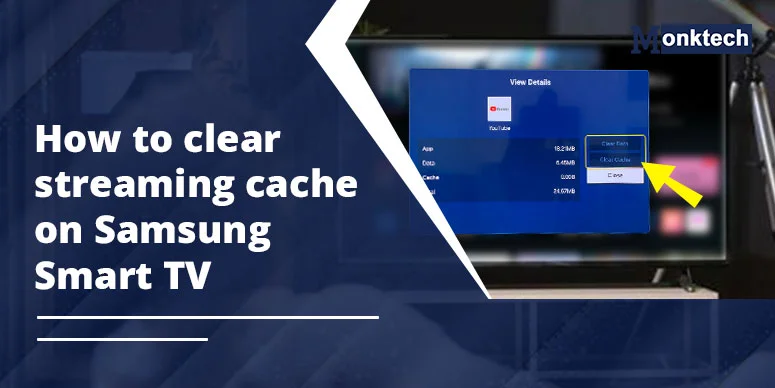
On many Samsung TVs, you can open the Apps screen, go to Settings, pick Netflix, and choose Delete. Then search for Netflix and install it again, as Samsung describes in its apps not working guide. Some models don’t let you remove Netflix. If the Delete option is missing, skip this step.
Step 7: Reset Smart Hub (last resort)
This signs you out of every app and your Samsung account, and it removes apps that didn’t come pre-installed. Have your passwords ready before you start. Samsung’s page on resetting Smart Hub explains the process.
| TV model year | Path to Reset Smart Hub |
|---|---|
| 2025 | Settings > All Settings > Support > Device Care > Reset Smart Hub |
| 2022 to 2024 | Settings > All Settings > Support > Device Care > Self Diagnosis > Reset Smart Hub |
| 2019 to 2021 | Settings > Support > Device Care > Self Diagnosis > Reset Smart Hub |
| 2018 and earlier | Settings > Support > Self Diagnosis > Reset Smart Hub |
Enter your TV’s PIN when asked. If you never set one, it’s usually 0000. If the option is greyed out, leave Netflix and switch to live TV or an HDMI input first. After the reset finishes, open Netflix and sign in fresh.
Why Does the Error Keep Coming Back After a Reset?
When a reset only works for a day, the cause is usually the network, not the TV. In a long Tom’s Guide forum thread, some Samsung owners said a Smart Hub reset worked briefly and then the trouble returned. That pattern points toward the router, Wi-Fi signal, or something filtering traffic.
Here’s what to look at next:
- VPN, proxy, or custom DNS. Netflix lists these as common culprits on related network errors. Turn them off on the TV and the router, then test.
- Shared or public Wi-Fi. Dorms, hotels, and offices sometimes block video services. Netflix suggests asking the network owner if streaming is blocked.
- Router filters. Parental controls or content blocks on your router can cut off Netflix. Check the router’s settings or app.
- Weak Wi-Fi. Netflix advises keeping the router in an open spot, off the floor. A shelf or desk gives better reception.
- Instant On. One forum user said turning off Samsung’s Instant On feature fixed Netflix for them. It’s not an official fix, but it costs nothing to try if you’re out of ideas.
When Should You Contact Samsung, Netflix, or Your Internet Provider?
Reach out when the steps above don’t work. Who you call depends on what you’ve seen.
| What’s happening | Who to contact |
|---|---|
| Other apps work, only Netflix fails, and you’ve reset Smart Hub | Samsung support, or the Netflix Help Center contact page |
| All apps fail, or Check your Network fails | Your internet provider |
| Netflix works on your phone but not the TV, on the same Wi-Fi | Samsung support |
If you call your provider, mention whether the problem hits one device or all of them, and whether the TV uses Wi-Fi or a cable. Netflix suggests running a speed test at Fast.com before you finish the call. When all else fails, Netflix’s help page for the plain code says the device maker can walk you through a firmware update and a factory reset. A factory reset wipes everything, so I’d talk to Samsung before doing that one.
Frequently Asked Questions
Will resetting Smart Hub delete my Netflix account?
No. Resetting Smart Hub signs you out of apps on the TV, but it does not delete your Netflix account. Your subscription, profiles, and watch history remain safe. You only need to sign in again.
Does TVQ-PB-101 mean there’s a billing or account problem?
Not usually. Netflix ties this code to stored device data or a network problem. A billing or payment issue normally produces a different message.
Why does only one show give me the error?
Try another title first. For one version of this error, Netflix suggests trying again later or choosing a different title. If every title fails, restart the TV and router, then check your network connection.
Does this fix work on other devices, like Fire Stick, Roku, or Apple TV?
Partly. Restarting the device, signing out of Netflix, and checking the network connection help on most streaming devices. The Smart Hub reset is only for Samsung TVs. Fire Stick, Roku, Apple TV, and other streaming devices have their own reset options, which Netflix lists on its TVQ-PB-101 help page.
Final Tip
For most Samsung TV users, TVQ-PB-101 (5.2.101) is a network or app-data issue. Start with a full TV and router restart, sign out of Netflix, and update the TV software. Use a Smart Hub reset only if the error continues, because it signs you out of apps and may remove downloaded apps.