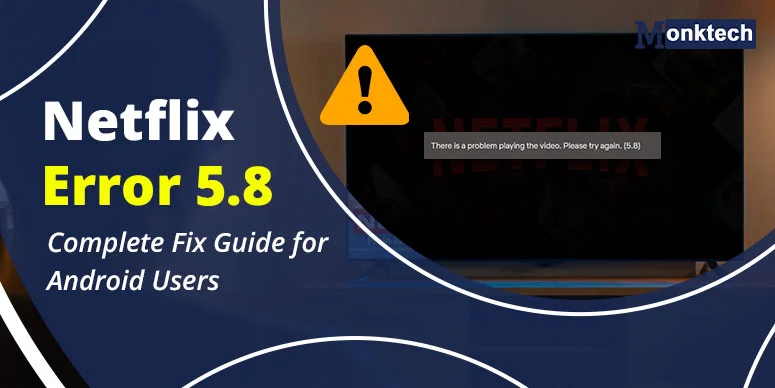
Have you noticed a freezing black screen on your Android device on your favorite Netflix show? The message typically says: There is a problem playing the video. Please try again. (5.8). It’s nothing but your device’s corrupt data not allowing Netflix to load properly. This issue is Netflix error 5.8. We will try to decode the cause behind the error and implement quick fixes to resume the show.
The most common causes are a corrupted app cache, an outdated Android OS, live wallpapers, or a DRM (Widevine) conflict. We will discover them in detail ahead.
The error shows up primarily on Android phones and tablets — including Samsung Galaxy, Xiaomi/Redmi, Motorola, Huawei, and some devices running custom Android OS builds.
What Does Netflix Error 5.8 Actually Mean?
According to Netflix’s support documentation, Error 5.8 means device-stored data is preventing Netflix playback. Error 5.8 is specific to Android devices. And therefore, Netflix’s first recommended step is simply to restart your phone or tablet.
How It Looks Like:
- Black screen on launch
- Endless loading spinner
- Playback fails instantly
Why Does Netflix Error 5.8 Happen?
Upon testing, we have found some common reasons behind 5.8 Netflix issue. Check them here:
Corrupted Netflix Cache Data
Netflix stores temporary playback files on your device. When these files get damaged or stale, they can block the video player from starting. This is the single most common cause
Outdated Android OS
When your device is operating on previous or outdated software, the older Android versions can fail DRM security checks required by newer Netflix builds.
Live or Animated Wallpapers
When you use motion wallpapers, that’s when the Netflix triggers error 5.8. This is usually reported at various discussion platforms that when they set a static wallpaper, the issue seems to be solved.
Background App Conflicts
Some apps like battery saver, RAM cleaners, and screen overlay tools may affect Netflix’s video streaming, and as a result, you see a black screen with error code 5.8.
How to Fix Netflix Error 5.8 — Step by Step
Upon trying these fixes, you may come out of the Netflix glitch easily.
1. Restart Your Android Device:
A simple restart will clean up the system memory, which can help regain Netflix’s functionality.
How to do it:
Hold the power button till you see the restart option (or power off); tap it and hold 30 seconds. After that, run Netflix again.
2. Disable Live or Animated Wallpapers
If you’ve set a motion wallpaper or animated one, disabling it may help you fix the issue. The steps for this varies on your device:
- Generic Android: Long-press the home screen > Wallpaper > choose any static image.
- Samsung (One UI): Settings > Wallpaper & Style > choose a static photo.
- Xiaomi (MIUI / HyperOS): Settings > Wallpaper > My Photos or Default Wallpapers > pick a still image.
3. Update Your Android System Software
An outdated OS can fail Widevine checks, causing playback to be blocked entirely. Here’s how to update your Android device based on your device:
- Samsung: Settings > Software Update > Download and Install.
- Google Pixel: Settings > System > System Update > Check for Update.
- Xiaomi: Settings > About Phone > MIUI Version > Check for Updates.
4. Reinstall Netflix Completely
You need to clear the corrupted installation files, and for that, reinstalling the Netflix app is the best choice. To do so,
- Visit device settings
- Tap apps
- And select Netflix.
- Tap uninstall next to Netflix app.
- Now, restart the device.
- And download Netflix from Google Play Store.
Note: Remember your downloaded content will be removed when you delete the app from your android device.
5. Check Your Internet Connection
The minimum recommended internet speed to run Netflix is 5 Mbps for HD and 25 Mbps for 4K streaming. Thus, you need to check your internet speed to fix the problem.
- For that, you can either switch between networks
- Restart your router.
- Or can simply check the internet speed online at fast.com or similar sites.
6. Check Your Widevine DRM Certification
If you have a rooted phone, unlocked bootloader, or custom ROM, your device may have lost its Widevine certification, which is necessary for Netflix to function. Check your Widevine level using the free DRM Info app from the Google Play Store. Open it and look under the Widevine CDM section:
- Widevine L1: Full HD and 4K streaming supported. Netflix should work normally.
- Widevine L3: Only SD-quality streaming. Netflix may refuse to play certain content or throw errors on modified devices.
For further help, you can connect with Netflix team using various official ways.
Frequently Asked Questions
1. How do I fix my Netflix error?
From a basic troubleshooting perspective, just restart your device, clear device and app caches, and fix your internet. Most of the errors are solved by these steps.
2. How to clear Netflix error code?
The instant way to clear the Netflix error code is to click the ” More Details ” on the error screen, press reset or sign out, and log in again.
3. How to force reset Netflix?
Press the following on your remote sequentially: Up, Up, Down, Down, Left, Right, Left, Right, Up, Up, Up, Up. Once the menu appears, select ‘Sign Out’ or ‘Reset’
4. Is there a Netflix error today?
No error is found at the moment. Netflix is completely okay.