
When you try to play a show or movie, Netflix may stop with the message “We’re having trouble playing this title right now.” Below it, you may see the error code tvq-pb-101 (3.1.-61).
Don’t worry. This error usually means your Fire Stick can’t connect to Netflix properly. In most cases, the problem is with your Wi-Fi, router, or network settings—not the Fire Stick itself.
Quick Overview: How to Fix It Fast
Error tvq-pb-101 (3.1.-61) is a network error. Netflix says a network issue is stopping your device from reaching Netflix.
The quickest fix is to restart your Fire Stick, then restart your modem and router. If that does not work, remove any VPN, proxy, or custom DNS settings. If the error continues, contact your internet provider.
- Restart the Fire Stick (Settings, then My Fire TV, then Restart).
- Unplug your modem and router for 30 seconds, then plug them back in.
- Test Netflix on another device on the same Wi-Fi.
- Turn off any VPN, proxy, or custom DNS.
- Still stuck? Contact your internet service provider (ISP).
What Does TVQ-PB-101 (3.1.-61) Mean on a Fire Stick?
It means your Fire Stick could not reach Netflix over your network. Netflix lists this exact code as a network problem, and its official help page for error tvq-pb-101 (3.1.-61) has a section just for Amazon Fire TV and Fire Stick.
The numbers in the brackets matter. Plain tvq-pb-101 can point to data stored on the device. The (3.1.-61) version points to the connection. Netflix keeps separate pages for other versions, like (3.1.-62) and (3.1.-81), so always search for the full code on your screen.
That also helps you avoid unnecessary steps. You usually don’t need to factory reset the Fire Stick first. Start with the network.
How Do I Check Whether My Fire Stick Is Connected to Wi-Fi?
Open another app that needs the internet. If it fails too, your Stick is offline. Netflix suggests exactly this test. You can also run the built-in check: open Netflix, choose Get Help, then Check your Network.
Also think about where you are. On Wi-Fi at a hotel, school, or café, the network may block Netflix on purpose. Ask the front desk or the IT team. Mobile hotspots and satellite internet can also be too slow for streaming.
At home, check your speed against what Netflix recommends:
| Video quality | Resolution | Recommended speed |
|---|---|---|
| HD | 720p | 3 Mbps or higher |
| Full HD | 1080p | 5 Mbps or higher |
| Ultra HD | 4K | 15 Mbps or higher |
These numbers come from Netflix’s recommended internet speeds page. Keep in mind your speed is shared. If someone else is gaming or downloading, your real speed drops.
How Do I Restart My Fire Stick from My Fire TV Settings?
Press Home, go to Settings, choose My Fire TV, then select Restart. Try Netflix again once the Stick comes back.
Why does this help? A restart clears out temporary glitches and forces the Stick to build a fresh connection to your router. If you don’t see My Fire TV, Netflix says to look under System or Device instead. Menu names change a little between Fire OS versions.
How Do I Restart My Modem and Router?
Turn off the Fire Stick’s TV, unplug your modem and router, wait 30 seconds, plug them back in, then wait about a minute. That is Netflix’s own sequence. Turn the Stick back on after that wait.
Don’t rush the last part. Some modems and routers take a few minutes to fully reconnect, and testing too early makes it look like the fix failed. If your router and modem are two separate boxes, plug the modem in first and let its lights settle before powering the router.
While you wait, look at where the router sits. Netflix says a better signal can come from three simple moves:
- Put the router and the Stick closer together, ideally in one room.
- Keep the router away from other wireless devices and appliances.
- Place it in the open and off the floor, such as on a shelf.
Fire Sticks tuck behind the TV, and TVs can block a weak signal. If your Wi-Fi bars look low on the Stick, this matters more than any setting.
Test Netflix on Another Device
Open Netflix on a phone or laptop on the same Wi-Fi. If it fails there too, the problem is your network or your ISP. If it works, the problem is limited to the Fire Stick.
This one-minute test saves a lot of guessing. It’s also the exact thing your ISP will ask you. For the best test, open Fast.com on that second device. It is Netflix’s own speed test, so it shows how well your connection reaches Netflix.
If Netflix works everywhere else, it’s also worth reading our guide on what to do when Netflix is not working for problems that are not network related.
Should I Sign Out of Netflix on My Fire Stick?
Yes, signing out is a reasonable extra step if the restarts did not work, but Netflix does not list it as a primary fix for this code. Netflix’s page for (3.1.-61) sticks to restarts, network checks, and your ISP. Signing out is a common extra step because it makes the app sign in fresh.
Open Netflix, go to the menu, and pick Get Help, then Sign out. Exact menu names can vary by app version. If you’re stuck, this walkthrough on how to log out of Netflix on a TV covers the options. Keep your password handy, because you’ll need it to sign back in.
How Do I Remove VPN, Proxy, or Custom DNS Settings?
Turn them off and return everything to default, then try Netflix again. Netflix says changed connection settings can cause this error. It names custom modem settings, VPN or proxy services, and custom DNS settings.
This is a common trap for people who set up a privacy tool once and forgot about it. Check these places:
- A VPN app on your Fire Stick or running on your router.
- A proxy service set up on your network.
- A custom DNS address on your router or in your Fire Stick’s Wi-Fi settings.
Switch DNS back to automatic. If you are not sure how, Netflix suggests asking the device maker or checking your router’s manual. Router screens look different on every brand, so we can’t give one set of steps that fits all.
How Do I Update Fire OS and the Netflix App?
Go to Settings, My Fire TV, About, then check for a system update. The button text can vary slightly by version. Install anything that’s waiting, then let the Stick restart.
This step is not listed on Netflix’s page for this specific code, but an out-of-date system or app can sometimes cause connection or playback problems. It takes only a few minutes to check. To check Netflix, find it in your app list and look for an update option. If your Fire Stick is connected to the internet only weakly, the update itself may fail, so fix the Wi-Fi first.
How Do I Clear Netflix App Cache and Data on a Fire Stick?
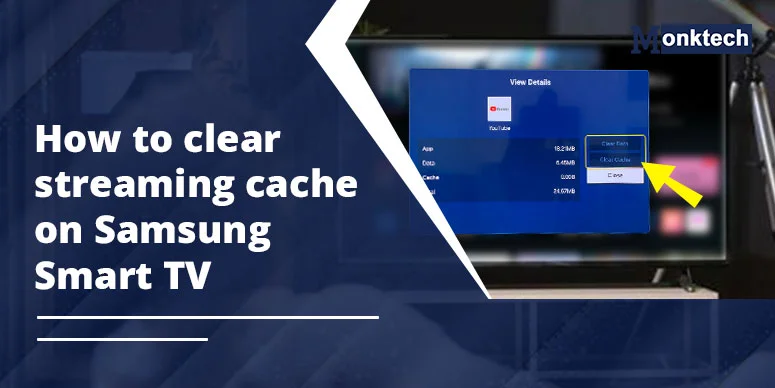
Go to Settings, Applications, Manage Installed Applications, pick Netflix, then choose Clear Cache. If that doesn’t help, choose Clear Data.
Be careful with the second option. Clearing data signs you out and resets the app’s saved settings, so you’ll have to log in again. That is why cache comes first. Android Central has a simple guide to clearing app cache on Amazon Fire TV with the same menu path.
Be realistic about this fix. Because Netflix identifies this code as a network issue, clearing the cache is less likely to solve it than restarting your devices or checking your network. Try it after the router and DNS checks, not before. If it still fails, uninstall and reinstall Netflix from the same Applications menu as a last app-level step.
When Should I Contact My Internet Provider?
Call your ISP when restarts, a clean network setup, and a test on other devices all fail. Netflix says your ISP can check for an outage in your area, fix modem or router problems, correct network settings, and reset your connection.
Get ready before you call. Tell them two things: whether the problem hits only the Stick or other devices too, and whether the Stick uses Wi-Fi or a cable. Before you hang up, run Fast.com again and try Netflix once more to confirm the fix.
If you’re in a hotel or a rental, the network may block streaming, and no setting on your Stick will change that. In that case, a different network, like a phone hotspot, is the cleanest test. Just remember Netflix warns that mobile hotspots can be too slow.
Common Mistakes That Keep This Error Alive
- Restarting only the Stick. The router needs the reboot too.
- Plugging the router back in after only a few seconds. Give it the full 30 seconds off.
- Forgetting an old VPN or DNS change. People often don’t remember setting these.
- Clearing app data first. It signs you out and rarely fixes a network error.
- Testing right after the router powers on. Wait until the lights settle.
Frequently Asked Questions
Does a factory reset fix TVQ-PB-101 (3.1.-61)?
Netflix does not list a factory reset for this code. It erases all your apps and settings, so treat it as a final move after your ISP has ruled out network problems.
Why does Netflix work on my phone but not my Fire Stick?
Your home internet is fine in that case. The Stick may have a weak Wi-Fi signal, an old VPN or DNS setting, or a stuck connection that a restart can clear.
Can a weak Wi-Fi signal cause this error?
Yes. Netflix recommends moving the router and device closer together and putting the router in an open spot. A signal that drops in and out can stop Netflix from loading.
Is the error the same on a Samsung TV?
The code is the same, but the steps are different because the device is different. Samsung owners can use our guide for Netflix error TVQ-PB-101 on a Samsung TV.
Will contacting Netflix support help?
For a network error, your ISP is usually the better first contact. Netflix recommends contacting your device manufacturer for device-specific connection steps and your ISP for network or connection problems.
Final Takeaway
Start with the two restarts, because they fix most network errors. Then test another device, remove any VPN or custom DNS, and call your ISP if nothing changes.
Follow that order and you’ll find the cause without resetting anything you don’t have to.