Ever signed into a Netflix account other than your home’s TV? Maybe in a hotel or a friend’s place? Did you forget to sign out from there and are now worried about your account safety? Just calling up a friend might help you with this, but knowing how to log out of Netflix is something we all need. It’s for account safety and above all, for maintaining privacy. Today, we will learn how to log out of Netflix on TV, even without a remote. So, let’s begin!
When and Why You Want To Log Out Of Netflix On Your TV
Netflix is a streaming platform that users need to sign into their respective devices to start watching their favorite content. However, sometimes you need to sign out of your device for many different reasons. It includes privacy concerns, device limitations, and many others. Explore them below:
Signed into hotel rooms or Family TV:
If you visit hotel rooms, you might sign in to your Netflix on the hotel’s TV, but don’t remember to sign out when you leave. At this time, you might find it irritating and concerning about your account safety. Anyone can access your account, view your personal curations, and even change the password. That’s when you realize signing out is crucial.
Device limitations:
Netflix is a subscription-based streaming platform. So, the limited number of devices can be used at a time. It depends on the kind of plan you purchased. Currently, the standard plan has 2 device access, while the premium one can be used on 4 devices at a time. So, if you try to stream on a new device, logging out of one account is necessary.
Playback error on Netflix:
Sometimes you need to log out of your account to fix a Netflix playback error. When you notice issues like buffering, app crashing, etc., logging out could work as a reset option and help regain functionality.
How To Log Out Of Netflix On TV
Signing out of Netflix on TV is easy to follow. You need to have a stable internet connection along with a remote control. Follow the guide:
- First of all, switch on your TV and launch the home screen.
- Select the Netflix app on your TV.
- Open the menu on Netflix. Here you see many options to customize.
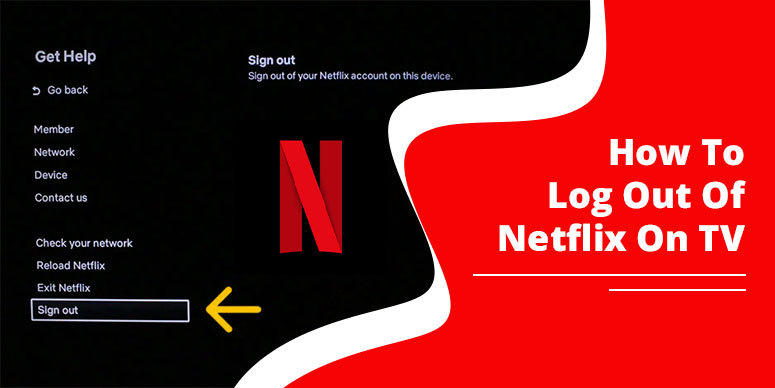
- Select Account settings or get help option.
- Scroll down and just click the ‘Sign Out’ option.
This will remove your account from the smart TV.
How To Sign Out Of Netflix On a Phone: Android &iPhone
These steps are applied for Android and iPhone devices simultaneously.
- Tap to open Netflix App on your phone.
- Choose your profile from top right corner.
- Select ‘Sign Out’ from the bottom.
- Finally, confirm the signout by tapping ‘yes,’ when asked to.
How To Sign Out Of Netflix On All Your Devices At Once
This section explains the steps for logging out of Netflix on any device at once. By following these steps, you don’t need to log out Netflix account separately on each device. One step will be sufficient for removing Netflix from all devices. Check the step:
- Open the Netflix: visit either Netflix.com on browser or open the Netflix app.
- Visit the profile: select the profile icon in the top right corner.
- Browse ‘Account’ option: find out account option under your profile.
- Choose ‘Sign Out of All Devices’ option: click the option sign out of all devices in settings section to remove your account from all devices at once.
- Confirm sign out: press the sign out again to confirm your action.
How To Log Out Without a Remote or Using a Browser
Netflix account can be accessed to view content on browser as well as mobile application. The same account is sufficient to be used on either device, however the device limitation is always there as per plan. If you wish to log out of Netflix on a browser, the below steps will help you in that.
- Visit Netflix.com and sign in using registered email and password.
- Once logged in, pick profile from top right side of the screen.
- Select sign out from the bottom section.
- Confirm by tapping ‘yes’.
Troubleshooting & Common Issues
This explains some common errors you find while performing log-out steps on Netflix. Plus, quick solutions to fix them.
- Problem: Can’t find the “Sign Out” option
All TVs work differently, and thus a small difference in executing or finding ‘sign out’ option is common. On most TVs, you sign out of Netflix by finding get help or settings option, which you see in the left side of the screen. However, in others, you need to try some other ways to find the option.
Solution: Give it some time getting familiar with your TVs functions. Check for ‘Sign Out’ option in the settings option.
- Problem: Netflix app freezing or not responding
If you face error like app freezing on Netflix, that’s because of outdated app or browser. It could also be due to corrupt files stored in browser or slow internet.
Solution: Consider updating Netflix app from app store or Google Play Store. You can also look for an update for your browser. Clear browser caches if you run Netflix on browser.
- Problem: Remote not responding
Sometimes the remote stops working and it creates the problem. It happens due to low battery, and internal connection error that needs to be repaired.
Solution: either you fix your remote by changing batteries and setting up again, or you just use the TV buttons to perform sign out process successfully.
Security & Privacy Tips for Netflix Users
Some hands-on quick tips for Netflix users for maintaining safety of your account are give below:
Tip 1: Never leave your Netflix account signed in:
Avoid logging Netflix into other devices. If you do, sign out before you leave. By doing this, you can save your account from unauthorized access, and account hack.
Tip 2: Change your Account Password Frequently:
As using Netflix is fun, maintaining the safety of your account is also your responsibility. Thus, changing your account password in a regular time is beneficial. You can do so month-wise or one time in a 3 to 6 months is also sufficient.
Tip 3: Strong Netflix password:
Not just changing the password, but making it hard to guess is something you should look for. Easy passwords will not protect your account, complex passwords including number, alphabets and special characters up to 60 characters are good. Moreover, remember the password or note down for emergency, in case you forget.
Tip 4: Know how to tackle:
Most importantly, if you don’t follow the above options, at least know how to tackle when your Netflix account is compromised. Perform steps as a trial to see how it will work in real-life situation, and how much time it will take. You can take the help of this blog to be equipped with safety tips for Netflix account.
Contact Netflix support
Find help from official Netflix support options. You can get real-time assistance through Live chat and phone number option. However, a dedicated discussion is available on Netflix help center page.
Live chat and phone support is available on Netflix application. Sign in>click ‘My Netflix’>Menu>Help>Call or Chat.
FAQs
Common questions and solutions around Netflix sign-out process:
Qs 1: Will uninstalling Netflix log me out?
Yes, if you just remove your Netflix app from your device, it will log you out automatically. When you install the app again, you need to follow log in process and continue with your existing plan on Netflix.
Qs 2: Does logging out delete my account?
No, just logging out of Netflix does not delete your account. It’s like a temporary break. You can anytime sign in using your details and continue streaming.
Qs 3: Do I need to log out on every device separately?
No, if you want to remove your Netflix account from all the devices it’s working on, just follow the browser steps: visit Netflix.com>sign in>access profile>find ‘Get help’ or settings option> click sign out and confirm.
Qs 4: What happens if I stay logged in on a public TV?
Someone can access your Netflix account and erase your playlist, change the password, and do much harm.
Conclusion
Did you find this simple step guide on how to log out of Netflix on TV useful? We have discussed practical and easy steps to remove your account from others’ devices remotely. If you forget to sign out to your Netflix to others’ device, simply visit the profile icon>’Get Help’ or ‘settings’ option, and click sign out option. This will remove your account. For more in-depth guide, follow this guide thoroughly.