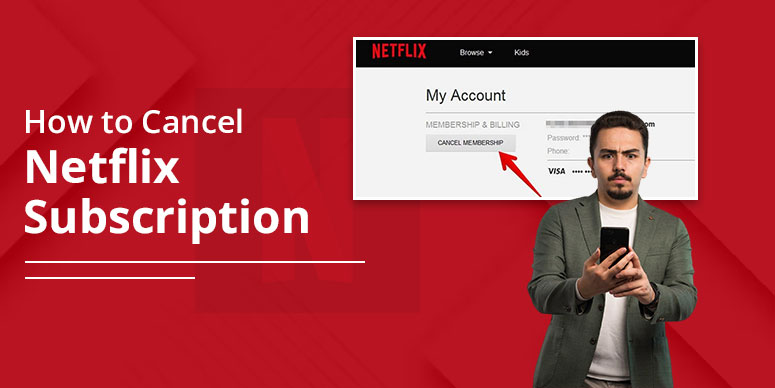
Netflix offers award-winning TV shows, movies, documentaries, anime, and more on innumerable internet-connected devices, with the flexibility of watching shows anytime and anywhere without a single ad. Users also have the benefit of cancelling the subscriptions whenever they want to, provided they are aware of the steps. This post will guide you on how to cancel Netflix subscription so you don’t have to bother.
Quick Notes:
- You can choose to cancel your Netflix subscription anytime you want. However, no refund will be offered.
- Cancelling is a separate process. It’s not attainable by signing out or deleting your Netflix app.
- To cancel your subscription, visit your account and manage your membership page. Then, tap ‘cancel’ and ‘finish cancellation.’
Why You Might Want to Cancel Netflix
Multiple reasons are there to cancel Netflix subscription. Rising prices, change of interests, and temporary break are some leading causes behind Netflix cancellation. Below is the detail.
Rising subscription costs:
Netflix has been changing its subscription cost time to time. They have done it so many times, the latest change was in 2024. In fact, they mention the reason for price change are the launch of movies, shows, introduction of new shows, and many more.
Shifting to other streaming services:
Another reason people leave Netflix because of new upcoming streaming services offering valuable and cost-effective plan. These new competitors are offering rich content and have been at lower end of its price if compared to Netflix. Some of the competitors are Hulu, Disney Plus, Amazon Prime Video, etc.
Lack of content matching your taste:
The obvious reason of cancelling Netflix is to losing interest from Netflix’s content. Although Netflix tries launching new movies, shows, etc., but it’s seen that most people lose the interest and look for new platform offering entertainment the way they want.
Temporary break from binge-watching:
If you’re like me, your reason for cancelling Netflix plan would be that you want to take a break. Taking a break is something we all need in this time of bombarding of offers, promotions, hustle and bustle. That’s a good way to detox your mental state and help rejuvenate your energy again.
Prerequisites of Cancelling Your Netflix Subscription
Knowing what’s important to know before you cancel Netflix plan is essential. Check them below so you don’t make mistakes.
Cancellation takes effect at the end of billing cycle:
When you cancel your plan, it won’t be cancelled immediately; rather, it will remain till the billing period ends. That means, you can still stream on Netflix and watch your favorite show.
Profiles, history, and preferences remain saved for 10 months
The account information remains there for 10 months even if you cancel your subscription. Your profile detail, content history, preferences and everything is included in this. After 10 months, all will be gone forever.
Steps May Differ If Billed Via A Third-Party
There are many routes you can take to subscribe to Netflix. And so does the steps for cancelling it. If you take subscription directly, direct steps are applied, which you will find in the post ahead. If you choose a third-party platform like Google Play Store, Apple Store, etc., then steps will be different from the regular one.
Subscription Cancellation Is Available Anytime
No lock-in period or something on Netflix platform. You can decide to cancel your subscription anytime without any restriction. However, make sure you do it before the next billing cycle starts to avoid unwanted charges.
How To Cancel Netflix Subscription
So, you have come to know the process of cancelling Netflix. The process could be done on phone, browser, directly, indirectly (through a third party), and more. Explore steps for each scenario.
Cancel Netflix Subscription on Web Browser:
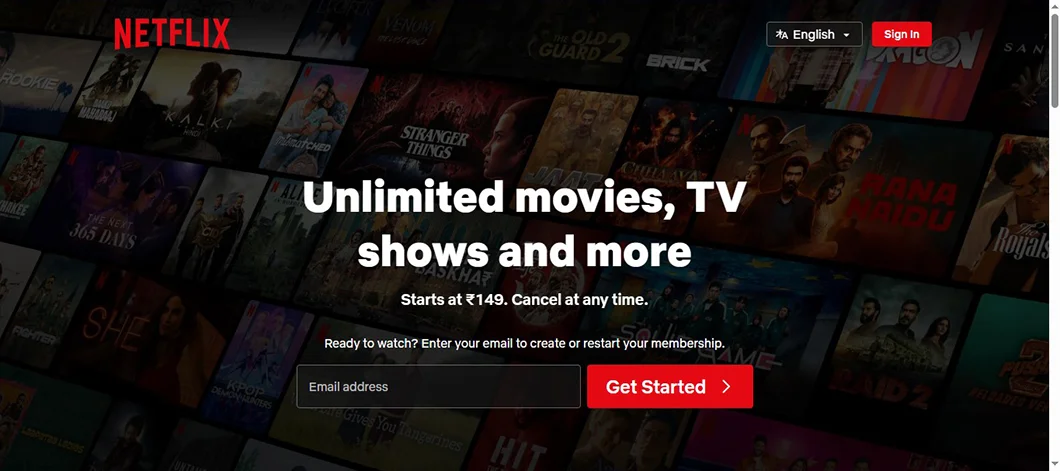
- Visit Netflix.com
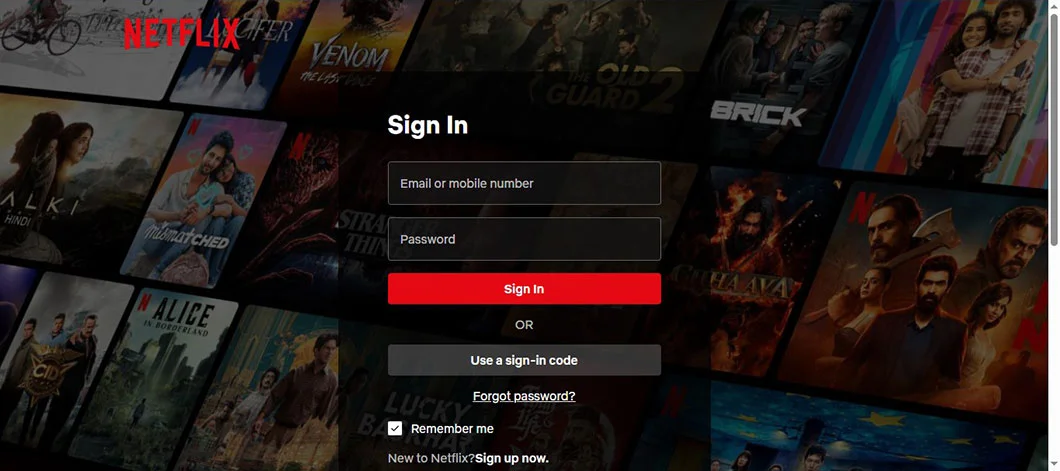
- Enter your username and password to log in.
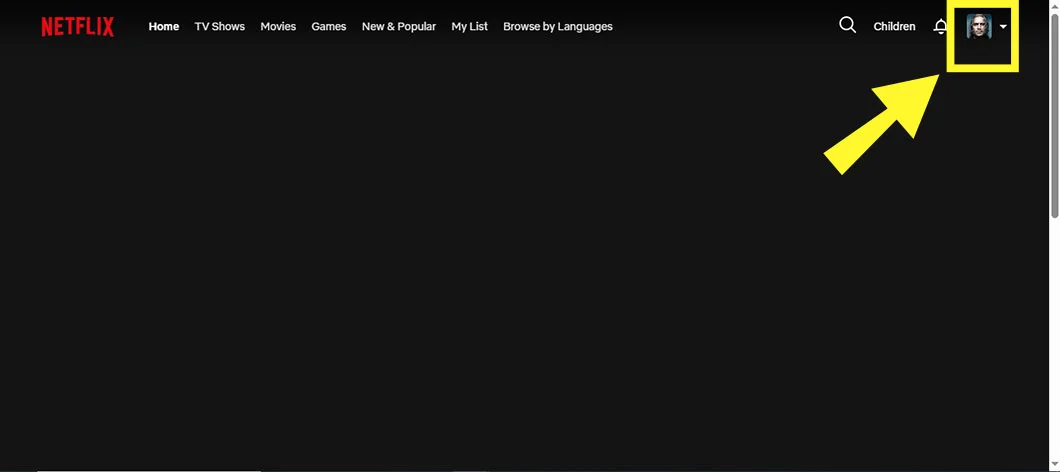
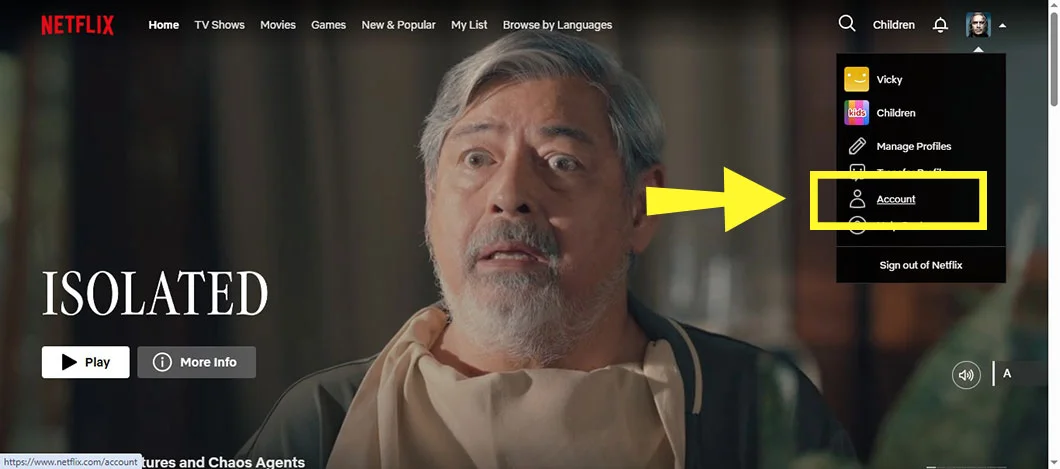
- Click Your Profile Icon.
- Find & tap on “Account” Section.
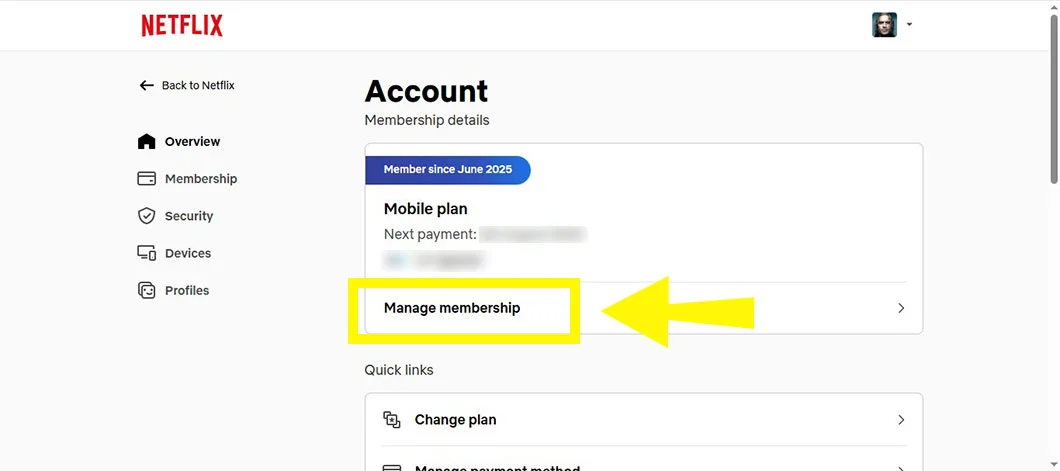
- Tap On “Manage Membership” Button.
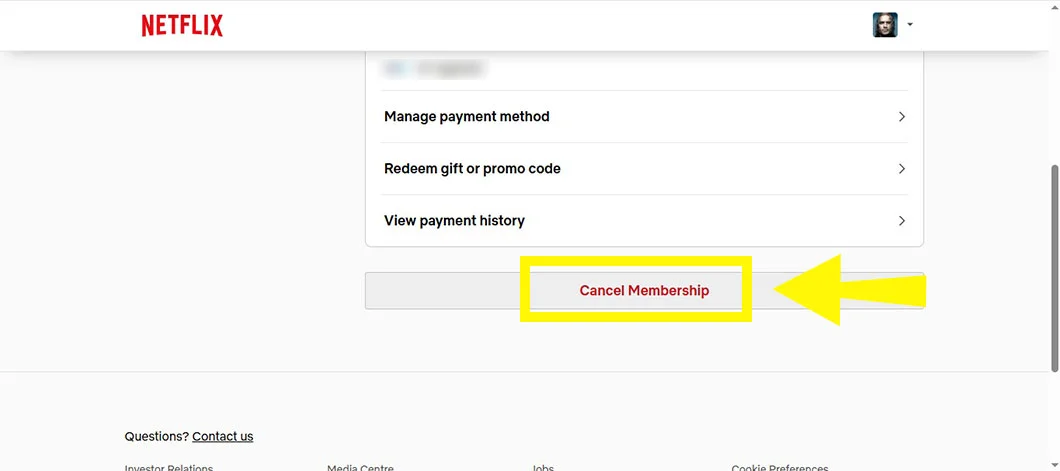
- Click Cancel Membership and confirm the same.
- You will receive a confirmation email from Netflix that you have cancelled the subscription.
Cancel on Android Device
Mobile users are more than browser users, and the steps are slightly different as well. To cancel Netflix on the phone:
- Open Netflix app.
- Log in (if not already).
- Tap your account profile
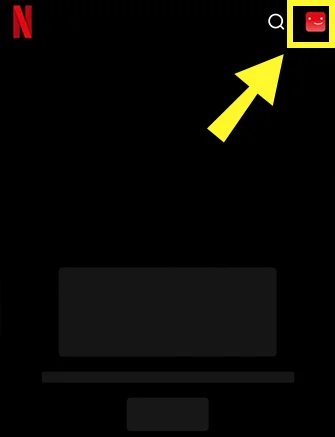
- Select Account.
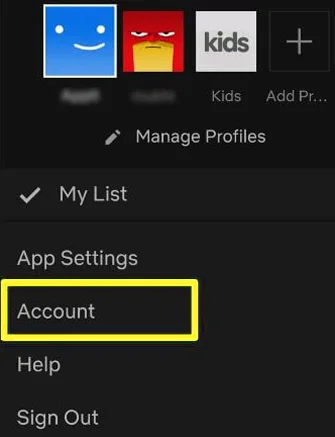
- Click “Cancel Membership” option under Membership & Billing
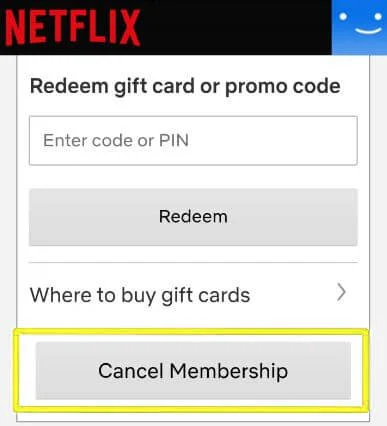
- Finally, click Finish Cancellation.
Cancel On iOS Devices:
- Open The “settings” app.
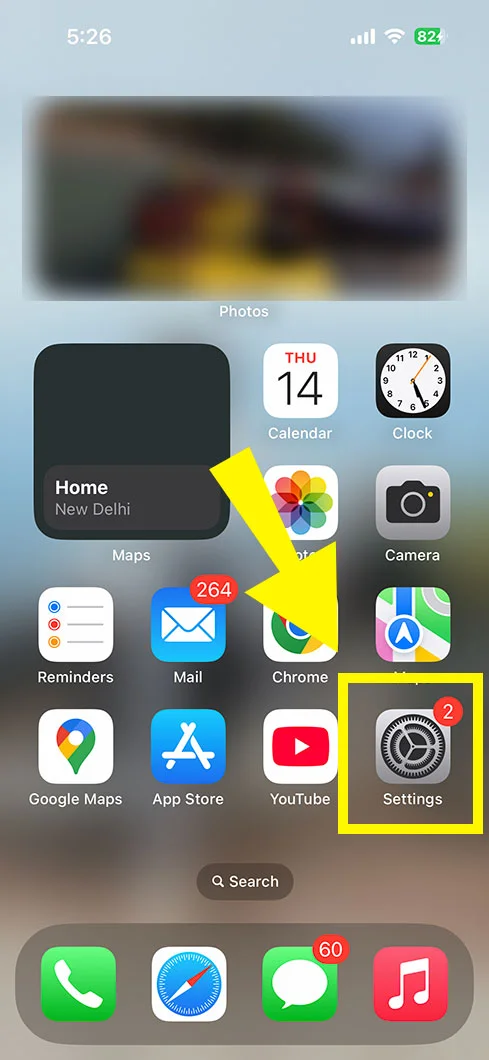
- Tap your name or “Apple Id” displayed on the top.
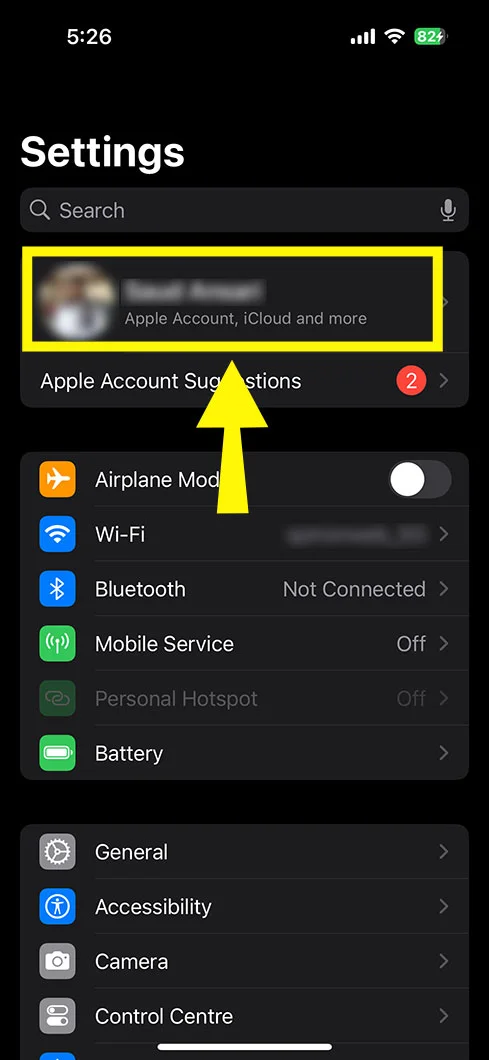
- Navigate “Subscriptions” option.
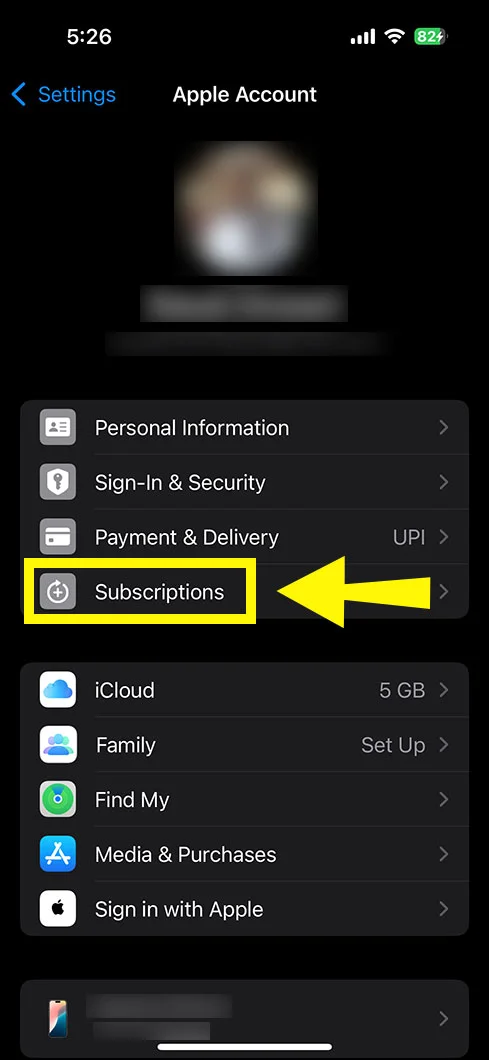
- Choose “Netflix” among various subscriptions.
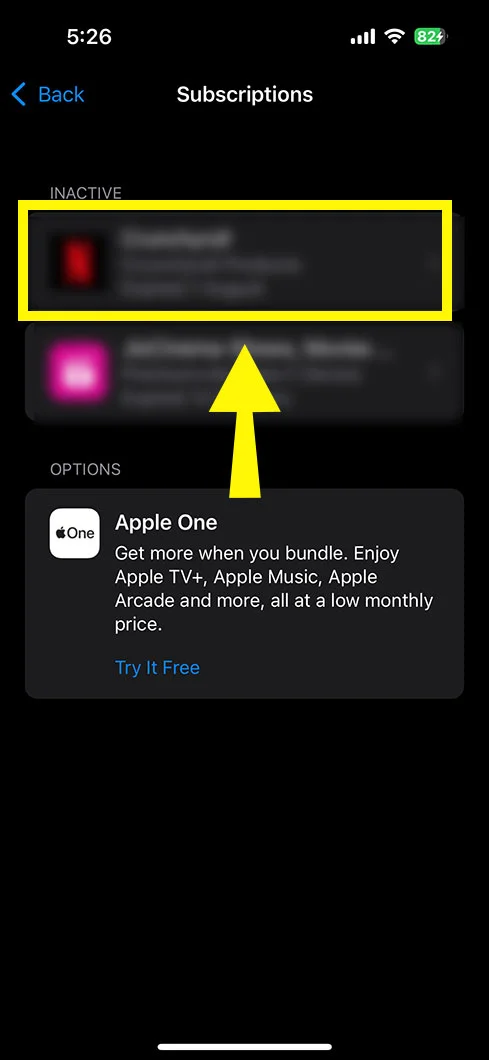
- Hit the “cancel membership” Button.
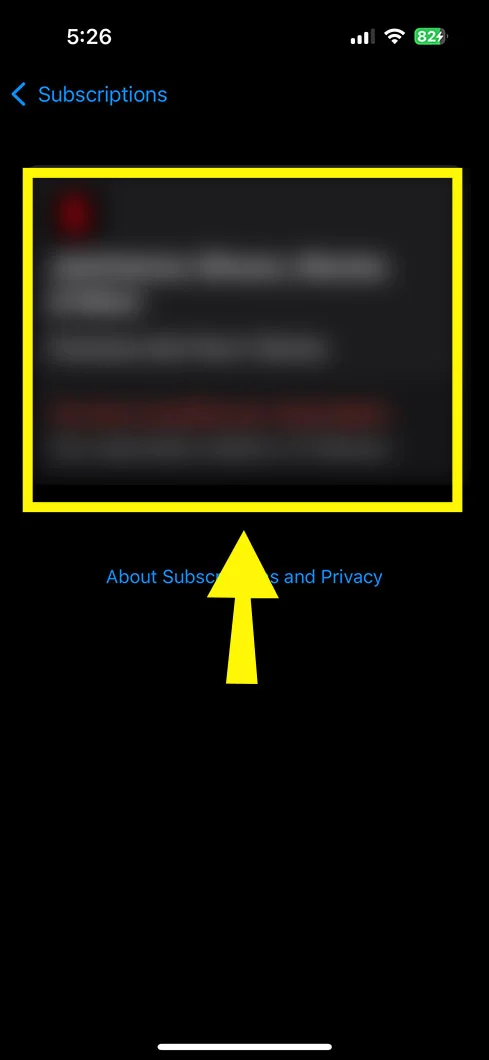
- Check the confirmation mail sent to your register email address.
Cancel On TV:
Netflix users now have the option of revoking their subscription directly through their smart TV. To avail this facility, users must have signed in via smart TV, Amazon Fire TV, or Roku. Check the steps below:
- Head to the Netflix App on your TV and log in.
- Hit the drop-down menu in the top corner of the screen.
- Pick Account from the menu and tap on Membership and Billing.
- Click Cancel Membership and finish Cancellation to confirm.
Cancel Netflix Subscription via Third-Party
Cancel via Google Play:
Here’s a simple step to cancel a Netflix plan on the Google Play Store:
- Open the Google Play Store.
- Tap the profile icon.
- Select payments & subscription.
- Tap subscriptions.
- Choose Netflix among many, and tap ‘cancel subscription’
Cancel via App Store:
- On your iPhone or iPad, open the settings app.
- Now, click your name at the top of the settings.
- On the menu, find subscriptions option.
- Choose ‘Netflix.’
- Tap ‘cancel subscription’ and confirm the same.
Cancel Netflix Subscription via Roku
If you have registered your Netflix account on Roku, you are recommended to comply with the process listed below:
- Initially, tap on the Home button on your Roku remote.
- After that, choose Netflix on the home screen.
- Now, hit the Star button on your remote.
- Then, Select Manage Subscription from the menu.
- Pick Cancel Subscription and confirm.
- Lastly, your Netflix subscription will be called off at the end of the billing period.
Common problems While Canceling Netflix Subscription
Canceling a Netflix subscription is relatively simple and user-convenient. However, there are some common issues that you might encounter with cancellation. Stated below are some of the problems that might arise and strategies to resolve them:
Difficulty in tracing the cancellation option: To fix it,
- Proceed towards your Netflix Account Settings.
- Tap on your profile and select Account.
- Now, Cancel your Membership under the Membership and Billing section.
Third-party billing problems on Roku, iTunes, or Google Play: To fix,
For Google Play, open the Google Play Store, click subscriptions, and then cancel Netflix
For iTunes, proceed to Settings and then Subscriptions on your iPhone and hit the Netflix cancellation button.
Techniques to confirm Netflix Subscription Cancellation
Upon cancellation of your Netflix subscription, try confirming it through the easy process provided below:
- Log in to Netflix and then proceed to the Account Settings.
- Now, under Membership and Billing, search for a confirmation message that states the termination of the membership at the end of the current billing period.
Also, you can check the email registered with Netflix about the cancellation confirmation sent to you. This confirms the cancellation successfully.
Conclusion
So far, we have seen how to cancel Netflix subscription. The process is more or less the same for either browser or mobile application. You can cancel your Netflix plan. However, you can still use your Netflix Account even after revoking your subscription to Netflix till the end of the current billing period. You can check out the tenure of usage on the Netflix billing page.
If you still have not solved your above query then, get instant assistance for canceling your Netflix subscription. Just connect with the Netflix customer Service assistance team for instant support.
Frequently Asked Questions
Can you really cancel Netflix anytime?
Yes, you can end your Netflix account subscription at any time. However, Netflix does not offer a free trial facility; you can freely opt to cancel your subscription at any time you want to. No fees, no contracts for cancellation.
How do you revoke a Netflix account you don’t have access to?
In case you want to cancel your Netflix Account that you don’t have access to, you are required to try the steps below:
- Collect all the account-related information from the user.
- Connect with the Netflix customer service agent.
- Inform the agent about the email or phone number linked to the account.
- Also, provide complete payment information for using Netflix.
Does Netflix refund money if I cancel?
No, Netflix does not provide any full or partial payments for cancelling Netflix subscriptions according to its policy.
How do I cancel my subscription for Netflix?
Cancel your Netflix plan by signing in to your account on Netflix.com, then tapping Manage your membership page, clicking ‘cancel’ and then tapping finish cancellation.
How do I check my Netflix subscription?
To check your Netflix subscription, visit your Netflix account page on the website. Then, tap ‘Membership & Billing’ and see your existing plan details.
Where do I manage my Netflix account?
You can manage your Netflix account on the browser and mobile devices. Simply visit Netflix.com, log in, and tap the ‘account’ page. Manage your account from here easily.
How can I cancel my payment method on Netflix?
You can cancel a payment method on Netflix by just deleting it from the manage payment info page. However, to do so, you should have at least one payment option available during this process. If not, then add one.