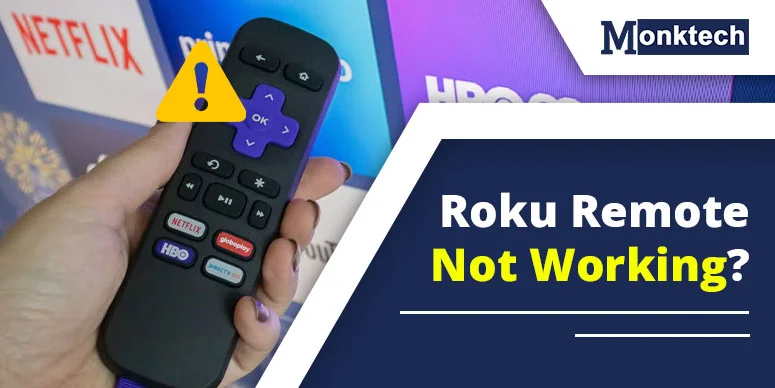
Facing a Roku remote stoppage is frustrating, and you need quick help with that. When you grab your Roku remote, press a button, and nothing happens, that’s when you get angry, especially when a favorite show is on the screen. There are many reasons Roku stops working. But most Roku remote problems are fixable. In this guide, we will give you clear, ranked fixes to try first.
You will find solutions to the blinking green lights and full pairing failures.
Quick Fixes to Try Right Now
Try these fixes to resolve most Roku remote issues.
- Replace the Batteries: Use fresh AA alkaline batteries — never mix old and new.
- Restart Your Roku: Unplug for 10 seconds, plug back in, and wait until it restarts fully.
- Re-Pair the Remote: Hold the pairing button for 5 sec after restarting.
- Clear Line of Sight: Remove objects between the remote and the TV for IR remotes.
- Move HDMI Devices: Streaming sticks too close to the TV can cause 2.4 GHz interference.
- Update Roku Software: Go to Settings > System > System Update > Check Now.
Identify Which Roku Remote You Use
Identifying the remote type helps you try the right fix for you. Understand which one you’re using.
1. Standard IR Roku Remote
This is the basic remote included with older or budget Roku devices. It requires a direct line of sight to your TV. There is no pairing button and no Wi-Fi connection. If anything blocks the signal path, for example, a cabinet, soundbar, or even a decorative item, it stops working instantly.
2. Enhanced Roku Voice Remote
Found on mid-range and premium Roku devices (Roku Streaming Stick 4K, Roku Ultra). It connects over Wi-Fi, so it doesn’t need a line of sight. It has a small pairing button in the battery compartment. It supports voice search and, on some models, TV volume and power controls.
3. Roku Mobile App Remote
The free Roku app (iOS and Android) turns your phone into a remote. It works over your home Wi-Fi network. If the app remote disconnects, it usually means your Roku or phone changed networks, or a firewall is blocking communication.
| Remote Type | Needs Pairing | Uses Wi-Fi | Voice Control | Common Issues |
| Standard IR | No | No | No | Blocked signal, dead batteries |
| Enhanced Voice Remote | Yes | Yes | Yes | Pairing failure, Wi-Fi interference, HDMI conflict |
| Roku Mobile App | Yes | Yes | Yes | Network mismatch, firewall blocks |
How to fix Roku Remote Not Working Issue
1. Replace the Batteries Properly
Use fresh AA alkaline batteries — not rechargeable NiMH batteries, which deliver lower voltage and often cause erratic behavior. Avoid mixing an old battery with a new one. Insert them with the correct polarity (+ and −) as shown inside the compartment. Wait some times, and start using.
2. Restart Your Roku Device
Restart your Roku device to remove a software glitch in the Roku OS, which can break remote communication even if the remote itself is fine. You have three restart options:
- Soft Restart: Go to Settings > System > Power > System Restart (if you have another input method).
- Unplug Method: Unplug the Roku power cable, wait 10 full seconds, then plug it back in and wait for the home screen to load.
- Settings Restart Path: Settings → System → Power → System Restart (accessible via the Roku mobile app if your remote is fully dead).
3. Check for Blocked Signals (IR Remotes Only)
If you have a standard IR remote, any physical obstruction between the remote and the TV sensor kills the signal. Common culprits include TV cabinets with glass doors, soundbars placed directly in front of the TV’s IR window, and seasonal decorations near the TV. Clear the line so the remote and your device can connect without interruptions.
4. Move HDMI Devices Away
This is one of the most overlooked fixes. HDMI streaming sticks (Roku Streaming Stick, Fire Stick, etc.) emit 2.4 GHz signals that can interfere with the Wi-Fi channel your Roku enhanced remote uses to communicate. The result: your remote works fine when you’re close to the TV, but acts up at normal viewing distance.
Pro Tip
Use the HDMI extender cable included in your Roku Streaming Stick box. It adds 6 inches of distance between the stick and the TV, dramatically reducing 2.4 GHz interference. This alone fixes the problem for many users.
How to Re-Pair a Roku Remote
You have two ways to re-pair Roku remote:
1. Automatic Pairing Method
- Remove the batteries: Take them out and set aside for 10 seconds.
- Restart your Roku: Unplug it from power and wait 10 seconds.
- Plug Roku back in: Wait for the home screen to fully load.
- Reinsert the batteries: The remote should auto-pair within 30 seconds.
2. Manual Pairing Steps
- Open the battery compartment: Locate the small pairing button — it’s recessed inside.
- Hold the pairing button for 5 seconds: The status light will start flashing green.
Roku Remote Blinking Green Light but Not Working
What the Green Flashing Light Means
A blinking green light on your Roku remote almost always signals one of three things: a pairing failure, a firmware issue where the remote’s software is stuck in a loop, or a weak or unstable signal between the remote and the Roku device.
Fixes for the Blinking Green Light
- Reset the remote — Remove batteries, hold the pairing button for 10 seconds with batteries out, then reinsert and re-pair.
- Reboot the Roku — Unplug for 30 seconds. This clears the pairing table on the device side.
- Reduce interference — Move the Roku streaming stick with an HDMI extender, or switch your router to 5 GHz to reduce 2.4 GHz congestion.
- Check the battery charge — Low-power batteries can cause rapid blinking even if they’re “not dead.” Replace with fresh alkaline batteries.
Roku Remote Volume or Power Button Not Working
This is a unique issue — your streaming functions work fine (you can navigate, play content), but the volume and power buttons are dead. Here’s why and how to fix it.
Why Streaming Works but TV Controls Don’t
Enhanced Roku remotes communicate with Roku over Wi-Fi for navigation commands, but they use a separate IR blaster built into the remote to control your TV’s volume and power. If that IR blaster is blocked, misaligned, or not programmed for your TV brand, only TV control buttons fail while streaming buttons work perfectly.
Reprogram TV Controls
Go to Settings → Remotes & Devices → Remote → Set up remote for TV control. Follow the on-screen wizard to reprogram the remote for your specific TV brand. Point the remote directly at the TV during this process.
Check HDMI-CEC Settings
CEC (Consumer Electronics Control) allows your Roku to control TV power and volume over the HDMI cable. If your TV has CEC disabled, these buttons won’t work. Enable HDMI-CEC in your TV’s settings (often called Anynet+, Bravia Sync, or SimpLink depending on the brand).
Compatible TV Limitations
Not all TVs support full CEC functionality. Some older models may allow volume control but not power, or vice versa. Check Roku’s TV compatibility list linked in the references below.
Soundbar Interference
If a soundbar is connected between your Roku and TV, it can intercept CEC commands or physically block the remote’s IR signal. Try connecting the Roku directly to the TV HDMI port (bypassing the soundbar’s HDMI arc) to test.
Roku Remote Not Working After Battery Change
Incorrect Battery Placement
Double-check the + and − terminals. A single reversed battery is enough to prevent the remote from powering on.
Dirty Battery Contacts
Corroded or dirty contacts block current flow. Use a dry cotton swab or pencil eraser to gently clean the metal contacts inside the battery compartment. If you see green or white residue, the old batteries leaked. Clean thoroughly before inserting new ones.
Remote Firmware Crash
Sometimes swapping batteries causes the remote’s internal firmware to crash. This is rare but real. Fix: remove the batteries again, hold the pairing button for 10 seconds with no batteries installed (this drains residual charge), then reinsert fresh batteries and re-pair.
Frequently Asked Questions:
How do I fix an unresponsive Roku remote?
To fix the Roku remote, you must unplug the Roku device, remove batteries from your remote, and re-pair by holding the Home and Back buttons.
How do I reboot my Roku remote?
Simply remove the remote batteries and wait for around 30 seconds. Insert the batteries again and start using.
Why is my remote not working even with new batteries?
If battery replacement is not helping you fix remote functions, you can try out a power reset and battery adjustments. That may help you fix the issue instantly.
Why is my TV suddenly not responding to the remote?
That’s a connection dispute between your device and the remote. You just need to re-establish it. So, remove the battery and hold the power button to drain the remaining power. Then, hold for 20-30 seconds. Now you can insert the battery and start using it.