This guide is for account privacy and troubleshooting only. It does not provide financial, medical, legal, or safety advice.
After confirming deactivation, your profile may still appear to friends (cached pic/DMs) or in Google/Bing searches due to indexing delays. Instagram says temporary deactivation hides your profile until you log back in, but search results and cached views may take time to update across platforms.[Official]
With the integration of the Meta Accounts Center, the process for managing your visibility has evolved. If your profile is still lingering, it’s usually due to cached data or linked Facebook accounts. This guide will help you fully hide your profile across platforms.
Quick Solution: The “Hidden Profile” Checklist
If you’re in a rush, use these three checks first to confirm deactivation and reduce cached visibility.
- Verify Status: Check your account in Accounts Center > Personal details > Account ownership and control > Deactivation or deletion to confirm the profile is actually deactivated.
- Clear the Cache: Old profile details may still appear from app, browser, or search cache. Clear your app cache or browser cookies to check the current account state.
- Wait for Reprocessing: Search engines and platform caches may need additional time to reflect the updated account status.
Why This Happens (The Root Causes)
In most cases, the account is already deactivated, but other people may still see outdated profile details in cached app views, browser history, or search results.
1. Cached Data and Indexing
Browsers and search engines store “snapshots” of your profile. Even if the live page is gone, the snapshot remains until the next crawl.
2. Improper Deactivation Path
Older guides may show a different path, but Meta has centralized many account settings in Accounts Center, including deactivation controls for linked experiences.
3. Automatic Reactivation
If your Instagram account is connected to third-party apps or websites, review and remove those connections before deactivating so there is less chance of unexpected account access or confusion.
Step-by-Step Fix: How to Properly Deactivate (2026 Method)
Use this path in the Instagram app or Meta account settings to deactivate the correct profile and reduce partial-account mistakes.
Fix 1: The Core Deactivation via Meta Accounts Center
- Open Instagram and tap your profile icon.Reason: This is where Meta now places account-level controls for connected profiles and settings.
- Tap the Menu (three lines) in the top right.Reason: The menu is the starting point for account settings, including access to Accounts Center.
- Select Settings and Privacy, then tap the Accounts Center banner at the top.Reason: Accounts Center is where Meta manages settings shared across connected experiences.
- Go to Personal details > Account ownership and control.Reason: This section contains control options for account status, access, and ownership-related settings.
- Tap Deactivation or deletion and select the specific Instagram account.Reason: Targets specific account if multiple linked.
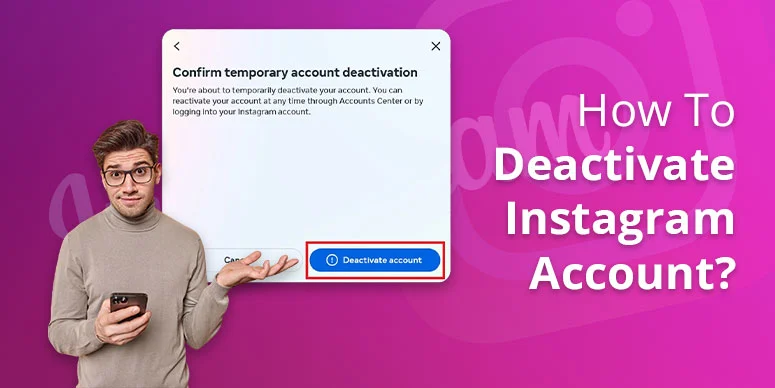
- Choose Deactivate account (Temporary) and hit Continue.Reason: Temporary option preserves data vs permanent delete.
- Enter your password, select a reason, and confirm.Reason: Instagram asks for your password to confirm that you are authorizing the deactivation request.
Note: Deactivation allowed once per 7 days per Instagram policy.[Official]
Fix 2: Disconnect Third-Party Apps
To prevent accidental reactivation, go to Accounts Center > Connected Apps and remove permissions for any third-party tools before you deactivate.
Reason: Connected apps and websites can keep old access relationships active, so reviewing them reduces confusion before deactivation.
Fix 3: Clear Browser and App Cache
- iPhone: Go to Settings > General > iPhone Storage > Instagram > Offload App. This clears the local cache without deleting your settings.
- Android: Long-press the Instagram icon > App Info > Storage & Cache > Clear Cache.
- Desktop: Press
Ctrl + Shift + Delin your browser and clear cookies for “instagram.com”.
Why clear cache? Cached app or browser data can make an old profile state appear visible even after the account status has changed.
Reason: This helps you confirm what Instagram shows now instead of what your app or browser stored earlier.
Deactivating vs. Deleting: Which One Do You Need?
| Feature | Deactivation (Temporary) | Deletion (Permanent) |
|---|---|---|
| Visibility | Hidden until you log back in. | Permanently removed. |
| Username | Reserved until reactivation. | Released after 30 days. |
| Data Safety | Photos, likes, and followers are saved. | Everything is erased after 30 days. |
| Time Limit | Can be done once a week. | One-time action; irreversible. |
Advanced Troubleshooting
How to Handle a Persistent Google Search Result
If your profile is gone but still appears in Google Search, use Google’s Refresh Outdated Content tool to request an update when the page no longer exists or the old snippet is outdated.[Google]
Business Accounts
If you use a Business or Creator account, double-check any connected business tools, linked profiles, or account-center settings before deactivating so you do not leave a connected Meta setup partially active.
FAQs
These quick answers cover the most common issues people notice after temporary deactivation.
Can I stay deactivated forever?
Yes, deactivation holds until you log in; no forced policy.
Will my DMs disappear?
Your direct messages are generally not deleted during temporary deactivation, although recipients may see limited profile details until the account is active again.
What if I forgot my password?
You cannot deactivate without a password. You must use the “Forgot Password” link on the login screen to reset it via email or SMS before you can proceed with hiding the account.
Will deactivating Instagram deactivate my Threads profile too?
No. Deactivating Instagram does not deactivate your Facebook account. For Threads, you must deactivate it separately in the Threads app since it has its own profile settings, even though it links to Instagram.
What happens to my “Meta Verified” subscription if I deactivate?
Note: Deactivating does not cancel Meta Verified subscriptions. Manage or cancel them separately in your app store (App Store/Play Store) or Accounts Center to avoid ongoing charges.
Can people still see my comments on other people’s posts?
No. When you deactivate, your likes and comments are hidden from all posts. They are not deleted; they simply become invisible until you reactivate your account.
Does deactivating Instagram free up my username for someone else?
No. Your username remains reserved for you as long as the account is deactivated. No one else can claim your handle while your account is in a temporary “pause” state.
Is deleting the Instagram app the same as deactivating?
No. Deleting the app only removes the software from your phone. Your profile remains fully visible to others. To hide your profile, you must follow the deactivation steps in the Accounts Center.
Will my messages (DMs) stay in people’s inboxes?
Your sent messages remain in the recipient’s inbox, but they may see your name as “Instagram User” and your profile picture will be replaced with a default icon until you return.
How many times can I deactivate and reactivate?
Instagram limits deactivation to once per 7 days. The exact cooldown period depends on your last deactivation date.
Pro Tip: Before deactivating, set your account to Private.
Why private first? Limits non-follower views during propagation; extra privacy layer.