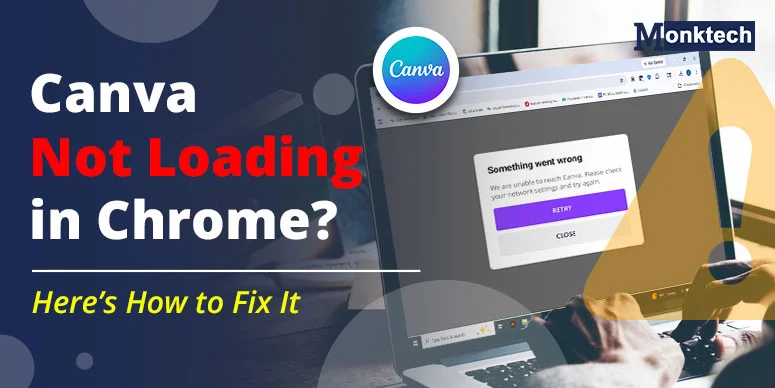
Have you noticed Canva not loading in your browser, Chrome or any other? This design app may stop working in a few cases where it encounters hurdles, such as caches, an outdated browser, a Canva server outage, or others. We will investigate the cause and offer a practical solution.
In most cases, this is almost always a browser-side problem, not a Canva account issue.
Why is Canva not loading in Chrome?
Among different reasons, these are the leading causes:
- corrupted browser cache
- conflicting extensions
- an outdated Chrome version
- hardware acceleration issues
- or a temporary Canva server outage
Common Signs When Canva Isn’t Loading Properly
When you notice the following on your Chrome browser, that’s indicating that Canva is facing an error.
- Stuck on the loading screen
- White/blank screen after login
- Editor won’t open
- Designs not loading
- Canva freezes mid-edit
- Tab crashes in Chrome
- “Something went wrong” error
- Infinite spinner loop
Quick Fixes
Try these before anything else. They take less than two minutes and solve the problem for more than half of users.
1. Hard-Refresh the Canva Tab
A regular refresh doesn’t clear cached assets. Use a hard refresh to force Chrome to reload everything fresh. To do so, press:
- Windows: Ctrl + Shift + R
- Mac: Cmd + Shift + R
2. Fully Restart Chrome
When you close the browser, Chrome often keeps background processes running. Close it completely from the taskbar, then reopen. On Windows, check Task Manager to confirm Chrome isn’t still running. To check, press: Ctrl + Shift + Esc.
3. Open Canva in Incognito Mode
Press Ctrl + Shift + N (Windows) or Cmd + Shift + N (Mac) to open an Incognito window, then go to canva.com.
If Canva loads perfectly in Incognito, a Chrome extension is causing your problem. This is one of the most reliable diagnostic tests you can run.
4. Check If Canva Is Down
Visit Canva’s official status page or check Downdetector. If there’s an active outage, there’s nothing to fix on your end — just wait it out.
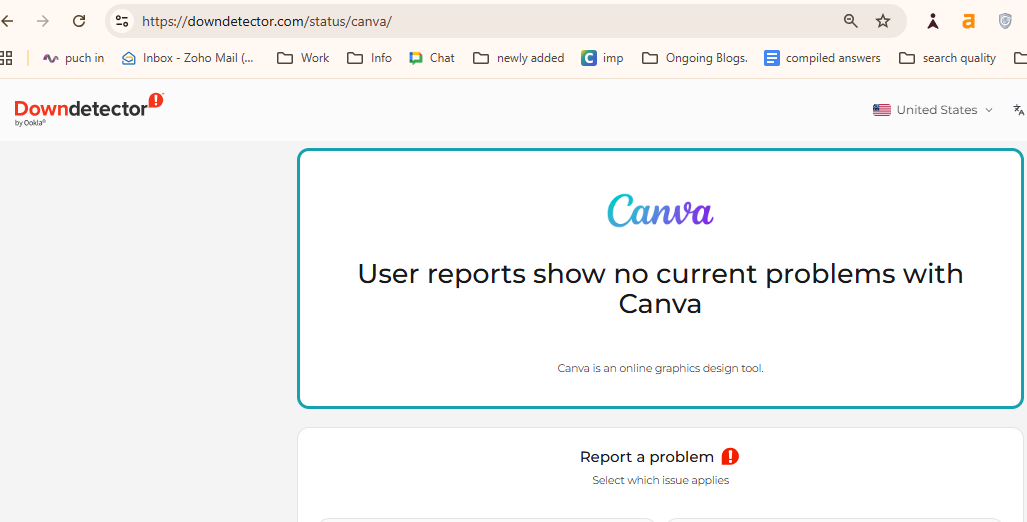
Checking Canva server status is the first step when the app won’t load in Chrome.
5. Check Your Internet Connection
You need a high-speed internet connection to see if your Canva is working fine. An unstable connection — even one that lets you browse basic websites — can cause Canva’s assets, fonts, and templates to fail to load.
You can check your current internet speed online at fast.com.
How to Fix Canva Not Loading in Chrome
Follow these methods one by one until you find the perfect solution for you.
1. Clear Chrome Cache and Cookies for Canva
Over time, your browser stores cached data to speed things up. But corrupted or outdated cache files can silently break how Canva loads — especially after a Canva update.
⚠️ Before you clear cache: Canva auto-saves your designs to the cloud, but if you have any unsaved local drafts, take note of them first.
Steps to clear cache for Canva specifically:
- Click the padlock icon next to canva.com in Chrome’s address bar.
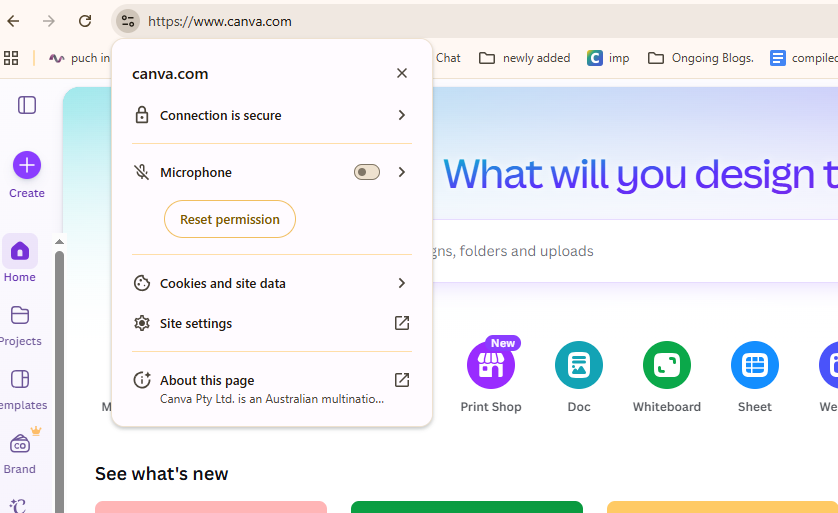
Clearing site-specific data in Chrome is a highly effective way to fix Canva loading errors.
- Select Site Settings → Clear Data. This removes only Canva’s stored data, keeping your other sites intact.
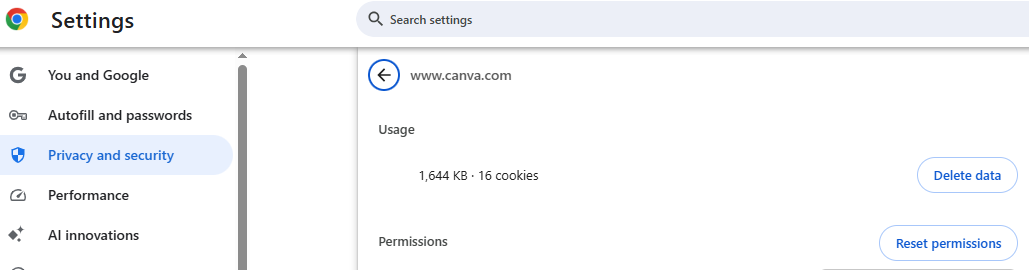
You can clear site-specific data for Canva in Chrome to resolve loading errors without affecting other websites.
- Reload Canva. Chrome will fetch a completely fresh version of the app.
If you’d rather clear everything, go to chrome://settings/clearBrowserData and select “All time” as the time range. Check Cached images, files, and Cookies.
2. Disable Chrome Extensions That Break Canva
This is the most overlooked cause of Canva loading problems in Chrome. Extensions that commonly interfere include:
- Ad blockers (uBlock Origin, AdBlock Plus) — block Canva’s asset delivery scripts
- Privacy extensions (Privacy Badger, Ghostery) — prevent tracking scripts Canva relies on
- VPN extensions — reroute traffic and cause loading loops
- Antivirus browser tools — scan and delay page resources
- Dark mode extensions — inject CSS that conflicts with Canva’s editor rendering
- Tab memory savers — may suspend active Canva tabs unexpectedly
- Grammar or screenshot tools — lesser-known culprits that inject scripts into every page
How to identify the problematic extension:
Go to chrome://extensions/ and disable all extensions. Load Canva. If it works, re-enable extensions one at a time, testing Canva after each. The one that breaks Canva is your culprit.
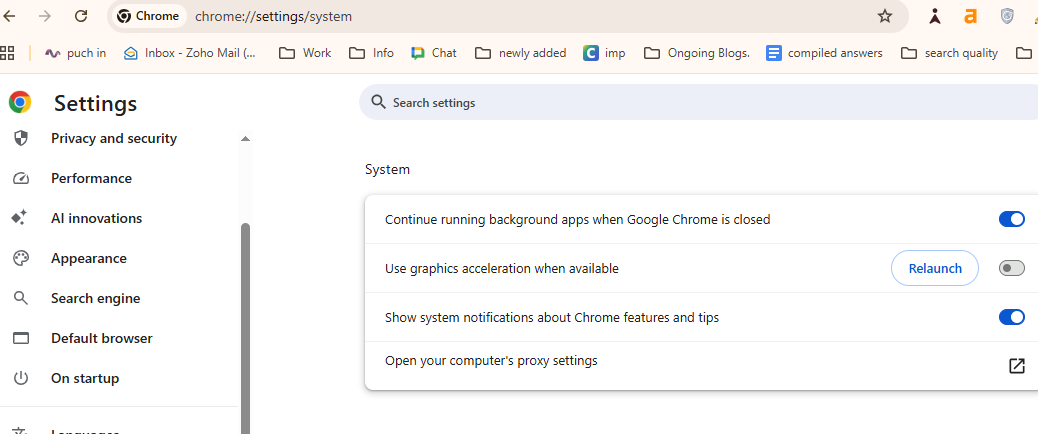
Turning off hardware acceleration can resolve visual glitches and loading loops in the Canva editor.
3. Update Google Chrome
Canva is a modern web application built on the latest Chromium rendering engine APIs. If Chrome is outdated, Canva’s JavaScript and WebGL features may simply fail to execute.
Go to chrome://settings/help — Chrome will automatically check for and install any available updates. Restart Chrome after updating.
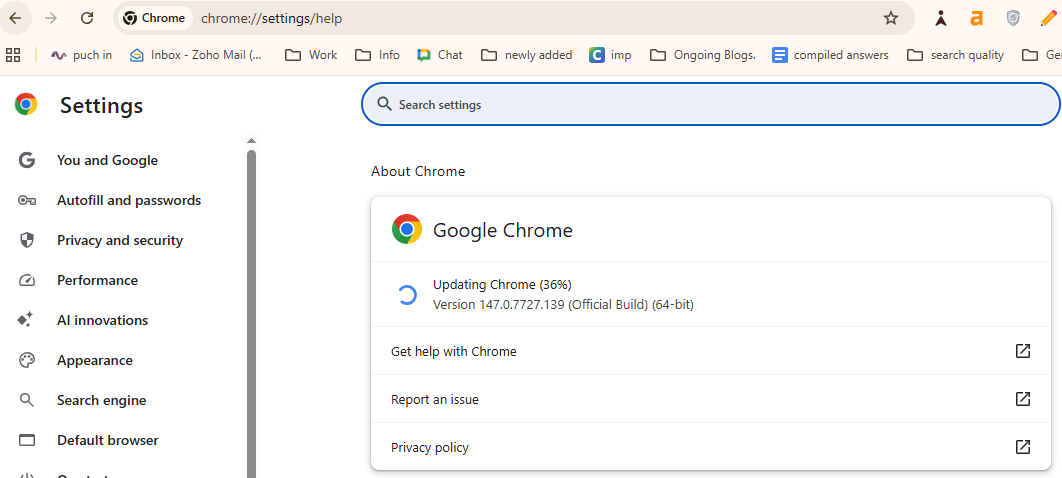
Keeping Chrome updated ensures you have the latest features and security fixes required to run Canva smoothly
Note: As of 2026, Canva recommends Chrome 112 or later. Chrome auto-updates by default, but users on managed or corporate machines may be on older versions without realising it.
4. Turn Off Hardware Acceleration in Chrome
Hardware acceleration offloads rendering tasks to your GPU. This usually speeds things up — but with outdated or incompatible GPU drivers, it can cause Canva’s canvas to go black, flicker, or refuse to render entirely.
How to disable it:
chrome://settings → System → “Use graphics acceleration when available” → Toggle OFF → Relaunch Chrome.
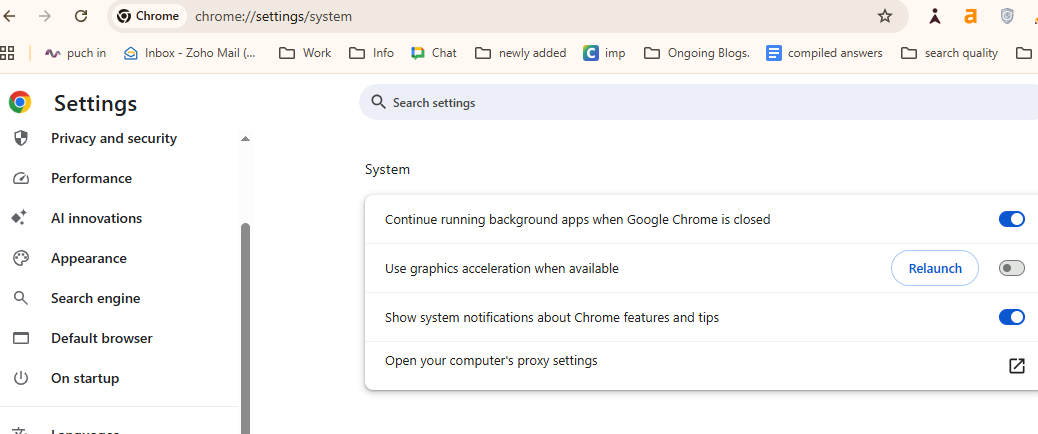
Disabling hardware acceleration often fixes blank screens and loading loops in Canva.
After restarting, load Canva again. Many users who see blank canvases or visual glitches in the editor find this single change fixes the problem completely.
5. Fix Canva Not Loading After Login
If Canva loads the homepage but breaks right after you sign in, you’re likely dealing with a login token or session cookie conflict — especially common if you’re signed into multiple Google accounts in Chrome.
Sign Out and Back In
Click your profile icon → Log Out → Sign back in fresh. This refreshes your session token.
Remove Multiple Google Account Conflicts
If you’re logged into 3+ Google accounts in Chrome, remove unnecessary ones or switch to a dedicated Chrome profile for Canva.
Try a Different Login Method
If you normally log in with Google, try email/password instead (or vice versa). SSO token corruption is a real but rarely discussed cause of post-login loading failures.
6. Fix Canva Not Loading Images, Fonts, or Templates
If the Canva editor opens but assets inside your design don’t appear, the cause is usually:
- CDN blocking — your browser or network is blocking Canva’s content delivery servers
- Corporate or school firewall restrictions — many enterprise and school networks block third-party media scripts
- Browser permissions — Canva needs access to cookies and storage to load your design assets
- Slow upload rendering — large files (especially high-res images or videos) need time to process on Canva’s servers
Try switching to a personal Wi-Fi network or a mobile hotspot to rule out network-level restrictions.
7. Fix Canva Performance Problems in Chrome
If Canva lags on your browser, may be it’s running out of memory.
- Close unnecessary tabs before opening Canva
- Disable Chrome’s built-in Memory Saver (chrome://settings → Performance) temporarily — it sometimes suspends Canva mid-session
- Avoid working on Canva presentations with 50+ slides in a single session — split them into smaller files
- Canva recommends at least 4GB of free RAM for smooth editing; 8GB is ideal for large projects
Advanced Fixes for Persistent Problems
If none of the above has worked yet, these deeper fixes tackle more stubborn issues.
Reset Chrome Settings
Go to chrome://settings/reset and click “Restore settings to their original defaults.
Warning: This will remove custom search engines, pinned tabs, and startup settings. Your bookmarks and passwords are safe (they’re synced to your Google account).
Create a New Chrome Profile
Click your profile avatar → Add → New profile. Load Canva in the fresh profile with zero extensions and a clean slate. If it works here, your main profile has a deep configuration issue.
Flush Your DNS Cache
Windows: Open Command Prompt and run ipconfig /flushdns. Mac: Run sudo dscacheutil -flushcache in Terminal. A stale DNS cache can prevent Chrome from resolving Canva’s servers correctly.
Disable Experimental Chrome Flags
Go to chrome://flags and click “Reset all”. Experimental flags — especially GPU-related ones — can conflict with how Canva renders its canvas editor.
Reinstall Chrome
If all else fails, uninstall Chrome completely (including its local app data folder), then download a fresh copy from google.com/chrome. Your bookmarks and passwords sync back automatically via your Google account.
How to Prevent This From Happening Again
- Keep Chrome updated — turn on auto-updates and never dismiss the “Update Chrome” prompt
- Keep your extensions lean — only install what you actively use; remove dormant ones
- Clear browser cache monthly — a simple routine that prevents most loading issues
- Keep GPU drivers updated — especially important for laptops and systems with dedicated graphics cards
- Avoid browser overload — don’t run 30+ tabs while editing in Canva
When to Contact Canva Support
If you’ve tried every fix above and Canva still won’t load, the issue may be account-specific. Contact Canva’s support team if you’re dealing with:
You can reach out to the Canva team when you have got no results of everything you did to fix Canva issue.
Frequently Asked Questions
1. Is there a problem with Canva right now?
No, Canva is fully functional across its working locations, without any disruptions.
2. How to clear Canva cache?
When you are using Canva on a browser, simply tap the three dots > select ‘Delete browsing data’ > and delete data.
3. Why is Canva taking forever to load?
Canva’s extended loading time on the screen is an indication of poor internet speed, disrupts the browser, and server down error.
4. Are Canva servers down right now?
Currency, there is no server issue with Canva – it’s working absolutely fine.