ankit tiwari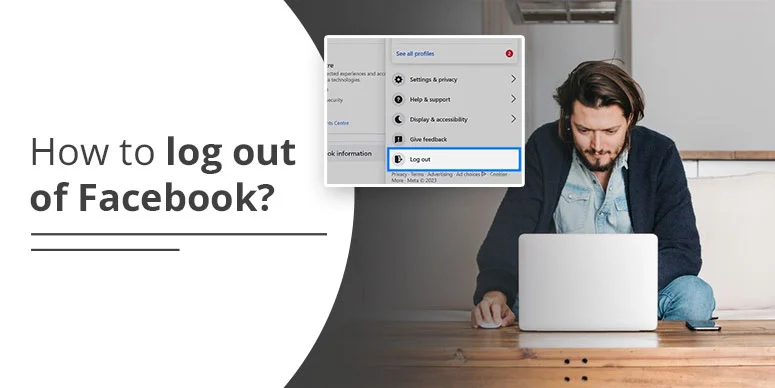
If you find your Facebook account compromised, or you just want to protect it from prying eyes, logging out is the best you can do. As Facebook can be used on any device, knowing how to log out of Facebook on Android, iPhone, iPad, Browser, etc., is important. Fret not! This guide is all about knowing different ways to opt for signing out of FB. Take a moment to follow this guide sincerely.
Quick Recap!
- A Facebook Account can be used on its application or the Facebook website by signing in to your account.
- If you want to sign out, you can do so easily using either the Facebook website or the Facebook Application.
- To sign out easily on mobile, log in to Facebook>select the profile>and tap the menu icon. (You find the menu icon in the bottom right corner if using an iPhone, but for Android, it’s in the top right corner). Just tap ‘log out’ and you’re all out of your account.
- To log out of Facebook on the web, log in>tap profile>scroll to the bottom and select the ‘Log Out’ option.
Why Does Someone Want To Log Out Of Their Facebook Account?
A user can think of signing out of FB due to multiple valid reasons. Maybe he left their account signed in on another device. Or, he may be tired of constant notifications and need a break for some time. Let’s explore the reasons for someone coming out of Facebook:
Security reasons: Facebook is not left untouched by scams and data breaches. The history tells a lot how things went worst. The security concern is something taken very seriously by users, and thus, protecting the account is important. So, signing out can be a good protective step, leaving no traces so it cannot be hacked.
Account switching: You may need to switch between accounts if you have multiple accounts on Facebook. Maybe it’s your business or other accounts that you need to log in to frequently. For logging into other accounts, signing out of the previous one is necessary.
Reduce distractions: If you need a break from all the hustle and bustle, that could be one of the reasons for signing out of Facebook. However, you can also think of deactivating your account to take a complete break. We’ll tell you about that later in this post.
Fix Facebook Glitches: Sometimes you may experience a problem with Facebook, and you get nowhere to fix it. In that scenario, performing sign out process may fix the problem. So, you can say: signing out sometimes fixes the problem with Facebook as well.
How Do I Log Out Of Facebook On My Phone
This simple guide will let you know how you sign out from Facebook on either Android or iPhone.
- Open Facebook App: If you’re a first-time user, first install the app from App Store or Google Play store. Once downloaded, tap it on your phone’s screen to open.
- Log In to Facebook Account: You need to log in using your account details. Enter your username and password in the dedicated space, and get into your account.
- Tap Menu: Select the menu icon or three horizontal lines in the bottom right corner (for iOS), or in top right corner (for Android).
- Click Log Out: scroll down to the far bottom. There you see log out option. Click it and come out of your account.
How To Log Out Of Facebook On Browser
If you use Facebook on Desktop or mobile browser, you need to follow these steps on Facebook website to remove your account from there.
- Open Facebook.com: visit official Facebook website by typing in the search icon of your browser.
- Log In: Enter your account details (username and password), and tap blue Log In option.
- Access Profile: Once signed in, locate your profile in the top right corner of the screen.
- Log Out: As you tap the profile, a menu will appear. Scroll to the bottom and then select ‘Log Out’ option.
How To Log Out Of Facebook On All Devices
You can log out of Facebook account on single device, and also on multiple devices at a time. Suppose you are using Facebook on your desktop, mobile and on another device as well, and you’re looking for a single step guide to remove account from all devices, then you can do so using Facebook settings. Here’s the step:
Log out remotely on mobile:
- Open Facebook: whatever device you have, open Facebook and log into the same account you’re thinking to sign out from.
- Click menu icon: grab the menu option in the top right corner if you’re Android user, and in the bottom right corner, if using iPhone.
- Tap ‘Settings and Privacy’: Under the help & support tab, click settings and privacy.
- Click settings: Click the settings option.
- Tap Accounts Centre: click Accounts center at the top.
- Tap ‘Password and security’: then, select password and security.
- Select ‘where you’re logged in: under the security header, choose where you’re logged in. This will unveil the device your account is signed in currently.
- Select your account and device: pick your account and the device it’s logged in.
- Tap log out: click ‘select all’ and ‘log out.’
Log out remotely on desktop:
- Visit Facebook website: open your desktop and type in Facebook.com.
- Log In: Enter your username and password to log in.
- Visit Security and login settings: tap your profile and the settings option. You will find security and login settings there. Click it.
- Tap Account centre: click the account centre option and then tap password and security.
- Tap ‘Where you’re logged in’: Select the option called where you’re logged in and pick your account to check where it’s active right now.
- Select and log out: select the particular session and tap log out. After scrolling, tap select devices to log out. Finally, select one or more and tap log out.
Alternatives for a longer break from Facebook
The above-mentioned steps are for signing out your Facebook account from one or more devices. Now, if you wish to take a longer break, Facebook offers a stable choice for you. You can deactivate your account and stay secure. However, you can also reactive your account anytime and use it normally.
Here are the steps to deactivate Facebook account:
- Open Facebook and sign in.
- Pick your profile icon.
- Select settings and privacy option, and then tap settings
- Tap Accounts Centre.
- Click personal details
- Tap Account ownership and control
- Pick deactivation or deletion option.
- Select the account and tap deactivate account.
- Finally, tap ‘Continue’ and follow steps till its completion.
How To Contact Facebook Support
Facebook help support is the last choice you have. You can ask your account-related questions and also find related articles in the Facebook Help Centre.
Here are the mediums to get assistance:
- Facebook help center
- Report a problem
- Account recovery help
- Meta help
Conclusion
Managing a Facebook account has now become easier. You can make changes, log out of any device, and do more with your account using the current version of Meta’s Facebook. To log out of Facebook, Access your Facebook account and select the menu icon. Scroll down and tap the log out option. You can also look for multiple steps for useful for logging out of FB in this guide. Follow for more detailed information!
Frequently Asked Questions:
How do I log out of my Facebook account?
To log out of Facebook account, open Facebook>tap profile>and click log out at the bottom.
Where has the log out button gone on Facebook?
The log-out option is just under your Facebook profile. After signing in, tap profile and scroll to see this option.
Why can’t I find logout on Facebook?
In some cases, you may not find the log-out option on Facebook if your app is not updated or if there is a glitch with Facebook. If you find difficulty in accessing the account, that’s also the reason for that.
Is it better to log out of Facebook?
Yes, it’s better to log out of Facebook to keep your account secure. It’s also beneficial if you keep on switching devices to log in your account.
Why should you log out of your account?
To keep your account safe and out of reach of others.