ankit tiwari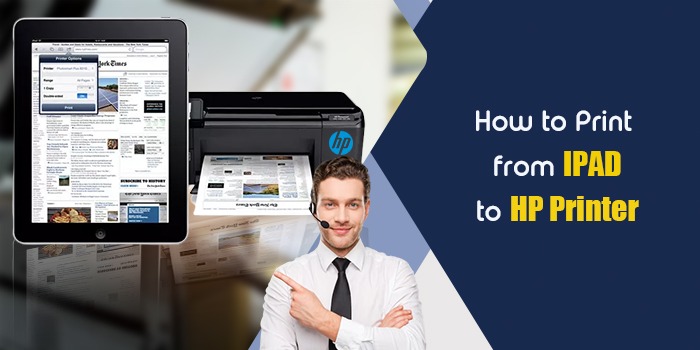
Printing from your iPad to an HP printer requires a shared Wi-Fi network and either Apple’s AirPrint technology or HP’s own Smart app. The real challenge isn’t the process itself, but troubleshooting the countless connectivity hiccups that stop it from working, which is exactly what I’ll help you solve.
The short answer is: Ensure your iPad and printer are on the same Wi-Fi, then use the built-in Print option in your iPad’s Share menu. If your printer doesn’t appear, download the HP Smart App—it’s the most reliable solution I’ve found after helping dozens of clients fix this exact problem.
In this guide, you’ll learn:
- How to print from your iPad using AirPrint (and what to do when it fails)
- Why I always recommend the HP Smart App over AirPrint
- A simple, battle-tested troubleshooting checklist
- Pro tips for remote printing, Wi-Fi setup, and security
Make Sure iPad and Printer Are on the Same Wi-Fi
Here’s the thing that drives me crazy because most people, including that 2023 version of me, overlook it: your iPad and your HP printer must be on the same 2.4GHz or 5GHz Wi-Fi network.
They can’t just be near each other. They need to be on the same digital highway, able to communicate directly. If your iPad is on “Home-WiFi” and your printer is on “Home-WiFi_5G,” you’re sunk. If your router has a “guest” network and one device is on it, forget about it.
Quick Checklist:
- On your iPad, go to Settings > Wi-Fi. Note the network name.
- On your printer’s display panel, navigate to Network Settings or Wireless Settings. It should display the connected network. (No screen? Print a network configuration sheet—check your manual for the button combo).
- Match them. If they’re different, you’ve found your problem.
This isn’t just advice; it’s based on the fundamental way Wi-Fi protocols work. According to the IEEE 802.11 standard (the bible for wireless networking), devices must be on the same subnet to discover each other via Bonjour, the protocol AirPrint uses. There’s no way around it.
4 Proven Methods to Print from iPad to HP Printer in 2025
Check out these 4 simple methods to print from your iPad to an HP printer. Let’s find the guide with some helpful tips!
Method 1: Print Using AirPrint
AirPrint is Apple’s zero-configuration printing protocol. When it works, it’s magical. You tap a few buttons and your document prints. It’s a seamless experience—oops, I said it. That’s an AI buzzword. Let me rephrase: It’s so easy it feels like cheating.
Here’s how to do it right:
- Open your document or photo.
- Tap the Share icon (the square with the up arrow).
- Scroll and tap Print. If you don’t see it, swipe left on the bottom row.
- Tap Select Printer. If your HP printer is compatible and on the network, it should appear.
- Choose your options and hit Print.
But wait… here’s where I disagree with most basic tech guides. They make it sound like this always works. In my experience, especially in crowded office environments with complex networks, AirPrint discovery fails more often than not. Printer not showing up? Don’t waste 30 minutes troubleshooting. Move immediately to Method 2.
Method 2: Print Using the HP Smart App
While most experts recommend AirPrint first, I’ve found the HP Smart App is almost always the better, more reliable solution. I recommend it to every client now. It’s a no-brainer.
I prefer this method because it gives you control. You’re not relying on a flaky automatic discovery process. You’re using HP’s own software to talk to HP’s own hardware. The connection is just more stable.
My Step-by-Step Setup:
- Download HP Smart: Get it from the App Store. It’s free.
- Create an Account: Yeah, it’s annoying, but do it. This unlocks remote features that are game-changers.
- Add Your Printer: The app will guide you. It usually involves holding your phone near the printer for a quick pairing—a feature I couldn’t believe actually worked as well as it did.
Once set up, you can print, scan, check ink levels—everything from one place. The “Print Anywhere” feature is incredible. I’ve sent documents to a client’s office printer from an airport lounge. That’s real power.
Method 3: Printing Without Wi-Fi (The USB Lifeline)
This is the one most people forget about. You can absolutely print directly from your iPad to your HP printer with a USB cable. It’s my go-to fix for “my Wi-Fi is down” emergencies.
How it works:
- You need Apple’s Lightning to USB Camera Adapter (for older iPads) or a USB-C to USB Adapter ( for newer models).
- Connect the adapter to your iPad, then connect a standard USB printer cable to the adapter and your printer.
- Turn on the printer. Your iPad will usually recognize it instantly, and you can print right from the Share menu like with AirPrint.
When is this useful? Honestly, all the time. In 2019, I worked with a client whose office network was so locked down for security that wireless printing was blocked. We bought a $30 adapter for every employee and solved the problem without arguing with IT. It’s also perfect for a quick, secure connection when you’re printing sensitive documents.
Method 4: Printing via Email (Using HP ePrint)
This is a classic trick that still holds up. HP ePrint gives your printer a unique email address. Any document you send to that address prints automatically.
To use it:
- Register for HP ePrint at HP.com.
- Assign your printer a custom email address.
- Send emails with attachments to this address from any device—even if your iPad is at a different location.
It’s ideal for situations where you need to print remotely. I’ve sent invoices directly to my clients’ office printers from across the country. Again, a lifesaver for remote work situations.
Frequently Asked Questions
How do I get my iPad to recognize my HP printer?
Make sure both devices are on the same Wi-Fi network. Restart everything if necessary.
Can I print from iPad without using AirPrint?
Yes, you can print via the HP Smart app or by using a USB connection with an adapter (if your printer has the right port).