ankit tiwari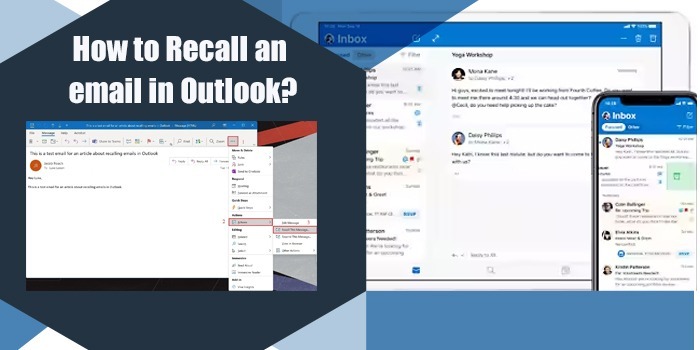
Have you ever hit the send button on an email and realised seconds later, it was a mistake?
Whether it is typo mistakes, wrong attachments, or an accidental recipient, we’ve all been there at times.
What if you have the option to fix such mistakes?
Well, that’s where the Recall an Email in Outlook option comes into play.
It is quite easy to execute, and can be done in only 2 minutes.
To recall an email in Outlook, go to your sent items, open your email and click on message > actions > Recall this message. Now, choose the deleted unread copies and replace them with a new one. However, recall only works if the recipient hasn’t read it yet and uses an Outlook account.
Let’s read this blog and grab a step-by-step guide.
TLD;R
- Desktop Recall: Send items – Message – Recall this message – delete or replace unread copies.
- Mobile Tips: use undo send, send delay, double-check recipients, or switch to Outlook Web.
- Must-haves: Both on Exchange/365 and unread email.
- If it fails: Apologise, resend, use delayed Delivery/Undo Send.
What is Email Recall in Outlook
Email recall refers to the process of attempting to retract a message after it has been sent.
It is like a digital Oops, but it didn’t mean to send that.
However, it will only work in specific conditions as follows:
- The recipient must be using an Outlook account, too.
- The email must be unread from the recipient’s side.
- Both sender and recipient must be on Microsoft Exchange services.
If these lines are not met, the recall might fail.
As it is the power tools, but not a kind of magic
Recall an email in Outlook (Desktop and Mobile)
Below, I have given the methods for recalling your Outlook email on desktop and mobile.
How to Recall an email in Outlook (Desktop)
These are exactly the steps Microsoft has taken.
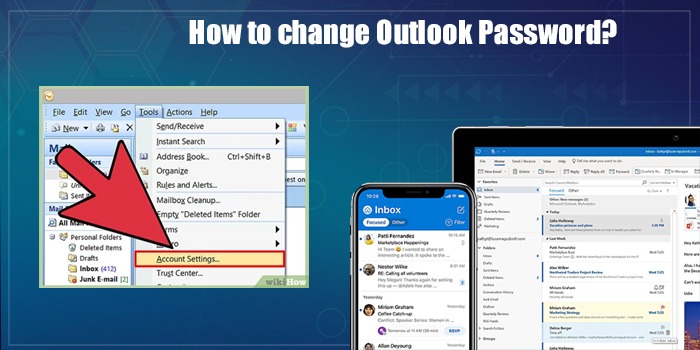
- Open Outlook desktop
- Go to sent items
- Double-click the email you want to recall (It must open in its own window)
- Switch to the message tab
- Click Actions – recall this message
- Select either delete unread copies or delete unread copies and replace with a new message.
- Click the Ok button
- You’ll receive notifications indicating success or failure
Note: Recall only works for Exchange/365 mailboxes within the same organisation.
How to Recall on Outlook Mobile (iOS & Android)
Since Outlook Mobile does not support message recall, your suggested workarounds are the best available:
- Use Undo Send: Use Undo Send entirely. In the mobile section, only list the “Send Delay” workaround
- Enable send Delay rule – delay outbound emails by 5-10 seconds, giving you a brief window to cancel.
- Double-check recipients – it is especially important to group addresses before tapping the send button.
- Switch to Outlook Web– it can switch in your mobile browser when you need the full desktop feature set, including the recall option.
Outlook Recall vs. Undo Send: Quick Comparison Table
Here’s the table that will tell you about a quick comparison of Recall and Undo Send. Follow now.
|
Feature |
Recall |
Undo Send |
|
Time limit |
Until email is read or recall window expires (default 1 year). |
5–30 seconds (configurable via Web/Desktop Delay Delivery only). |
|
Platform |
Outlook Desktop + Exchange only |
Web, Mobile, or Desktop |
|
External recipients? |
No |
Yes |
|
Success rate |
~38% (if unread + internal) |
Up to 100% within the undo window (Web/Desktop). |
|
Notification sent? |
Sometimes |
No |
Benefits of the Email Recall Feature
Recalling an email isn’t just about fixing the mistake…
It is about protecting your time, reputation, and sometimes it can protect your job as well.
Let’s know this by following these key benefits:
Avoid Embarrassment Instantly
It is an embarrassing situation when you send an email with the wrong attachment, Name and typos. Here, a quick recall can fix it.
Fix mistakes before they are seen.
It can help you find your error right after you hit the send button on your email. It can prevent seeing the wrong email, and before that, it can fix it effortlessly.
Prevent sensitive info leaks
If you have accidentally given any confidential information to the wrong person, then recall can help you save it. However, it will work only if the recipient hasn’t seen it.
Peace in mind
It helps to make your mind peaceful, as recalling gives confidence, as you have one chance. Especially when a wrong email is delivered to high-stakes contacts.
Limitations and Common Issues
As stated, it is not a magic to fix all issues. Certain limitations always happen. Let’s know what it is.
- It only works if the email is unread
- If the recipient opened your email, then the recall will fail
- This process only works if both sender and recipient use Outlook with the Microsoft service.
- In case the recipient uses other services like Gmail, Apple Mail or others, recall won’t work .
Hence, don’t rely completely on it.
What to Do When Recall Fails
Sometimes the recall process doesn’t work. In this situation, you can follow certain ways.
Here are some pointers
- You can send a quick apology and corr. Check your email.
- Use delayed Delivery in Outlook to prevent future errors.
- You can enable the Undo send feature (if it is available in your case) to delay sending by only a few seconds.
Here’s what I mean:
Delayed delivery gives you a safety net before the email actually sends.
Undo send is the quick take-back button within seconds.
You can use this way to avoid needing a recall in the first place.
Quick Tips to Avoid the Mistakes
You will have to follow the quick pro tips to avoid unwanted mistakes.
- You always proofread your email content before hitting the send button
- Use Outlook’s delayed delivery option. It will give you 1-2 minutes to rethink.
- Double-check recipients, especially on group emails
- You must save emails as drafts and review them later.
- Use Send Delay rule whenever possible.
These are some habits that can reduce your mistakes drastically.
Frequently Asked Questions
Q. How do I recall a message in Outlook that’s already sent?
To recall a message in Outlook, open a sent email and go to the message tab. After that, click Action, then choose Recall this message. You can also delete unread copies or replace the message if the recipient hasn’t opened it.
Q. How to recall an email in Outlook without the recipient knowing?
If the email is unread and the recall succeeds, then the recipient won’t see the original message. However, Outlook may notify them that a recall was attempted with this email.
Q. Can you recall an email in Outlook after an hour?
Yes, if the email is still unread and the recipient is using Outlook Exchange. If it’s already open and read, then your recall process will fail.
Q. Why can’t I recall a sent email in Outlook?
It can fail if the recipient has already read the email or isn’t using Outlook Exchange. Additionally, it also won’t work if you email external recipients or use a different email system.
Q. Can I recall an email sent to Gmail users?
No, email recall only works between Microsoft Exchange/365 accounts within the same organisation.
Q. How long do I have to recall an email?
The time limit is set by your administrator, ranging from 5 minutes to 10 years; the default is typically 1 year.
Conclusion
This blog featured a 7-step guide to recalling emails in Outlook.
Mistakes will always happen, but this tool should be in your pocket so that you can use it and recall your email and save your reputation.
So go ahead and try this step-by-step process when needed.