ankit tiwari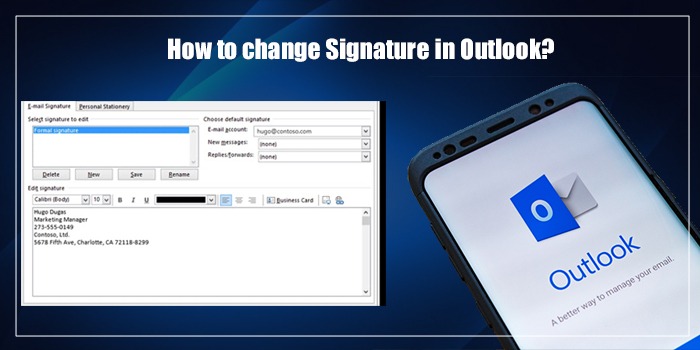
One of the features of the Microsoft Outlook email client is that it lets you create custom signatures. This ensures that your emails get a professional look and convey a sense of closure to the recipient. After setting up your signature, you may desire to modify it later on. If you too wish to know how to change signatures in Outlook, then read on!
Quick Overview
- Outlook Signature is medium to inform, advertise, and provide information about your company, brand, and your personal information, such as name, address, and more.
- You can change or modify your current signature, which is displayed at the bottom of the email every time you send one.
- Changing Outlook mail signature requires following a simple step guide: Open Outlook, Sign In, select settings, Accounts, Signature, Edit Signature.
- You can also change the design, format, shape, and color of the signature easily.
What Is An Email Signature In Outlook?
Outlook Email Signature is a feature of Outlook email. It includes various information from the sender’s end. For example, contact info, disclaimers, contact details, and product links are some of the options a user can add as the closure of the email every time it’s sent. Using the signature option, one can inform others about their contact details, name, product details, product link, etc. It’s a one-time set-up. And it will remain the same until you edit the signature on your email.
Types of signatures (text, images, HTML, links)
Signatures can be of different types and forms. It could be in:
- Text
- Image
- Links
- Or HTML
This option is a quick way to deliver details at the bottom of your ‘sent email’. And since it’s a one-time set-up, you don’t need to mention the signature every time a mail is sent.
How To Create Signature In Outlook Web
You can create and edit a signature in all versions of Outlook. Below, you can read all about creating signatures and then changing them in detail.
- Visit Outlook.com
- Sign in to your existing account. If you’re new, create a new one.
- Tap the settings icon on the right side of the screen.
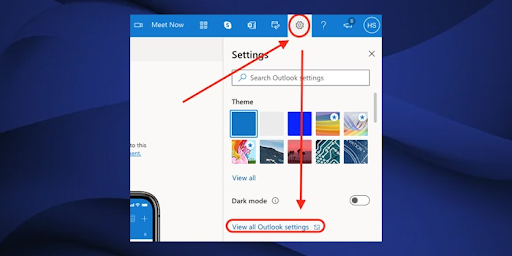
- Then select ‘View all Outlook settings’ from the bottom.
- Tap Mail and then Compose and reply option.
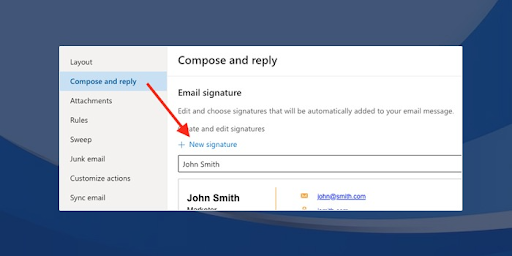
- Click New signature or start typing your signature in the given box.
- Customise with different colours, styles, images, links, etc.
- Check the two boxes, namely, new messages or replies/forwards to enable the signature automatically.

- Finally, tap ‘Save’ and confirm it.
POINT TO NOTE – You have the option to select the signature you desire to show automatically for replies/forwards or new messages. It is located below the email signature editing box.
How To Change Signature In Outlook App
You can create your sign and then learn how to edit a signature in Outlook on the web.
- Visit Outlook.com or open Outlook app.
- Choose Settings in the Outlook web version.
- Tap Accounts option from the left-side menu. After that, select ‘signatures’ option.
- Tap ‘Edit signature’ section and modify your signature here.
- Select from the two options: select for New Messages or Replies or Forward
- When finished, hit ‘Save.’
NOTE: The steps for changing the signature on a desktop or Mac are the same. Also, one Outlook email account can only have one signature.
How To Customize Your Outlook Signature
While you’re ready to change your Outlook 365 email signature, you should know how to customise it to enhance its presentation. Here you’ll discover how to make your signature more appealing and memorable.
During your ‘Signature changing phase’ in Outlook Mail, you can do some customization. Here are the options you have:
- Use the formatting toolbar: While changing Sign on Outlook mail, you can add colours, themes, style, table, and links. This will highlight the sign, which comes to the notice of the email receiver.
- Set a default signature: To avoid manually setting the signs, you can set a default signature for new messages, forwards/replies, etc.
- Add logos or Social Media icons: Instead of a name or description, just adding the logo of your brand will do all the work itself. The social media links can help people discover and connect with you easily.
Troubleshooting Common Signature Issues In Outlook
This is a tabular representation of the common queries users may face after changing or creating a new signature for the Office 365 Outlook mail.
|
# |
Issue |
Common Causes |
Solution |
|
1 |
Signature not showing automatically |
|
|
|
2 |
Images/logos not displaying |
|
|
|
3 |
Formatting changes in replies/forwards |
|
|
|
4 |
Signature missing on mobile |
|
|
|
5 |
Signature disappears or resets |
|
|
|
6 |
Signature looks different to recipients |
|
|
|
7 |
Signature doesn’t save |
|
|
Must Read: How to encrypt an Outlook email
How To Change Signature In Outlook Mobile App
Here is the simple step guide for changing Outlook Signature on Mobile device.
- Open Outlook app.
- Log In to your account or create one if you’re new.
- Now, select the settings or gear icon from the top right corner of the Outlook screen.
- Select ‘Signature’ under the mail subheading.
- Tap ‘Edit Signature’ and replace it with new one.
- Finally, hit ‘Save.’
How To Remove Or Reset Your Outlook Signature
If you don’t want to use a signature on Outlook, here’s what you need to follow:
- Open Outlook.
- Select file > Options > and Mail.
- Tap signatures.
- Select the signature you want to remove.
- Now, disable the default settings for automatic use of your signature.
- Select the signature from the list.
- Tap ‘delete’
The Bottom Line
An email signature is a helpful way to advertise your products or services in a business email. It’s also beneficial for the purpose of informing about your information, such as name, designation, and other details. You can modify Ms Office 365 outlook email on its web version and mobile application. Explore this guide for detailed steps.
Frequently Asked Questions
How do I change an Email signature in Outlook?
To change Outlook email signature, open Outlook mail app > Log In > Settings > Accounts > Signature > Edit Signature.
Why can’t I update my signature in Outlook?
Sometimes you might not be able to update your signature due to Corrupted Signature Files, Outlook file not set to HTML, Outlook issues, and more. These cause the failure to update the signature.
How do I remove my signature in Outlook on all devices?
Refer to this guide to know steps for all devices to update or change or edit your signature on Outlook email.
How do I create my signature?
To create the signature on Outlook office 365, follow this: Open Outlook > visit File > Options > Mail. tap ‘Signatures’ and click ‘New.’
Can you put anything as your signature?
Yes, you can keep anything as your signature on Outlook, but that should include: text, logos, images, hyperlinks, and basic formatting, such as fonts, sizes, colors, etc.
How to create a written signature in Outlook?
For a handwritten signature on Outlook, you need to write it on a paper first. After that, take a snap of it, and follow the editing steps on Outlook. Insert the image, adjust the image and resize, finally confirm it.
What should a professional email signature look like?
A professional email sign contains the following information for a better understanding:
- Should be concise
- Should have your name, job title, company, and contact details.