ankit tiwari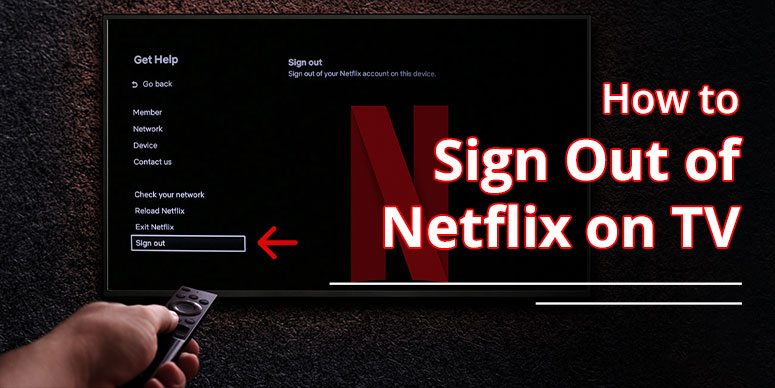
Your Netflix Account can be used on various streaming devices and simultaneously up to 4 devices if you’re subscribed to the Premium Plan. However, if you’re subscribed to lower plans – such as Netflix Standard with ads or Standard – only two devices can stream Netflix at a time. If you’re concerned about how to sign out of Netflix on TV specifically, this guide has covered everything to help you out. Explore TV-specific methods to log out of Netflix.
TL;DR
- Netflix allows signing out of any device easily, either through the device or remotely.
- The platform allows streaming Netflix on multiple devices at a time, depending on the subscription plan.
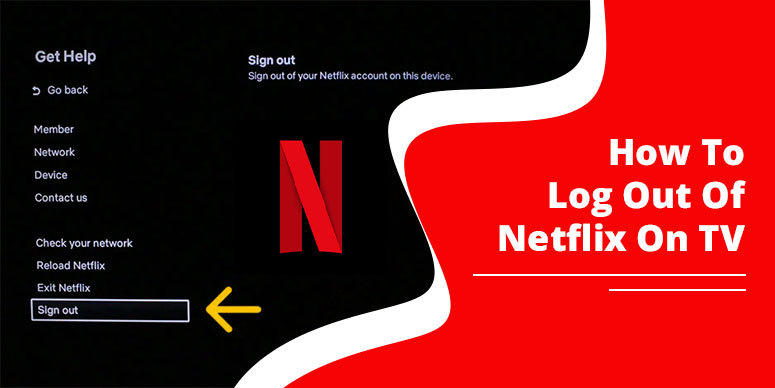
- To sign out easily, on your TV, Open Netflix. Press the back button on the TV remote. Select the profile and the ‘Get Help’ option. Tap ‘Sign Out,’ and yes.
- The most common method is the ‘Get Help’ option to sign out of Netflix from any device. However, the exceptions are also there, which we have included below.
- To remove someone remotely, visit the official netflix website, enter your account, tap security and privacy, and select the sign out of all devices.
Why You Should Log Out of Netflix on Shared Devices
Netflix is an app-specific streaming platform which users can download on their mobile devices and TVs. Moreover, the streaming facility is also available on its official website: Netflix.com. Users can stream Netflix on up to 4 devices at a time. However, they can also choose to stream on a Mobile device by streaming from TVs. That is possible via the simple steps we have outlined in this blog.
Signing out of Netflix is easier. You just have to have your account details and know the correct process.
Check this also: https://www.monktech.net/how-to-cancel-netflix-subscription/
If you wonder why Signing Out of Netflix is necessary, here’s the explanation:
- Prevent unauthorized access: When you allow others to stream Netflix on their device, this act may be fatal to your overall account safety, as the user gets full control of your device. Also, they may change settings, delete your preferences, and do more harm.
- Maintain Account Security: Offering Netflix access can be risky, particularly if the user is less informed about the usage of the platform or has the wrong intentions. In either case, they may misuse the app or harm your personal data within the app.
- Limited Access to Netflix: Only a limited number of users can watch Netflix show. So, you should avoid sharing it with multiple users to continue streaming on your device.
How To Sign Out Of Netflix On TV
These are the steps for the upgraded version of different TVs. Have a look:
Sign out of Sony Google TV:
- Visit Sony Google TV home screen.
- Select ‘All Apps’ section.
- Tap ‘Settings’
- Choose ‘Applications’ option.
- Tap ‘Manage Applications.’
- Search and select Netflix using directional arrows.
- Select ‘Clear Data’
- And tap ‘OK’
Sign out of LG TV:
Case 1: When ‘Premium’ option is available:
- Tap and select premium Apps.
- Tap ‘Settings’
- Or, tap options. Using your remote, press the green button with two dots.
- Finally, tap ‘Netflix Deactivate’
Case 2: When ‘Netcast’ option is available:
- Tap Netcast option on your LG TV.
- Now, press ‘Setup’ option.
- Tap Service Maintenance
- Press ‘Netflix Deactivate’
- Confirm with a click on ‘Ok’
Case 3: When ‘Setup’ option is Available:
- Click the ‘Setup’ option from LG screen.
- Choose ‘Network’ option.
- Select Netflix from here.
- Choose ‘Deactivate Netflix’ option.
- Finally, tap ‘Yes.’
Common Steps To Sign Out Of Netflix From All TVs (‘Get Help’ Option)
These are the common steps applicable to all TVs to remove your Netflix Account from:
- Switch on your TV.
- Open Netflix App.
- Tap the back button using your TV remote.
- Visit your Netflix profile. Select ‘Get Help’ option.
- Tap Sign out, and then Yes
If you don’t find the ‘Get Help’ option, visit Settings ☸ from the top.
- Press the following buttons on your remote: Up, Up, Down, Down, Left Right, Left, Right, Up, Up, Up, Up.
- Tap ‘Sign out’ > Start Over > Reset or Deactivate.
How To Sign Out Of Netflix On Roku, Fire Stick, And Apple TV
If you use Netflix on TV using streaming devices like Roku, Fire TV Stick, or so on, here’s the simple guide to sign out using them. We have mentioned the steps for each device separately.
On Roku TV:
Roku 2:
- Appear on Roku home screen using your remote.
- Navigate to Netflix app and press ‘Star or *’ key using your remote.
- Tap ‘Remove Channel’
- Select ‘remove channel’ again to confirm the process.
Other Roku models:
- Press the back button using the remote on the Netflix home screen.
- Visit the profile on the left of your menu.
- Select the ‘Get Help’ option.
- Tap Sign Out
- And then click the ‘Yes’ option.
If the ‘Get Help’ option is unavailable,
- Visit Settings
- Press the following buttons on your remote sequentially: Up, Up, Down, Down, Left, Right, Left, Right, Up, Up, Up, Up
- Select Sign out, Start Over, Reset, or Deactivate from the menu.
On Amazon FireTV:
- Visit Settings from your TV screen
- Select Applications
- Tap ‘Manage all installed applications’
- Select ‘Netflix’
- Finally, tap on the Clear data option.
On Apple TV:
Use your Siri remote throughout the process:
- Navigate to Apps menu.
- Scroll and select Netflix (do not open).
- Press down and hold the remote touchpad.
- As you notice Netflix app starts blinking, press play/pause button.
- Finally, tap the ‘delete’ option.
How To Log Out Of Netflix From All Devices
Signing out is possible using a web browser and an application. Here’s the step:
- Visit Netflix.com
- Log in by entering your account details
- Select profile from the top right corner
- Tap ‘Account’
- Scroll and navigate Security and Privacy section
- Tap Sign out of all devices
- Finally, tap ‘Sign out’ on the confirmation prompt
What To Do If You Can’t Sign Out Of Netflix?
Generally, the signing-out process may be successful in a very short period; still, if you notice that your account is not logged out yet, you can do the following:
- Reboot Your Device: Consider unplugging your TV from power. Keep it as it is for a minute, and then plug it in again and start. This may work, removing issues all of a sudden.
- Check Internet Connection: Disconnect your internet connection, and reconnect after a few minutes. You can also turn off Wi-Fi and the router and reboot again. Check if this time it’s fixed.
- Clear Caches: If you still face the problem in logging out, clear the Netflix app caches. Sometimes the Temporary bugs or corrupted data can interrupt in app’s functioning. So, consider clearing it by visiting Settings > Apps > Netflix > Storage > Clear Cache. If using iPhone: Settings > General > iPhone Storage > Netflix > Offload App.
- Contact Netflix Support: When no result of everything you have done, you should seek out help from the official Netflix support. It’s available via the Netflix help center, where many articles are linked to help you find a solution. Moreover, you can use Live chat for real-time assistance on the Netflix app.
How To Stop Someone From Using Your Account
The simple process to stop someone from using your Netflix Account is by removing Netflix from their device. You can do it from your device only. Use the ‘Sign out of all devices’ option, and remove anyone from your account.
You can follow the above steps depending on your device to remove others from your Netflix account successfully.
After you sign out successfully, you can follow these steps to keep your account secure:
Change your Netflix password:
Once you find out that your Netflix account is being used by someone, you can change the password. This will safeguard your account from others. Here’s what you need to consider while setting up a password for your account:
- Make a unique password that’s not used for other apps or websites.
- Password should be minimum 8 characters long.
- Include letters, numbers, and symbols in your password with upper and lower case letters.
- Avoid adding name, dob, and any personal details, and predictable sequences like 12345 in your password.
Wrapping Up Text
Netflix streaming is among the top streaming options in the world, with more than 300 million users. With this much popularity, Netflix has a challenge to keep its users safe, and they do it by offering an easy option to manage their accounts. Logging out of Netflix is the one option to secure the account by removing others or yourself from TV, mobile or other streaming platform. Want to know how to sign out of Netflix on TV? This guide is the one-stop solution for all the devices you use for streaming Netflix. Follow the guide!
Frequently Asked Questions
How Do I Log Out Of Netflix On A Tv?
- Open Netflix app on your TV.
- Tap the back button using the remote.
- Visit the profile.
- Select ‘Get Help’
- Tap ‘Sign out’
- And click yes.
How Do I Log Someone Out Of Netflix?
To log someone out of Netflix, follow the steps:
- Open your Netflix app
- Visit settings
- Tap Manage Access and Devices.
- Select a particular device that you wish to remove.
- Confirm the action.
Why Won’t Netflix Let Me Sign Out On TV?
Although the process is simple, but if you find it difficult to log out on TV, it’s because of the following reasons: Internet is slow, server is down, App glitch, corrupted data or caches, Outdated app or software, etc.
How To Sign Out Of Netflix On TV In Hotel?
If you log in your Netflix in Hotel TV, signing out is simple: Just visit the Netflix > press back button > visit profile > tap ‘Get Help’ > click Sign Out > tap ‘yes.’
What Happens If You Forgot To Sign Out Of Netflix At A Hotel?
If you forgot to sign out after checking out, you have a choice to remove your Netflix account remotely. Simply visit Netflix on your device, tap settings > select Manage Access and Devices, choose a hotel device.
How Do I Sign Out Of Netflix On My iPhone?
You can log out of Netflix account from the app using an iPhone.
- Open Netflix app.
- Pick your profile or More icon.
- Scroll to the bottom and tap on ‘Sign out’
- Press yes or sign out to confirm the action.
How To Sign In Netflix On TV?
To sign in Netflix on TV, users need to set up their profile.
Visit Netflix app on your TV, enter your email address and password for your Netflix account > finish setting up, and finally start streaming.