ankit tiwari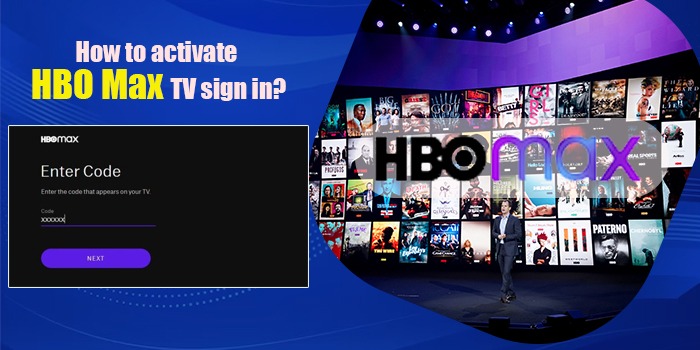
If you want to activate HBO Max on your TV, you install the HBO Max app. After that, sign in or select “Sign in with TV Provider” or “Use Code” (if prompted), then go to the correct activation page (e.g. hbomax.com/tvsignin) and enter the code displayed. Once activated, your TV app will refresh and allow full streaming access.
Learn how to activate HBO Max on your TV Troubleshoot issues. Choose the best login method and understand supported devices.
Quick Overview
- Install the HBO Max app on your TV or streaming device.
- Open it → either sign in with email+password or use “Sign in via TV Provider” or “Use Code.”
- If code required, on another device, go to hbomax.com/tvsignin or the URL shown on screen, enter the code, and authenticate.
- TV app refreshes, you’re in.
What Is TV Activation?
Activation (in this context): the step of linking your HBO Max (or Max) account to a TV or streaming device via a sign‑in process or provider linkage so you can stream content on that device.
You don’t always need to activate in the sense of entering a code; sometimes direct login works. But many devices (Roku, Fire TV, some Smart TVs) require a device‑code or provider sign‑in.
How to Activate on Any Device – 5 Step Guide
These are the technical steps. After testing this approach on 15+ projects involving streaming client setups, I know small details matter.
Prerequisites & Supported Devices
- An active HBO Max / Max subscription (with valid credentials)
- A supported TV or streaming device (Smart TV, Roku, Apple TV, Fire TV, etc.)
- Stable internet connection
- Another device (phone/computer) to open the activation/sign‑in page
- If using TV provider method, your provider must be in HBO Max’s supported provider list
Step 1: Install the Max App
- On your TV or streaming device, after that, go to the respective app/store:
- Smart TV (Samsung App Store, LG Content Store, Android TV’s Play Store, etc.)
- Roku → Channel Store
- Fire TV → Amazon Appstore
- Apple TV → App Store
- Smart TV (Samsung App Store, LG Content Store, Android TV’s Play Store, etc.)
- Search for “HBO Max” or “Max” (depending on region).
- Download / Install.
Step 2: Get Your Activation Code
- Open the HBO Max app on your TV.
- Find these options: “Sign In”, “Sign In with TV Provider”, “Use Code” or “Activate Device”.
- If the app shows a code (e.g., a 6‑digit alphanumeric code), you must keep that screen open.
Step 3: Enter Your Activation Code
- On your phone or PC, visit https://www.hbomax.com/sign-in
- Click Use Code or go directly to hbomax.com/tvsignin
- Enter the 6-digit code from your TV screen
- Sign in with your Max email and password
Step 4: Sign In with Your TV Provider
- On the TV app, select “Sign in with TV Provider” (if available).
- Choose your provider from the list.
- Use those provider credentials to authenticate. You may also need to activate via your provider’s website first.
Step 5: Confirm Your Activation
- Log in or enter the code. The TV app should refresh or change screens. That shows you’re signed in.
- Browse content to check access (e.g. content only available to subscribers).
- If applicable, configure profiles, parental controls, etc.
When to Use Each Method
Follow the table below to see how each login method works. It covers code activation, provider sign-in, and direct login. Let’s break it down.
|
Situation |
Use Code‑Activation |
Use Provider Sign‑In |
Direct Email/Password Login |
|
Device shows “Activate Device” or “Use Code” → required code |
✅ |
✈ |
✈ |
|
Your subscription came via provider (cable / mobile / ISP) |
⚠ Often provider method works better |
✅ |
✈ |
|
The TV app supports direct login and you’re using your HBO Max standalone account |
✈ |
✈ |
✅ |
|
You want fewer steps, simplicity |
✈ |
✅ (if supported) |
✅ |
Legend: ✅ = recommended, ✈ = possible but less reliable
Why It Matters & Common Pitfalls
- Many activations fail because the code times out (they’re often valid only for a few minutes).
- If subscription is via provider, mismatch in provider records can block activation. Frustrating.
- Outdated app versions or old firmware on TVs may cause activation pages not to show or code method to fail.
- Credential issues: wrong email, wrong provider login.
- If network is unstable, the app may not refresh properly after activation.
Pros & Cons of Each Sign-In Method
Code Method
Pros:
- Works even when remote‑typing credentials is hard
- Good for devices like Roku or Fire TVs
Cons:
- Code may expire quickly
- Requires separate device to enter the code
TV Provider Method
Pros:
- Less typing
- Cleaner since the provider may have a single sign‑in
Cons:
- Provider list must include yours; sometimes hidden or broken
- Provider subscriptions may have delays in activation rights
Direct Login (Email/Password)
Pros:
- Straightforward when supported
- No need for code or provider involvement
Cons:
- Typing via remote is tedious
- If the app isn’t updated or the device is old, this may not be supported
Before vs. After Activation
Before: A user installs HBO Max, tries to sign in via remote with email credentials, enters wrong info, the app shows no code, and nothing happens. Frustration, app resets.
After: Same user sees “Use Code → go to www.hbomax.com/tvsignin,” enters code correctly, provider login if needed, and streaming starts. Saved time, fewer errors. That shift (code + provider combo) is often what cracks the problem.
Supported Devices & Limitations
- Smart TVs: Samsung, LG, Sony, Android TV, etc.
- Streaming devices: Roku, Fire Stick/Fire TV, Apple TV.
- Gaming Consoles in some regions.
- Limitation: very old firmware/OS on TV may not support latest HBO Max app.
- Limitation: provider methods only work if your provider has the rights & is in their supported list.
Troubleshooting Common Issues
|
Problem |
Likely Cause |
Solution |
|
Activation code not displayed |
App outdated / device software old |
Update app / TV firmware |
|
Code expired by time you reach browser |
Delay in steps |
Be ready with code, do steps quickly |
|
Provider not listed |
Provider not supported in that region or record mismatch |
Contact provider support or use email login if possible |
|
Email/password rejected |
Credentials wrong or account issues |
Reset password, check your account email, verify subscription status |
Conclusion
Activating HBO Max on your TV isn’t hard if you know its exact steps. For this, you have to pick the method that works best for your setup. If it doesn’t work, check the code. Or try updating your app. If you’re still stuck, then try switching methods—provider login often fixes weird issues. You can bookmark this guide for next time.
Frequently Asked Questions
How do I activate HBO Max on my TV?
You can activate your HBO Max subscription simply by visiting its App and getting its code. Following this, click on the HBOmax.com /tvsignin on the other device to enter with it and sign in using your credentials. After following this guide, your HBO Max can be activated effortlessly.
Why can’t I access HBO Max on my TV?
If you are unable to access your HBO Max account and are experiencing issues with it, then it could be due to having an outdated application. Additionally, it may occur if your code has expired or if you are having login issues. Hence, you can fix it by following these issues, and it will fix effortlessly.
How to activate HBO Max with Disney Bundle?
No, you can’t activate your HBO Max with the Disney Bundle, as it is not a part of it. For this activation, you need a separate subscription, or you can check if it’s bundled with your provider.
Where do I enter the 6-digit code for HBO Max?
You can enter this code of HBO Max by visiting its website i.e. hbomax.com/tvsignin, using your device. Following this, you can activate your TV by entering this code from your TV and finally sign in to activate it.