What “Brother Printer Error 83” Actually Means
Error 83 is Brother’s internal code for a paper jam detection event. When your printer’s feed sensors detect that paper isn’t moving through the path the way it should — either because it’s physically stuck, misaligned, or because a sensor is dirty or faulty — the firmware throws up code 83 and stops the job entirely.
What makes this error particularly frustrating is that it often looks like a jam when there’s no paper visible at all. That’s what repair guides call a “ghost jam” from dirty sensors.[Video Guide]
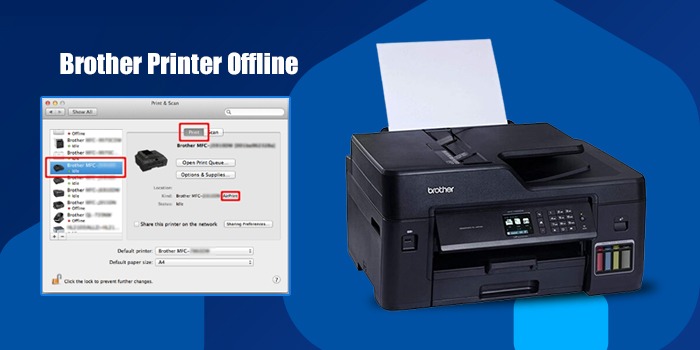
The error shows up as “83” on your LCD panel, and printing halts completely. Some users also report seeing it accompanied by a flashing orange or amber light and the printer going into a locked state where it won’t respond to any commands — not even a cancel job. In some cases, if you’re experiencing the printer going completely unresponsive, it may even appear to go offline — if that sounds familiar, our guide on Brother printer offline fixes can help alongside the steps below.
Quick Diagnosis Checklist (Do These First)
Before going deep into specific fixes, run through this quick checklist. It takes about 3–5 minutes and resolves the error for most people without needing anything more involved.
- Power cycle the printer. Unplug it from the wall — not just a soft power-off — and wait a full 60 seconds. This clears temporary firmware states. Plug back in and check if the error clears.Why: Clears glitches (Brother basic fix). [PrinterTouch]
- Open every door and visually inspect the paper path. Check the front tray, the back door/rear access panel, the output tray, and the area around the rollers. Use a flashlight. Even a small torn piece of paper can trigger Error 83.Why: Removes hidden tears that retrigger the jam sensor.
- Test print with a single sheet of plain, standard 20lb paper. Don’t use glossy, heavy card stock, or anything damp. Feed it manually if possible.Why: Tests paper quality — damp or curled paper is a leading misfeed cause.
- If you’re on Wi-Fi, try a wired USB connection and print directly. This isolates whether it’s a network queue issue or a hardware/sensor issue.Why: Isolates network vs. hardware — the key diagnostic split for wireless Brother models.
- Restart the print spooler on Windows (detailed steps below). Corrupt queues mimic hardware jams in the system.Why: Clears corrupt print queues that lock the printer in an error state. [TonerBuzz]
- Check for a pending firmware update in the Brother iPrint&Scan app or Brother’s support site. Sometimes updating the firmware resolves sensor sensitivity issues.Why: Updates fix known firmware bugs that cause false jam detection.
- Try the Go button reset: With the printer on and showing the error, hold the Go button for 10 seconds. On some models this clears the error state and forces a sensor recalibration.Why: Recalibrates sensors without requiring a full factory reset.
- Wipe the encoder strip. This is the thin, transparent plastic strip that runs horizontally inside the printer. Dust on it is a classic cause of false jam detection. More on this in the sensor section below.Why: Dust false jams — one of the most common causes of Error 83 with no visible paper. [Video Guide]
If you’ve ticked off all eight and the error is still there, keep reading — the detailed fix section has you covered.
Top Causes of Brother Printer Error 83
Based on community reports from Reddit’s r/printers, tech forums, and our own diagnostics, here are the most common causes of Error 83 — ranked by how often they actually show up:
1. Visible Paper Jam in the Tray, Rollers, or Output Path
This is the big one. A sheet of paper — or a piece of one — is physically lodged somewhere in the paper path. It might be in the input tray, wrapped around a roller, or stuck at the output. Always pull stuck paper slowly and evenly in the direction of the paper path to avoid tearing. A torn fragment left behind will just trigger the error again on the next print.
2. Dirty or Dusty Sensors (Encoder Strip)
The encoder strip — a clear plastic ribbon inside the printer — tells the firmware exactly where the print head and paper are at any given moment. Dust, ink mist, or grime on this strip confuses the sensor and makes the printer think there’s a jam even when the path is clear.
Wiping the encoder strip resolves many ghost jams.[Video Guide]
3. Overloaded or Misaligned Paper Tray
Overfilling the tray, using damp or curled paper, or failing to properly align the side guides can all cause sheets to feed at an angle — which immediately triggers a misfeed sensor response. Fan your paper before loading, don’t go above the max fill line, and make sure the guides are snug (but not tight) against the paper edges.
4. Dirty Sensors or Worn Rollers
Dust on sensors or worn rollers cause false jams. Clean sensors first; service if persistent — replace rollers if the printer is high-use (over 50,000 pages). [Brother Support]
5. Windows 11 Print Spooler Corruption
On Windows 11, a corrupted or backlogged print spooler can create a queue state that looks identical to a hardware jam — the printer hangs, reports errors, and refuses new jobs. This is especially common after system updates or when a previous print job crashed mid-process.
6. Faulty Fuser or Worn Feed Rollers (High-Use Models)
If your Brother printer has seen heavy use — think small business printing volumes over several years — the feed rollers or fuser unit may be worn. These components grip and move paper through the machine; when they degrade, paper slips or feeds inconsistently, triggering Error 83. This one typically needs a service call.
7. Wireless Print Queue Jam
On Wi-Fi-connected Brother printers, the network print queue can get stuck in a corrupted state — especially after router reboots, IP address changes, or if the Brother iPrint app loses connection mid-job. Printing fine over USB but not Wi-Fi is a dead giveaway for this cause.
Step-by-Step Fix for Brother Printer Error 83
Work through these in order. Most people find their fix in Steps 1–4.
Step 1: Clear the Paper Jam Properly
Start by fully powering off and unplugging the printer. Then:
- Open the front cover and look for paper around the drum/toner area.
- Open the rear access door (if your model has one) — a lot of jams actually exit here and get missed.
- Remove the paper tray completely and check underneath and behind it.
- Check around the output rollers at the top of the machine.
- Pull any jammed paper out slowly, in the natural direction of travel, never against it.
- If you can feel resistance and see no paper, there may be a torn fragment. Use tweezers — never scissors — to retrieve it.
Once everything is clear, power the printer back on and run a test print before moving to the next step.
Why: Physical jams are the leading cause of Error 83; proper removal prevents tears that retrigger the sensor. [Brother FAQ] Safety: Unplug first to avoid shock before touching internal components.
Step 2: Clean the Encoder Strip and Sensors
This step fixes ghost jams — cases where the error persists even though the path is clear.
- Open the top or front cover to expose the print head carriage.
- Look for the thin transparent horizontal strip running the full width of the printer. That’s your encoder strip.
- Dampen a lint-free cloth or cotton swab with isopropyl alcohol (90%+).
- Gently wipe along the entire length of the strip. Don’t scrub — one smooth pass in each direction is enough.
- Let it dry for 2 minutes before powering on.
You can also wipe the paper feed sensor (usually a small plastic flap or optical sensor near the tray entry point) with a dry lint-free cloth.
Why: The encoder strip tracks paper position; dust causes ghost jams — a very common and easily fixed issue. [Video Guide] Use 90% isopropyl only — avoid water, which can damage the strip.
Step 3: Update or Reinstall Your Printer Driver
Outdated drivers can cause print job errors that look exactly like hardware jams.
- Go to Brother’s official driver download page.
- Enter your exact model number (e.g., MFC-J6945DW, HL-L3270CDW).
- Download and run the Full Driver & Software Package for your OS.
- Uninstall the old driver completely before reinstalling — a clean install prevents conflicts.
Why: Driver conflicts cause queue errors that mimic hardware faults on Windows and macOS. [TonerBuzz]
Step 4: Reset the Windows Print Spooler
This clears any corrupted or stuck print jobs in the Windows queue that are causing the error to persist.
- Press Win + R, type
cmd, and run as Administrator. - Type:
net stop spooler— press Enter. - Then type:
net start spooler— press Enter. - Now open Devices and Printers, right-click your Brother printer, and select See what’s printing.
- Cancel all pending jobs.
- Try printing again.
On macOS Sonoma: Go to System Settings → Printers & Scanners → right-click your Brother printer → Reset printing system. This clears the CUPS queue.
Why: Stuck jobs mimic hardware jams on Windows — clearing the spooler resolves system-side errors without touching the printer. [TonerBuzz]
Step 5: Check Firmware & Reset Sensors
- Check updates in the iPrint&Scan app. [Brother Support]
- Hold Go 10 seconds for a sensor reset.
Why: Keeping firmware current and recalibrating sensors eliminates software-level false positives without a full reset. [Brother Support]
Step 6: Factory Reset (Last Resort Before Service)
If nothing above has worked, a full factory reset clears all stored error states, network configurations, and job history. It won’t damage your printer, but you’ll need to reconnect it to Wi-Fi and reconfigure any custom settings afterward.
- On most Brother LCD models: go to Menu → All Settings → Initial Setup → Reset → All Settings → Yes.
- Some models use: Menu → Network → Reset → Yes for a network-only reset if you only need to clear a Wi-Fi queue issue.
- After the reset, power off, wait 60 seconds, power back on, and run a test page.
If Error 83 still shows up after a full factory reset, this is now a hardware issue — contact Brother’s service team or a certified repair center.
Why: A factory reset wipes all stored states; if the error survives it, the fault is physical and requires professional diagnosis. [Brother Support]
Watch: How to Clear a Brother Printer Paper Jam (Video Guide)
If you’re more of a visual learner — or you just want to see exactly where to look inside the machine — this walkthrough covers the jam-clearing and sensor-cleaning process clearly:
3-Tier Triage Matrix: Self-Diagnose Your Error 83
Not sure which fix applies to your situation? Use this matrix to match your exact symptom to the most likely cause and fastest fix. Working from your specific symptom gets you to a resolution faster than going through every step from scratch.
| Tier | Your Symptom | Most Likely Cause | Quick Action | Likelihood | Escalate If… |
|---|---|---|---|---|---|
| Tier 1 | Error 83, no paper visible | Dusty encoder strip / sensor | Wipe encoder strip + power cycle | High | Error returns after 2+ cleans |
| Tier 1 | Paper visibly stuck | Physical jam | Open all doors, remove paper gently | High | Torn fragment remaining |
| Tier 1 | Wi-Fi printing fails, USB fine | Network queue jam | Restart router + clear iPrint queue | High | Error appears on USB too |
| Tier 2 | Error after firmware update | Sensor sensitivity / firmware bug | Check Brother support; try Go+Back x15 | Medium | Firmware update unavailable for model |
| Tier 2 | Tray 2 only triggers error | MP tray sensor block | Empty Tray 1, realign guides | Medium | All trays show error |
| Tier 2 | Windows 11 — multiple jobs stuck | Spooler corruption | net stop/start spooler + clear queue | Medium | Spooler reset fails to run |
| Tier 3 | Error after full factory reset | Encoder strip snap / fuser fail | Contact Brother support / service center | Service | Always escalate here |
| Tier 3 | Error 83 loops every 5–10 prints | Worn feed rollers | Roller replacement kit or service | Service | High-volume printer > 3 years old |
The matrix is designed to get you to the right fix without wasting time on steps that don’t match your situation. Start at Tier 1 — most people never need to go further.
FAQ – Brother Printer Error 83 (People Also Ask)
1. What does Error 83 mean on a Brother printer?
Error 83 is Brother’s paper jam detection code. The printer’s firmware halts printing when its sensors detect that paper isn’t moving through the feed path correctly — either because it’s physically stuck, misaligned, or because a sensor is dirty and triggering a false positive. It’s common on MFC, HL-L, and DCP series models alike.
Source: [PrinterTouch]
2. Error 83 on Brother DCP-T420W after a paper refill — what’s going on?
The DCP-T420W and similar ink tank models have a specific tray height sensitivity. After refilling the ink tank or reloading paper, the tray height setting sometimes needs adjusting. Lower the paper stack by about 5mm and fan the sheets before loading. You can verify this against Coolblue’s Brother error code guide.
Source: [Coolblue]
3. Brother error 83 appears on Wi-Fi but USB printing works fine — why?
This is a wireless print queue jam, not a hardware issue. Your printer is physically fine, but the network queue has gotten stuck — usually after a router reboot or a dropped connection mid-job. Restart your router, clear the queue in the Brother iPrint&Scan app, and reconnect.
Source: [Reddit r/printers]
4. Is it safe to bypass Brother error 83 and force one print?
Risky — holding Go for 10 seconds on most models will attempt to force the job through. But forcing a print when the sensor is flagging an issue can cause the sheet to jam mid-print, which is harder to clear than the original error. Triage first, print after.
Source: [PrinterTouch]
5. Firmware causing Error 83?
Check Brother site for updates; clean sensors first. [Brother Support]
Source: [TonerBuzz]
6. Brother HL-L3270CDW showing error 83 in Tray 2 only — how do I fix it?
On multi-tray models like the HL-L3270CDW, Tray 2 (or the MP tray) has its own sensor. If the error only appears when printing from Tray 2, the most common fix is to fully empty Tray 1, realign the paper guides in Tray 2, and clean the MP tray sensor with a dry lint-free cloth.
Source: [SkyRock UAE]
7. How do I fix Brother error 83 on Linux Ubuntu 24.04?
Linux users often encounter CUPS-related Brother errors. Run this in your terminal:
sudo lpadmin -p Brother-Queue -E
Then restart CUPS: sudo systemctl restart cups. More detail at Stack Overflow’s Brother printer thread.
Source: [Stack Overflow]
8. Can a low toner cartridge cause Brother error 83?
Rarely, but a nearly-empty toner cartridge is physically lighter and can occasionally confuse the misfeed sensor. If you suspect this, reseat the toner cartridge (TN-347 or your model-specific toner) and try again.
Source: [Paessler]
9. The Brother iPrint app on my Android phone is triggering error 83 — what do I do?
Go to your Android settings, find the Brother iPrint&Scan app, and clear its cache and stored data. Then reconnect to your printer via Bluetooth or Wi-Fi Direct. The app’s cache can overflow and send corrupted print commands that the printer interprets as a misfeed event.
Source: [PrinterTouch]
10. Brother error 83 persists even after a full factory reset — now what?
If a factory reset doesn’t clear Error 83, you’re almost certainly dealing with a hardware fault. Contact Brother’s official support or a certified repair center for professional diagnosis.
Source: [Coolblue]
11. Does error 83 only affect certain Brother models?
Error 83 can appear across a wide range of Brother models — inkjet MFC series (MFC-J), laser HL-L series, DCP series, and even some older FAX-series units. If you’re on a DCP-T ink tank model, the tray height fix (FAQ #2 above) is especially relevant for you.
Source: [PrinterTouch]
12. Does Brother error 83 mean paper jam?
Yes — but not always a physical one. Error 83 is Brother’s jam-detection signal. It can be triggered by an actual stuck sheet, or by a ghost jam caused by a dirty or faulty sensor when no paper is actually present. That’s why cleaning the encoder strip is such an important early step.
Source: [PrinterTouch]
Model-Specific Notes
Not all Brother printers handle Error 83 identically. Here’s a quick rundown of model-specific things to know:
Brother MFC Series (MFC-J, MFC-L)
The MFC inkjet line is commonly affected by sensor-related Error 83 issues. The rear paper tray on these models is a common jam point that users overlook — always check it during your inspection. If Error 83 appeared after a firmware change, the Go+Back x15 reset is your first move.
Brother HL-L Series (HL-L3270CDW, HL-L8260CDW, etc.)
Laser models in the HL-L family tend to throw Error 83 due to toner-related misfeeds or worn feed rollers, especially in office environments with high daily print volumes. Check the roller replacement cycle — if you’ve passed the recommended page count for your model, a roller kit is probably overdue. Also see the Tray 2 note in the FAQ above for multi-tray models.
Brother DCP Series (DCP-T420W, DCP-L, DCP-J)
DCP ink tank models like the T420W have very specific tray loading requirements. Overfilling by even a small amount, or using paper that’s been stored in a humid environment, dramatically increases Error 83 frequency on these models. Fan paper before every load and keep the stack below the 80% fill level.
macOS Sonoma and Error 83
Forum reports indicate macOS Sonoma users experiencing Error 83 more than previous macOS versions — specifically with the AirPrint driver on Brother models. If you’re on a Mac, try connecting directly via USB or using the full Brother driver package from their site instead of the default AirPrint setup.
How to Prevent Brother Error 83 From Coming Back
Once you’ve cleared the error, a few simple habits will keep it from coming back:
- Fan your paper before loading every time. Stacked paper, especially fresh from a humid environment, tends to feed as a clump rather than individual sheets. Fanning separates the sheets and reduces misfeed events significantly.
- Never exceed the maximum fill line in your tray. Overfilling is one of the top causes of misfeed errors across all Brother models.
- Clean the encoder strip every 3–6 months as part of routine maintenance. Ink mist and dust build up gradually — regular cleaning prevents ghost jams before they start.
- Use the right paper type for your model. Check your printer’s manual for the recommended paper weight range. Heavy card stock on a model rated for standard 20lb paper is a misfeed waiting to happen.
- Keep firmware up to date — but check release notes first. Before applying firmware updates, check the Brother community forums to see if other users on your model report any issues with the new version.
- Clear your print queue regularly if you’re a high-volume user. Stuck print jobs accumulate and can cause system-side errors that look like hardware faults.
If your printer went offline along with the Error 83 message, check out our full guide on fixing a Brother printer that’s offline — many of the root causes overlap and the combined fixes can get you back to printing in one session.
Still stuck? Brother’s official support chat is available and usually responsive. For community help, the r/printers subreddit is genuinely useful for real-world diagnostics from people who’ve faced the exact same issue.