admin
adminIf your MacBook Neo has been sitting on the “Setting Up Your Mac” screen for more than 30 to 45 minutes, it is likely experiencing a background process glitch related to iCloud or Apple Intelligence indexing.
The Solution: Perform a Force Restart by holding down the Touch ID/Power button for 10 full seconds until the screen goes black. On the MacBook Neo, this is a safe procedure that usually clears the hang and allows you to reach the desktop without any data loss.
In 2026, the MacBook Neo has redefined what an entry-level Mac can do, thanks to the incredibly efficient A18 Pro chip. However, with great power comes the complexity of macOS Tahoe.
Common Culprits for the Setup Hang:
- Unstable Wi-Fi: The initialization of Apple Intelligence requires a solid connection to download local LLM weights.
- iCloud Syncing: Large photo libraries or iMessage archives can cause the cloudconfigd process to stall.
- Low Power: Use included 20W USB-C charger during setup
Our goal today is simple: Moving you from that spinning wheel to your desktop safely and quickly.
Step 1: The “Patience Test” & Power Check
Before we take any drastic measures, you need to know if your Mac is actually stuck or just working hard. Under macOS Tahoe, the MacBook Neo performs deep system indexing the moment it connects to your Apple Account.
How long is too long? A standard setup should take about 15–20 minutes. If you have been waiting for over 45 minutes without the progress bar moving, it is officially stuck.
Use included 20W USB-C charger. A18 Pro indexing causes high CPU—low power throttles.
Step 2: The Hard Force Restart
Many users fear that cutting the power during setup will “brick” their new computer. By the time you reach the “Setting Up Your Mac” screen, the core OS is already installed. You are simply waiting on user-level configurations.
Why it works: A force restart kills hung processes like mbsetupuser that are stuck in a loop.
The Procedure:
- Press and hold the Touch ID/Power button for 10–12 seconds.
- Wait for the screen to go completely black and the trackpad haptic feedback to stop.
- Wait about 30 seconds to let the capacitors discharge.
- Press the Power button again to boot normally.
Tip: Often boots to login—monitor progress bar post-restart.
Step 3: Troubleshooting Without Internet
If your MacBook Neo restarts but gets stuck at the exact same spot again, the issue is likely your internet connection or an Apple server timeout. We recommend the “Skip Method” to get to the desktop first, then configure settings later.
- Disconnect Wi-Fi: If possible, turn off your router or move out of range so the Mac can’t “phone home.”
- Skip Everything: When prompted, select “Set Up Later” for iCloud, Apple Intelligence, and Siri.
You can always sign in via System Settings once you are safely on the desktop. This removes the variable of a failed server handshake.
Tip: If Migration Assistant active, cancel first—avoids data transfer stalls.
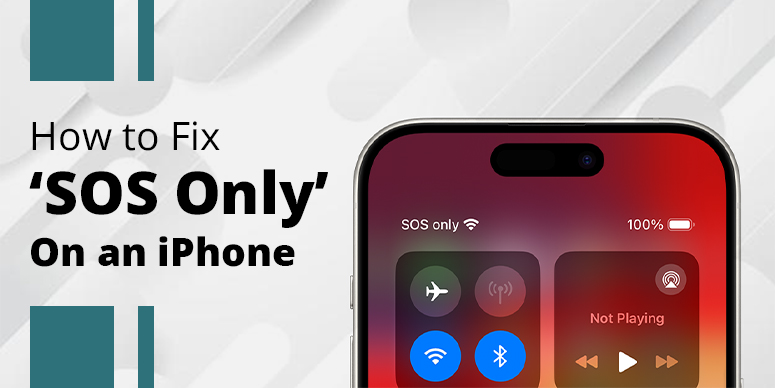
Check: how to fix iPhone SOS feature
Step 4: Advanced Recovery for MacBook Neo (A18 Pro)
For persistent hangs, boot to Recovery Mode:
Booting into Recovery Mode on Apple Silicon:
- Shut down your Mac completely.
- Press and hold the Power button until you see “Loading Startup Options.”
- Click Options and then Continue.
- Open Disk Utility and run “First Aid” on your Macintosh HD.
If First Aid finds errors, it will repair them automatically. If the system still won’t boot, you may need to Reinstall macOS Tahoe from this menu. This replaces the system files while keeping your personal data intact.
Step 5: Dealing with “Activation Lock” or “Remote Management”
The MacBook Neo is the top choice for students and budget-conscious buyers in 2026, meaning many are bought second-hand. If your setup is stuck on a screen asking for a previous owner’s Apple ID or showing Remote Management (MDM), you aren’t actually stuck—you are locked.
You must contact the seller to remove the device from their Find My network. There is no software “fix” for Activation Lock; it is a security feature embedded in the A18 Pro’s Secure Enclave.
Summary Checklist: What to do next
| Scenario | Action |
| Spinning wheel for over 1 hour | Force Restart (Hold Power for 10s) |
| Stuck specifically on “iCloud Settings” | Turn off Wi-Fi & Restart |
| Screen is black but the trackpad “clicks” | Use a 20W USB-C charger |
| Won’t get past the Wi-Fi selection | Select “Set Up Later” in all prompts |
Next: Update via System Settings > General > Software Update for Tahoe patches.
Frequently Asked Questions
Q 1: Will I lose my files if I force restart during setup?
Ans: No. By the time you see the “Setting Up” screen, your data and the OS are already written to the SSD. A restart just refreshes the configuration process.
Q 2: Why is my MacBook Neo getting warm during the setup screen?
Ans: The A18 Pro chip is performing massive amounts of computation to index your files and set up Neural Engine weights for Apple Intelligence. It is normal for the chassis to feel warm.
Q 3: Does the MacBook Neo support fast charging if I’m stuck?
Ans: Ships with 20W USB-C charger. Use this during setup to avoid throttling.