ankit tiwari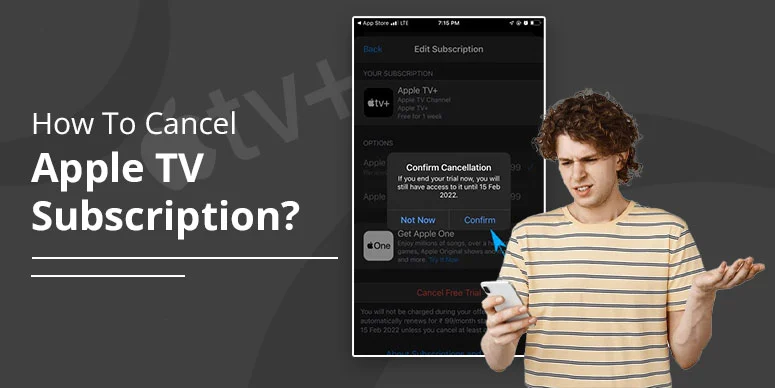
Cancelling Apple TV requires following the quick steps on the official platform. Visit tv.apple.com. Sign in. Select account profile. Select settings. Tap ‘Manage’ under subscriptions. Click ‘Cancel Subscription.’ Along with it, you will learn how to cancel Apple TV subscription on different devices. So read on.
Reasons for Cancellation of Apple TV Subscription
There are many valid reasons you can find why people unsubscribe or cancel Apple TV.
1. Price Hike: Apple has been in discussion over its sudden price-hike concept. From its launch in 2019 at $4.99/month, they have increased the prices three times as follows:
- 2022 – $6.99/month
- 2023 – $9.99/month
- 2025 – $12.99/month (the latest hike in September).
The frequent price hike does not appeal to the masses, and therefore, they want to cancel their subscription.
2. Limited Channel Options: Apple offers its original content, but it’s not something new and innovative. Thus, users may feel bored and consider cancelling their subscription.
3. Technical Issues: Many Apple TV users have reported problems with Apple TV streaming. Some claim it freezes while playing, while others say it crashes every time they open the Apple TV app on their device.
4. Bored with Apple TV: Some users were frustrated because they needed an alternative option. Apple TV does not help; they wanted to select a new one.
How to Cancel Apple TV subscription on iPhone or iPad
Cancelling an Apple TV subscription can be possible through its official site or through the settings option on iPhone, iPad, and Apple Vision Pro. Moreover, you can cancel your Apple Plan using your Mac, Windows PC, or even Android device. This particular section is dedicated to cancelling Apple TV on iPhone or iPad. Check below for the complete guide:
- Open iPhone or iPad and Sign In.
- Tap the settings app or wheel symbol.
- Select your name
- Click subscriptions.
- Then, select your particular subscription.
- Search and Tap cancel subscription.
Cancel Apple Subscription On Mac
When using Mac and want to stop your Apple TV subscription, here’s the complete step:
- Open Apple Store.
- Tap your name. Sign In if your name is not visible there.
- Then, tap Account Settings.
- Tap manage under the subscription menu.
- Tap subscription > cancel subscription.
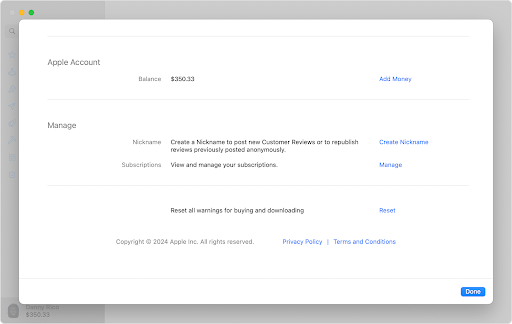
Image source: Apple
Cancel Apple TV subscription on Windows PC
If you want to cancel your Apple TV+ subscription from Windows PC, you can do it via the Apple Music app or the Apple TV app. Here’s how:
- Open either Apple Music app or Apple TV app on your windows PC.
- Select your name from the bottom sidebar.
- Choose View My Account.
- Sign in (if you need to).
- Navigate the settings
- Select next beside your subscription.
- Select a particular subscription > tap edit.
- Tap cancel subscription.
Cancel Apple Tv Subscription On Apple TV
To unsubscribe from your Apple TV subscription on Apple TV itself, you need to go through the instructions carefully:
- Turn on Apple TV and visit Settings
- Select ‘accounts’ from the menu.
- Choose ‘Subscriptions’ under the ‘Menu.’
- Under subscriptions, select ‘Apple TV.’
- Choose ‘Cancel Subscription’ option from the bottom.
- Finally, tap ‘Confirm’.
How to cancel Apple TV subscription on Roku
- Initially, go to the Roku’s official website.
- Tap ‘Home’ on your Roku remote.
- Find Apple TV+ under active subscriptions.
- Tap ‘Manage subscription.’
- Click ‘Turn off auto-renew’ and confirm cancellation.
Note: After you complete the process, your subscription will end after the plan expires.
Troubleshooting Tips When Cancelling Apple TV Subscription
Now you all know how to cancel Apple TV subscription. In case you are still facing any issues, you can try the following troubleshooting steps.
-
Verify Your Apple ID:
Check that you are logged in with the right Apple ID linked to your Apple TV subscription.
-
Stable Internet Connection:
Make sure that you have a strong internet connection so that you can cancel the process effortlessly.
-
Try a Different Device:
Try cancelling your subscription on a different device. Use the following steps on multiple devices to verify if the issue remains the same across devices.
-
Restart Your Device:
Try to cancel your subscription again after you have rebooted your device.
-
Contact Apple Support:
Customers are encouraged to contact Apple Support. They offer support with various problems presented. They can also assist while cancelling an order.
-
Clear Browser Cache:
If you are cancelling through a web browser, clear the browser cache and cookies to address technical challenges.
Check for Apple TV App Updates: Always make sure that you have an up-to-date version of the Apple TV app, since older versions cannot contribute to the cancellation.
What Happens After You Cancel Apple TV?
The following changes you will notice after successfully cancelling Apple TV plan.
Access to premium Content: Even after you cancel the subscription, you can still watch premium content on Apple device. Why? It’s because of your current active plan.
Access denied for personal data: Although your personal is saved, you cannot access it until an active plan is in use. That means you cannot access your history and account information once the plan expires.
Can Come Back Anytime: Whenever you find the right time to come back, it’s just a subscription that you need. Buy a plan and continue with your Apple TV journey where you left off.
Can You Get a Refund for Your Apple TV Subscription?
In some cases, you can request a refund for an Apple subscription purchased directly from Apple. You can request Apple for the accidental or wrong purchase of its product.
- Log in to reportaproblem.apple.com.
- Tap ‘I’d like to’
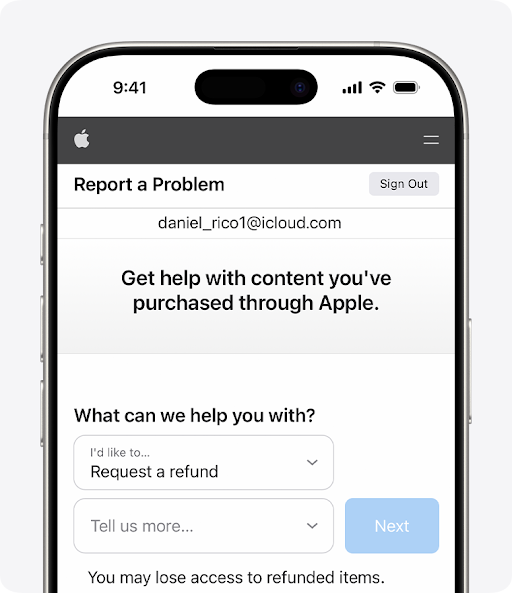
Image source: Apple.
- Select ‘request a refund’
- Select the reason why you want a refund.
- Tap ‘Next.’
- Now, select the particular app or subscription.
- Finally, tap submit.
Conclusion
You might have learned how to cancel Apple TV Subscription. Whether it’s due to high Apple TV subscription costs, limited channels, or technical issues, you can follow a few steps on your device. Remember to check your Apple ID and make sure no payments are pending. If you have trouble, reach out to Monktech.Net for help.
Frequently Asked Questions
How do I cancel my Apple TV subscription online?
Answer. Don’t know how to cancel Apple TV subscription online? We have got you covered! Follow the steps:
Head to the ‘Users and Accounts’.
Tap on the ‘user name’.
Proceed to the ‘Subscriptions’ and then ‘Choose a Subscription’.
Abide by the onscreen instructions to ‘Change’ or ‘Cancel’ your subscription.
Can I cancel Apple TV anytime?
Answer. Yes, you can cancel your Apple TV subscription at any time. But you will get success only when your plan expires.
How do I access my Apple TV account?
Answer. In case you are having difficulty searching for your Apple TV account, follow the prompts given below:
- Tap on ‘Apple Account’ in the bottom left corner.
- Then, go through the on-screen instructions.
- Select the ‘Account’ and then click on ‘Sign-in’.
- Follow the on-screen instructions again.
How Do I Cancel My Apple Tv+ Subscription Immediately?
To cancel your Apple TV+ subscription, visit tv.apple.com and sign in. select profile and settings. Click manage and tap cancel subscription. Your subscription will end after.
Where can I find my Apple TV account?
You can find your Apple TV account on the official website and Apple devices, such as iPhone, iPad, Mac, etc.
How do I cancel my Apple subscription?
You can cancel an Apple subscription by accessing your account on any Apple device, finding settings, your name, and tapping cancel subscription.