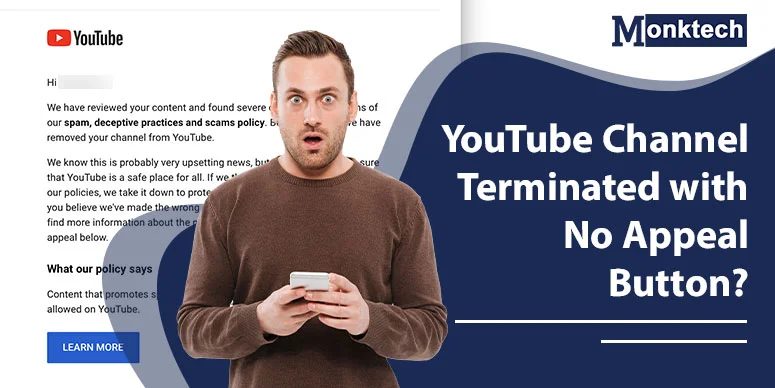
Your YouTube channel was terminated and the appeal button is missing in YouTube Studio. This guide shows you the direct appeal form, exactly what to write, and what to do when YouTube says “final decision.”
This guide is based on official Google/YouTube help content and actual creator stories from forums, Reddit, and Facebook groups. It explains why the appeal button disappears, how to appeal using hidden forms, and what creators do when every automated response says “final decision.”
Why the Appeal Button Disappears After Termination
When YouTube terminates a channel, two things happen:
- You lose access to YouTube Studio for that channel. The dashboard shows a termination message.
- The “Appeal” button is missing or already used. YouTube allows one appeal per termination. Once submitted, the button disappears — even if the review was automated.
This is not a bug. YouTube’s system does not allow a second appeal through the same path.
Common termination reasons in the email:
- Spam, deceptive practices, and scams (misleading thumbnails, reused content, clickbait patterns)
- Copyright strikes (multiple unresolved strikes)
- Harmful or dangerous content, “severe harm,” or other serious guideline violations
- Circumvention (you had a banned channel before and YouTube believes you’re bypassing the penalty)
Some creators receive a termination email and appeal rejection within seconds. This suggests an automated system handled the decision, not a human reviewing your videos.
Step 1 – Use the Direct YouTube Appeal Webform (No Button Needed)
If you do not see an appeal button in YouTube Studio, you can still appeal manually. YouTube provides an official webform for terminated channels through Google’s support pages.
Official appeal form URL (verified May 2026):
https://support.google.com/youtube/contact/accountdisabled
What this webform needs:
- Your exact channel URL in /channel/ format. It must look like youtube.com/channel/UCxxxxxxxx, not your handle or custom URL.
- A clear explanation of why you believe the termination was a mistake. Answer calmly and directly in English, focusing on facts and policy.
How to find your /channel/ URL after termination:
- Check the termination email YouTube sent to you. In many cases, it includes the full /channel/UC… link.
- If the channel was not fully suspended yet:– Go to your channel on desktop– Click “More” in the About section
– Click “Share channel”
– Choose “Copy Channel ID”
Why this matters: The appeal webform will reject handles and custom URLs. You must paste the exact /channel/UC… link, or the form will not connect correctly to your account.
When you write your explanation, cover three basics:
- State the policy mentioned in the email (for example, “Spam, deceptive practices and scams”).
- Explain why your content does not fit that label (for example, original commentary, no links, long‑form documentary style).
- Mention any recent changes or possible hacks (for example, suspicious uploads you did not create, or signs that someone accessed your account).
Do not write a 1000‑word essay. Short, precise explanations with one or two examples are easier for reviewers to skim.
Example appeal (3–5 sentences, no emotion):
"My channel was terminated for spam, but all videos are original commentary with no reused content. I did not upload the videos mentioned — my account showed suspicious login activity on [date]. I followed all Community Guidelines and have never received a strike before."
Step 2 – Search Your Email for Hidden Appeal Links
YouTube’s termination email is more important than most people realise. It usually contains:
- A short paragraph explaining the reason for the termination.
- A direct link to an appeal form or a “learn more” link that can redirect to a special appeal page.
Action checklist for your inbox:
- Search for phrases like “We’ve removed your channel from YouTube” or “violated our Community Guidelines”.
- Open every email from no-reply@youtube.com or Google that mentions your channel.
- Scroll carefully—sometimes the appeal link is in small blue underlined text, not a big button.
If that link still works, it can route you straight into the correct appeal form even if the Studio button is gone.
Step 3 – Contact TeamYouTube on X (Twitter) for Hijacking and “No Form” Cases
When the webform rejects your appeal or tells you the decision is final, the next step is social media escalation.
The official route many Product Experts recommend:
- Go to the YouTube Help article for hacked or hijacked channels.
- Check if you have a blue “Chat with our hacked channel assistant” button near the top of the page.
If there is no button or it does not help:
- Send a public tweet to @TeamYouTube on X (Twitter).
- Make sure your X account is public, not private, so they can see and reply.
- Include:– your full /channel/UC… URL– a one‑line summary (“My channel was terminated, I never uploaded the videos that caused this”)
– a note that you already tried the Help Center and forms
If automated steps do not work, ask TeamYouTube for the “Report a YouTube hijacking” form. This is a special form used when your channel appears to have been taken over.
Important:
- Do not post your email address or other private info publicly; that can get your thread deleted.
- If TeamYouTube responds with self‑help steps, try them. If they fail, reply saying you have already tried them and politely ask for access to the hijacking report form.
- Privacy note: Never share your Google account password, 2FA codes, or recovery email publicly. Legitimate YouTube support will never ask for these.
Step 4 – Handle Copyright‑Based Terminations Differently
Copyright terminations use a different process. If your channel was taken down because of multiple copyright strikes (not general community guideline violations), the standard Community Guidelines appeal forms often do nothing.
In those cases, YouTube’s policies say you have two main options:
- Submit a formal counter‑notification under copyright law. This is a legal document where you state, under penalty of perjury, that the takedown is wrong. It is usually submitted via email, fax, or physical mail to YouTube’s legal contact.
- Ask the copyright claimant to retract the strike. If the person or company who filed the claim withdraws it, YouTube can remove the strike from your channel.
This process is more legal and sensitive. It is sometimes recommended to talk to a lawyer before sending a formal counter‑notification, especially if you are unsure whether your use of content counts as fair use.
Step 5 – Understand What Happens If Your Appeal Is Rejected
Many creators report that their appeal gets rejected very quickly, sometimes within minutes or even seconds. They get a message like:
“We reviewed your channel carefully, and have confirmed that it violates our spam, deceptive practices and scams policy. We know this is disappointing, but our decision is final.”
Real creator experiences show patterns:
- A creator with 50K subscribers and strong income had their channel terminated for “Spam, deceptive practices and scams” without specific examples. Their appeal was rejected almost instantly, likely by an automated system.
- They reached a human agent via live chat, who said the case would be reviewed again. Later, the agent reported that the internal team still confirmed the violation and told them the decision was final.
- Other creators report similar stories: years‑old channels terminated, appeals denied, no specific videos named.
If your appeal is rejected, you may need to wait up to 12 months to see whether you can join YouTube’s “Second Chance” pilot program. During that time, starting a new channel on the same account can be seen as ban circumvention and lead to more bans.
YouTube’s “Second Chance” pilot program (launched late 2025):
– Eligibility: 1 year after termination, no circumvention attempts
– Check in YouTube Studio > Earn for the option
– Deadline changed from 6 months to 1 year in November 2025
Step 6 – Special Cases: Hacked Channels and Vulnerable Creators
Not all terminations are about spam or copyright. Some involve hacked channels or vulnerable users such as children or people with disabilities.
For example:
- A parent described how their autistic son’s YouTube channel was terminated even though they monitored his activity. The channel was part of his learning and goals. They had no idea what rule was broken and struggled to explain the situation to him.
- Another user in the Google help forum said their channel was likely hijacked. They did not upload the videos that caused the termination, and their Google account remained active. They changed their password and enabled two‑factor authentication, but still could not find an appeal form.
For these sensitive cases, the general advice:
- Use the hacked channel assistant or hijacking report path (if you can access it).
- Document everything: when you noticed strange uploads, IP or login alerts, and what actions you took to secure the account.
- Explain the context in your appeal: for example, that the channel belongs to a child or a neurodivergent creator with educational goals.
This does not guarantee recovery, but it gives YouTube more context if your case reaches a human reviewer.
Step 7 – When People Move Beyond YouTube Support
Some long‑time creators, especially those with large channels or significant income, eventually look outside YouTube’s normal support pipeline.
Real‑world actions creators reported:
- Emailing YouTube support repeatedly. Many say they only receive automated responses confirming the appeal was denied.
- Working with technical or legal professionals who specialise in platform accounts. In some stories, a technically savvy friend or consultant reviewed the account, identified the likely trigger, and helped raise a more targeted ticket.
- Considering legal routes. A few creators mention talking to lawyers, sending formal letters, or exploring whether they have legal grounds based on lost income or unclear enforcement.
- Joining or following creator communities on Reddit, Facebook, or specialised forums to see how others handled similar terminations.
How to Protect Your Next Channel From Termination
Even if your current channel cannot be recovered, you can still learn from this experience and reduce your risk in the future.
- Keep offline backups. Use external hard drive or cloud storage with clear date labeling.
- Review YouTube’s Community Guidelines and policies regularly. Policies evolve, especially around spam, reused content, and AI‑assisted videos.
- Enable strong security on your Google account. Use a unique password and two‑factor authentication to reduce hijacking risk.
- Diversify your audience and income streams. Build an email list, use additional platforms, or host your content elsewhere so a single termination does not erase your entire presence.
- Be cautious with third‑party “fixers.” Some people contact creators on Telegram claiming they can restore channels for a fee. Creators often warn that these are scams.
Quick Summary: 7 Steps When There’s No Appeal Button
- Step 1: Use the direct appeal webform with your exact /channel/UC… URL and a clear, honest explanation.
- Step 2: Search your termination email for hidden appeal links.
- Step 3: If hijacked, contact @TeamYouTube on X with your /channel/ URL.
- Step 4: For copyright terminations, use counter-notification or ask claimant to retract.
- Step 5: If rejected, decision is often final. Wait for Second Chance program.
- Step 6: For hacked/vulnerable cases, document everything and explain context.
- Step 7: Consider professional advice if you have significant income at stake.
Read: How to Fix YouTube TV Buffering on Xfinity WiFi (2026 Guide)