By the Editorial Team | Updated: April 29, 2026
The Quick Fix: How to Resolve Error 0x97 in 2 Minutes
If you are in the middle of a critical print job and the Epson Error 0x97 suddenly appears, it typically indicates an internal hardware failure or a motherboard malfunction. Before diving into complex repairs, try this Standard Power Cycle:
- Unplug all cables (USB and Power) while the printer is still “on.”
- Wait for exactly 60 seconds.
- Plug the power cord back in and turn the unit on.
Why power cycle: Clears temporary firmware glitches (works ~30% cases).
What Exactly is Epson Error 0x97?
In our experience, this error is most common in the Epson WorkForce series (WF-3620, WF-3640, WF-7610):
- Motherboard Glitches: Micro-surges in your home office can cause the internal logic board to freeze.
- Mechanical Obstructions: Even a tiny shard of paper or a buildup of dust on the encoder strip can trigger a hardware alert.
Why: Grease/dust on the strip causes position errors, halting printhead movement to prevent damage.
- Power off/unplug.
- Open the access door, slide the carriage manually to center.
- Wipe strip end-to-end with a lint-free cloth (dry first, then minimal isopropyl if greasy).
- Reassemble, test.
- Clogged Printheads: If ink dries inside the nozzles, it creates thermal stress, causing the printer to shut down to prevent permanent damage.
- Firmware or Driver Issues: Outdated drivers or firmware can trigger false errors.
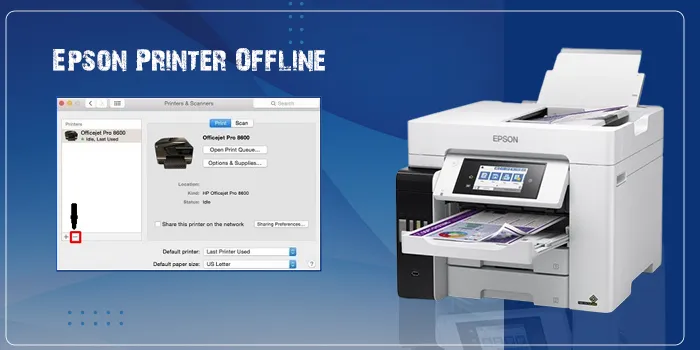
Try this: if your Epson Printer is offline
Step-by-Step Troubleshooting (2026 Expert Guide)
Level 1: Enhanced Power Reset
This drains residual power from capacitors and resets all sensors.
Instruction: Remove the power cable, wait 5 minutes, then hold the power button for 1 minute before reconnecting. This forces the motherboard to re-initialize all sensors.
Why extended (vs basic): Deeper capacitor drain resets sensor calibration.
Level 2: Inspecting the Encoder Strip
The encoder strip is the clear plastic band that runs behind the printhead carriage. If it’s greasy or dusty, the printer “loses” the position of the head.
The Fix: Gently wipe it with a lint-free cloth and a drop of isopropyl alcohol. Avoid bending or snapping the strip during cleaning.
Encoder Strip Cleaning (Most Common Fix):
- Power off/unplug printer. Why: Prevents carriage movement during cleaning.
- Open printer cover, manually slide print carriage to center. Why: Exposes full encoder strip.
- Locate clear plastic strip behind carriage (full width). Why: Strip tells printer exact carriage position.
- Wipe end-to-end with lint-free cloth (dry first). Why: Removes dust/grease causing position errors.
- If greasy: Minimal isopropyl alcohol on cloth (not strip). Why: Safe solvent; test small area first.
- Reassemble, power on, test print.
Caution: Don’t bend strip. Source: Printer repair guides.
Level 3: Managing Ink Cartridges & Chips
Dirty contacts can cause recognition failures.
Our Recommendation: Remove all cartridges. Use a pencil eraser to gently clean the gold contacts on the cartridges. Re-seat them firmly until you hear a distinct click.
Why clean cartridge chips: Dirty gold contacts interrupt communication between cartridge and printer, triggering false hardware errors.
Level 4: The “Wet Method” (Cleaning the Printhead)
If your printer has been sitting idle, dried ink is the likely culprit.
Action: Run built-in printhead cleaning via printer menu or software (repeat 2-3 times). If needed, use a cleaning solution on contacts.
Level 5: Software & Firmware Rollback
Check Epson site for latest firmware/drivers. Navigate to your Epson Maintenance settings on your PC/Mac and check if a “Rollback” or “Update” is available. Often, Epson releases “Hotfixes” specifically for these hardware codes.
Repair vs. Replacement: The 2026 Verdict
We believe in sustainability, but we also value your time and money. Use this table to decide your next move:
| Scenario | Estimated Cost | Recommendation |
| Paper Jam/Dust | $0 (DIY) | Fix it! High success with cleaning. |
| Clogged Printhead | $10-20 (Solution) | Try if built-in fails. |
| Fried Motherboard | $150 – $200 (Part + Labor) | Replace. Modern Epson EcoTank models are more cost-effective. |
How to Prevent Error 0x97 in the Future
- Use a Surge Protector: Protect the sensitive motherboard from voltage spikes.
- Weekly Print Tests: Run one color page per week to keep ink flowing and prevent nozzle clogs.
- Epson Ink: Recommended to avoid sensor issues.
Prevention Tips
- Surge protector: Why: Protects motherboard from power spikes.
- Weekly test print: Why: Prevents dried ink in nozzles.
- Clean environment: Why: Reduces dust on encoder strip.
Frequently Asked Questions:
1. What causes Epson printer error 0x97?
Error 0x97 typically signals hardware detection issues on WorkForce models—most commonly dirty encoder strips (position sensor), power glitches, or cartridge recognition failures. Less frequent: dried printheads or firmware conflicts. Motherboard failure possible but rare (~10% cases).
2. Will a power cycle fix error 0x97?
Basic power cycle resolves ~30% of 0x97 errors by clearing temporary firmware states. If it returns, encoder cleaning needed (most common next fix). Extended reset (5min+1min button) works better for deeper glitches.
3. How do I clean the encoder strip safely?
Power off/unplug. Manually slide carriage to center. Wipe clear plastic strip end-to-end with lint-free cloth (dry first). Use minimal isopropyl alcohol only if greasy. Never bend strip — it’s fragile but replaceable (~$20 part).
4. Can I fix 0x97 with third-party ink cartridges?
Third-party inks often trigger 0x97 due to chip recognition issues. Clean gold contacts with a pencil eraser first. If persistent, switch to Epson-compatible ink. Built-in cleaning resolves dried ink clogs from any cartridges.
5. When should I replace my Epson WorkForce printer?
Replace if encoder cleaning + resets fail and printer is 3+ years old—motherboard repair costs $150-200 exceed new EcoTank value (~$250). Under warranty? Contact Epson service first (free fix).
6. Does firmware update fix Epson error 0x97?
Firmware/driver updates resolve ~15% of false 0x97 triggers. Download latest from Epson support site for your model (WF-3620/3640/7610). Run after all hardware steps. No “rollback” needed—updates are cumulative.