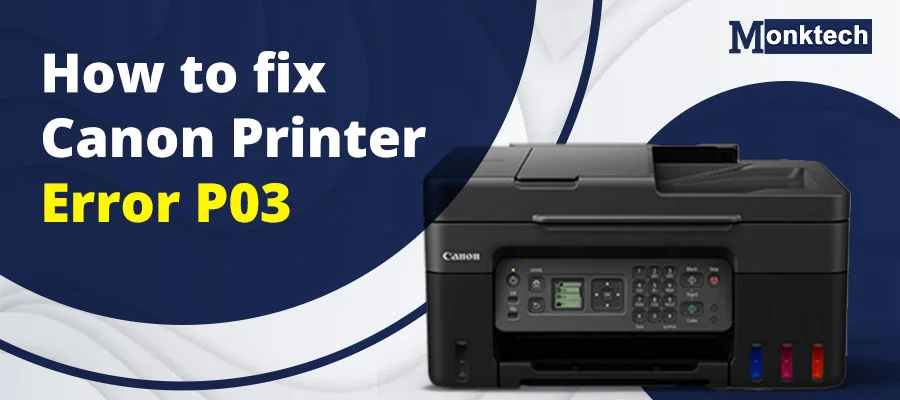
Canon Pixma printers like the G3010, G4010, and MX series are common in home offices. However, the P03 error appears as alternating orange lights and stops printing.
Commonly known as Support Code 6000, the P03 error is technically a Line Feed Error. In my years of troubleshooting hardware, I’ve found that it often involves paper feed issues, such as obstructions or dirty sensors. This guide provides the exact roadmap to free your printer from this kind of error.
Quick Power Reset First
If you are in a rush and the P03 error won’t go away, try this “Hard Reset” sequence first:
- Step 1: While the printer is ON, unplug the power cord directly from the wall.
Why: Clears temporary glitches in the logic board memory, resetting sensors without data loss.
- Step 2: Check the rear tray and output slot for any ghost paper jams (even a tiny scrap of paper or a staple).
Why: Tiny debris tricks feed sensors into detecting false jams (P03 trigger).
- Step 3: Ensure your Paper Tray Setting matches the physical paper loaded.
Why: Tiny debris tricks feed sensors into detecting false jams (P03 trigger).
- Step 4: Wait 60 seconds, plug it back in, and Turn on the printer. If error persists, service may be needed per Canon.
Why: Mismatched settings cause improper feed, mimicking P03 line feed error.
What is P03 Error in Canon Printer? Understanding the “Why”
To fix the problem, you must understand the Line Feed Error. Internally, your printer uses a Logic Board to monitor the Feed Roller Assembly. This assembly is responsible for moving paper through the machine at precise intervals.
When the Support Code 6000 triggers, it means the printer’s brain (the logic board) has detected that the rollers aren’t spinning at the correct speed or are physically stuck. This is often accompanied by an E03 error code on the small LCD screen of models like the MP287.
Common Culprits in 2026:
- Small Objects: Staples, paper clips, or even dried ink clumps.
- Timing Disk Sensor Dust: If the sensor can’t “read” the movement, it assumes a jam.
- Smudged Encoder Film: Grease or ink on this transparent strip confuses the carriage.
Troubleshooting Step-by-Step: The DIY Core
Step 1: Clearing the “Ghost” Paper Jam
We often hear from users: “My Canon printer says paper jam but none found.” This is the hallmark of the P03 error.
Open the scanning unit and use a flashlight to inspect the Pick-up assembly. Even a piece of lint the size of a fingernail can trick the Feed Roller Assembly sensors.
Pro Tip: Use a can of compressed air to blow out the internal gears.
Step 2: Cleaning the Timing Disk Sensor & Encoder Film
This is the most common technical fix for the Canon G2010 P03 error. The Timing Disk Sensor is a clear plastic wheel on the left side of the printer. If dust settles here, the printer loses track of its “timing.”
How to clean: Use a lint-free cloth lightly dampened with 90% isopropyl alcohol. Gently wipe the Encoder film (the clear strip running across the center) and the timing disk. Do not use excessive force, as these parts are fragile.
Step 3: Resetting the Internal Memory
For models like the G3000 or G3010, the error might be cached in the temporary memory.
Perform a hard reset:
- Power down the unit.
- Unplug it for 1 minute.
- Reconnect and hold the Power + Stop buttons simultaneously until the power light flashes, then release. This forces the Logic Board to re-calibrate the hardware.
Model-Specific Nuances (G-Series vs. MX-Series)
| Model Category | Specific Focus Area | Common Fix |
| G-Series (G3010, G4010) | Ink Valve & Tank Carriage | Check for ink leaks onto the Timing Disk. |
| MP/MX Series (MP287) | Scanner Unit Clearance | Ensure the scanner lid is fully closed during startup. |
Note: Always check your model’s manual—variations exist.
Expert Maintenance: Preventing Future Line Feed Errors
To avoid seeing the P03 error won’t go away message again, follow our 2026 maintenance protocol:
- Verify Paper Tray Settings: Always ensure your print driver settings match the paper size in the tray to avoid E03 error codes.
- Cover Your Tech: Dust is the #1 enemy of the Encoder Film. Use a simple dust cover when the printer is not in use.
- Use Quality Media: Cheap, overly thick paper can strain the Feed Roller Assembly.
Troubleshooting Summary Table
| Symptom | Likely Component | Fix Level |
| Grinding noise + P03 | Feed Roller Assembly | Intermediate |
| Clean interior + P03 | Timing Disk Sensor | Technical |
| Instant error on startup | Logic Board / Hardware Failure | Professional |
When to Seek Professional Help
If you have cleaned the sensors and performed a hard reset, but the canon printer is still stuck on P03, you may be facing a P03 hardware failure. This usually involves a stripped gear or a motor burnout.
In 2026, Logic board issues require professional service—check Canon support. If your printer is more than 4 years old, we often recommend upgrading to a newer Pixma model rather than repairing a dead logic board. Check the official Canon Support Portal to find a Canon service center near you.
Frequently Asked Questions (FAQ)
Q 1: Can I fix P03 without opening the printer?
Ans: Yes! Most P03 errors are resolved by clearing external obstructions or performing a hard power reset. Only clean the internal Timing Disk if basic steps fail.
Q 2: Why is my Canon printer blinking orange but there is no jam?
Ans: This is a “Ghost Jam.” It usually means the Line Feed sensor is dirty and “thinks” there is a jam because it cannot detect movement.
Q 3: Does a P03 error mean my printer is broken permanently?
Ans: Not at all. Many P03 errors resolve with cleaning and resets, per user reports.
Disclaimer: I am a hardware specialist with over a decade of experience in consumer electronics. The steps provided here are based on common industry practices for 2026. Always unplug your device before performing internal cleaning.
Important Disclaimer: These are general troubleshooting steps for common P03 issues. Not official Canon advice. Unplug the printer before any cleaning. If under warranty, contact Canon support first to avoid voiding it. For hardware faults, seek authorized service—DIY may cause damage.