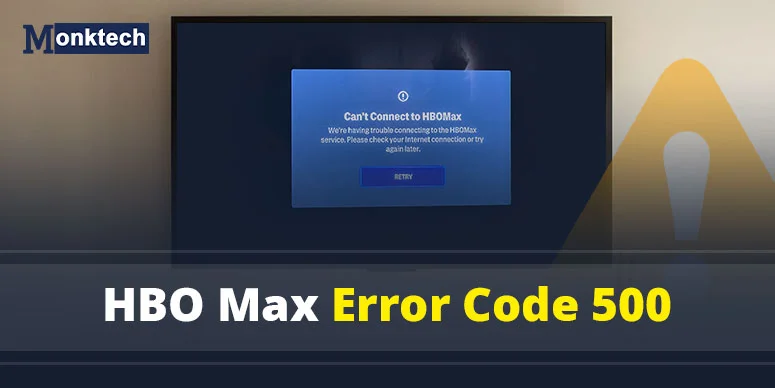
If the Max app is not working, and it throws an Error Code 500 at you, you need to take a few steps to fix it. This is one of the most reported streaming errors in 2026, A generic “Something Went Wrong” message doesn’t help you figure out whether the problem is on Max’s end or yours.
We’ve put together this guide to walk you through exactly what Error 500 means, why it happens, and — most importantly — how to fix it on any device.
Quick Fix Summary
- Check Max server status at downdetector.com
- Force-close and relaunch the Max app
- Clear app cache on your device
- Update the Max app to the latest version
- Restart your device and router (unplug 60 seconds)
- Disable VPN or proxy if active
- Sign out and sign back in to your account
- Reinstall Max as a last resort
HBO Max Error Code 500 – Definition
HBO Max Error Code 500 (now shown on the Max app) is an internal server error that occurs when the app fails to communicate properly with Max’s backend servers. It usually triggers when there is a temporary server outage, a corrupted app cache, an outdated app version, VPN conflicts, or an expired account session. You might be restless when you find this error on your screen. That’s obvious, but not to be clueless. Monktech.net is here to guide you.
Symptoms You Might See
Error 500 doesn’t always display as a numbered code; it can come in different forms on your screen, as we mentioned below:
- “Something Went Wrong”
- Endless loading screen
- “Internal Server Error”
- Playback failure mid-stream
- Login loop (can’t stay signed in)
- App crashes on launch
Why HBO Max Error Code 500 Happens
Here are the seven most common reasons this error shows up in 2026:
1. Max Servers Are Down
Always check if the Max server is down at the moment. In such a scenario, you can not do anything but wait to get it fixed. Temporary outages, maintenance windows, and CDN (Content Delivery Network) routing failures can all trigger Error 500 for users in specific regions.
2. Corrupted Cache or App Data
The device you’re using has held some caches to help load the app, but that’s causing the issue at the moment. Over time, these files — including authentication tokens and session data — can become corrupted, causing the app to fail when talking to Max’s servers.
3. Outdated Max App Version
Max keeps launching its newer versions. If you have not updated the Max app yet, that could be incompatible with Max’s current API, flagging Max’s performance.
4. Internet or DNS Problems
A weak Wi-Fi signal, an ISP routing issue, or a DNS lookup failure can interrupt the connection between your device and Max’s servers, which triggers a 500 error.
5. Account Authentication Errors
An expired login session, a recent password change, or a device authorization conflict can cause Max’s servers to reject your requests with a 500-level error.
6. Device-Specific Software Bugs
Firestick memory overload, outdated Smart TV firmware, or browser extension conflicts can all interfere with Max’s functionalities.
How to Fix HBO Max Error Code 500 (Step-by-Step)
1. Check If Max Servers Are Down
Confirm if Max’s server is currently working or not. To ensure that, you have multiple ways, including online service check detectors and official Max’s social media channels.
- Visit downdetector.com/status/hbo-max for real-time outage reports
- Check X (Twitter) and search “Max app down” for live user reports
- Check Max’s official @StreamOnMax social accounts for announcements
If servers are down: There’s nothing to do but wait. Max typically resolves outages within 30–90 minutes.
2. Restart the Max App
Perform a device restart. This works on the error immediately and fixes it quickly.
- Mobile (Android/iPhone): Swipe up to close the app → wait 10 seconds → reopen
- Smart TVs & Streaming Devices: Fully exit the app from the home screen → wait 30 seconds → Open the Max app again.
- Browser: Close the App tab completely → open a fresh tab → go to max.com
3. Clear HBO Max / Max Cache and App Data
When nothing works, clear Max’s cache and app data on different devices:
- Android: Visit Settings > Select ‘Apps’ > Select ‘Max’ > Click ‘Storage’ and finally, tap ‘Clear Cache’
- Firestick: Settings > Applications > Manage Installed Applications > Max > Clear Cache & Clear Data
- Samsung Smart TV: Settings > Support > Device Care > Manage Storage > Max > Delete
- LG Smart TV: Home > Settings > General > Storage > Clear App Cache
- Browser: Open browser Settings > Privacy > Clear browsing data > check Cookies and Cached images > Clear data.
Note: Clearing app data will sign you out. Remember your Max login credentials.
4. Update the Max App
An outdated app may disturb Max’s functionality. To fix that, update the app on your device this way:
- Roku: Home > Streaming Channels > find Max > Press * > Check for updates
- Firestick: Home > Apps > find Max > Menu > Updates
- Android: Google Play Store > search Max > Update
- iPhone/iPad: App Store > Profile icon > scroll to Max > Update
- Apple TV: App Store > Purchased > find Max > Update
- Samsung / LG TV: App Store on TV > find Max > Update
- Xbox / PlayStation: Navigate to the Max app tile > Options > Check for updates
5. Restart Your Device and Router
Simply turn off your device and wait some time. After that, turn it on and run your device. A power cycle clears temporary memory issues and refreshes your network assignment.
- Turn your streaming device completely off (not just standby)
- Unplug your Wi-Fi router from the wall
- Wait a full 60 seconds
- Plug the router back in and wait for it to fully reconnect
- Turn your device back on and relaunch Max
6. Disable Your VPN or Proxy
Turn off your VPN completely before using Max app. Max’s anti-VPN detection has become significantly more aggressive, so turning them off is the only solution.
- Disconnect from your VPN app
- Reopen Max
- If it works, your VPN was the cause — try a different server location or contact your VPN provider
7. Sign Out and Sign Back In
When an error occurs on Max, signing out and back in is the easiest way. So, you should do that.
- Inside the Max app, go to Profile and scroll to find Sign Out. Tap it.
- You can also sign out from all devices via your account settings on max.com
- If you recently changed your password, make sure you’re using the updated credentials
- Sign back in fresh and activate the Max app.
8. Reinstall the Max App
If nothing else has worked, a clean reinstall removes corrupted installation files that cache-clearing alone won’t fix. A reinstall requires deleting the app first from your device.
- Smart TVs: Go to the TV’s app store, search Max, Tap Uninstall. Then reinstall the app with the same process.
- Firestick: Settings > Applications > Manage Installed Applications > Max > Uninstall > reinstall from Amazon Appstore
- Roku: Remove the channel > go to Roku Channel Store > re-add Max.
- Mobile: Uninstall the app normally (by holding the app icon and tapping Uninstall). After that, visit the app store (Google Play / App Store), search for Max, and install it.
- Browser: No install needed — clear all cookies and site data for max.com, then reload.
When to Contact Max Support
Once you have tried everything but no expected results is found, you can take help from the official Max support team.
It’s better to have everything ready before you connect with Max support.
- A screenshot of the error message
- Your device model and operating system version
- The Max app version number
- Your ISP name and connection type
- The exact time the error first appeared
You can reach Max support at help.max.com via live chat or the in-app help feature.
HBO Max Error Code 500 vs. Other Common Max Errors
Understanding which error you’re dealing with helps you pick the right fix immediately.
| Error Code | What It Means | Typical Cause | Quick Fix |
| 500 | Internal server error | Server outage or app issue | Restart app / check server status |
| 100 | Network connectivity issue | Internet failure | Reconnect Wi-Fi / restart router |
| 321 | Playback / DRM issue | Browser DRM conflict | Clear browser cache / try different browser |
| 420 | Authentication error | Login or session expired | Sign out and sign back in |
Frequently Asked Questions
1. What does HBO Max Error Code 500 mean?
Error Code 500 is an internal server error that occurs when the Max app cannot establish a connection with its backend servers. This happens due to a server outage, a corrupted cache, an outdated app, VPN conflicts, or an expired login session.
2. How do I fix HBO Max Error 500 on Roku?
On Roku, start by restarting the Max channel. If that doesn’t work, remove the Max channel entirely and re-add it from the Roku Channel Store. Also, check for any available app updates. Make sure your Roku firmware is up to date via Settings → System → System Update.
3. Why does HBO Max keep saying “Something Went Wrong”?
“Something Went Wrong” is the generic on-screen message that typically indicates Error 500 has arrived. It usually means there’s a server communication failure.
4. Can a VPN cause HBO Max Error Code 500?
Yes — and in 2026, this is more common than ever. Max has significantly upgraded its VPN detection systems. If your VPN’s exit node is flagged, Max’s CDN will block your requests, producing an Error 500 response. Try disconnecting your VPN and accessing Max directly.
5. Is HBO Max (Max) down right now?
To check in real time, visit downdetector.com/status/hbo-max or search “Max app down” on X (Twitter). Max’s official social accounts also post service status updates during major outages.
6. Why does Max work on my phone but not on my TV?
This usually points to a device-specific issue — either an outdated app version, corrupted cache, or low device memory (common on older Firestick models). Clear the cache on your TV app, check for updates, or reinstall Max on the TV. Also, verify that your TV’s firmware is up to date.