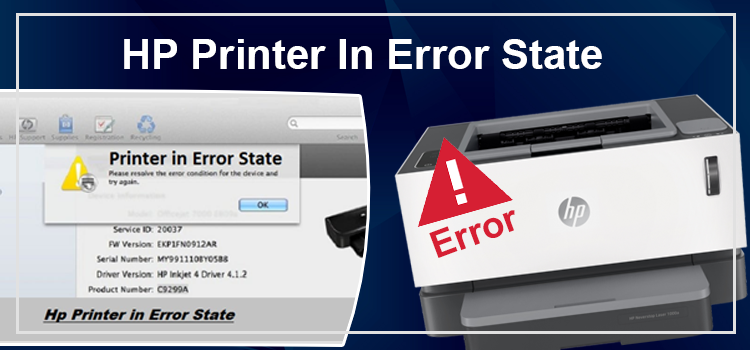
Finding your HP Printer in Error State can be so frustrating! Especially when you’re in a hurry and want something important to be printed out in seconds.
So, what can you do at a time like this: give up? NO! That’s not an option. You’re not a quitter. Then let’s do something. This guide will explain why the problem occurs and walk you through working solutions step by step.
And in turn, you’ll fix your problem and get on with your day. Is that a deal? Good!
So, first, let’s start with the CAUSE!! Why does this problem occur in the first place?
This guide was created from official guidance and common troubleshooting steps verified across multiple user reports for Windows PCs in the United States.
Why Is My HP Printer in Error State?
Your HP printer can go into an error state for various reasons. First of all, it could be a problem with the printer itself. However, it could also occur due to a software issue or driver problem on your computer.
Moreover, errors sometimes occur due to loose data cables and sometimes due to a weak or unstable network connection. However, complications arise when errors occur due to corrupted or outdated printer drivers.
That’s because you don’t understand why the problem is occurring and may end up spending hours trying to solve it.
So, it’s better if you learn to fix all the above problems. That way, you don’t have to feel helpless if one solution doesn’t work.
6 Methods to Fix HP Printer in Error State Issue
Now we’re moving toward bringing your HP printer out of error state. So, read each word carefully, as they’ll help you solve the job better.
So, let’s get you the fixes you’ve been looking for all this while and get you out of this sticky situation.
1. Your Printer Could Be Offline
An offline printer can be the reason it’s not working in Windows. Hence, it’s better to check its online status and take adequate action if it’s offline.
Things that you can do if you find your printer offline:
- First, open your search bar on your personal computer and type Run. Once you type the word, it’ll appear in the search results. Now select and open the Run box. Next, Enter and search Control Panel.
- Once you start searching the Control Panel, you’ll find an option called Devices and Printers. Yes, you’ve to select and open it.
- Here, you’ll find your HP printer on the display. Now all you have to do is right‑click the printer icon and see if Use Printer Online is checked. If it is checked, it means your printer is offline, and you’ve to uncheck it. That’s it; your printer should start functioning again.
2. Is Your HP Printer the Default Printer?
At times, when you have more than one printer, it can happen that you’ve made some other printer your default one. Hence, your HP printer may show as in an error state on Windows 10 or Windows 11 even though it’s physically working.
During such problems, what you can do is:
- First, open your Run dialog box, followed by the Control Panel.
- Once your Control Panel is open, you’ve to select the Devices and Printers option.
- Here you’ll find the number of printers listed with your computer. You must right‑click on the HP printer from that list and choose Set as default printer.
3. How Is Your Print Spooler Service Doing?
Is your printer’s Print Spooler service working fine? You’ve to ensure that your laptop or desktop’s Print Spooler service is running correctly. To do that, follow these steps:
- First, type services.msc after opening the Run box.
- Next, find the Print Spooler option in the services list. If it’s not running, right‑click it and choose Start. If it’s already running, double‑click it. Then set the Startup type to Automatic and click Apply.
- Then, go to the Recovery tab and find the First failure option. Once you locate it, select Restart Service from its available options.
- After this, restart your printer once and try to use your HP printer again. If the problem was with the spooler, the printer should start working.
4. Have You Cleaned Your Spooler Files?
Sometimes, piled‑up spooler files can also put the HP printer in an error state. Hence, it’s important to check and clear these stuck print jobs.
Do you know how to clean it? If you don’t know, this is what you can do safely to tackle the error:
Important safety step: First, open services.msc, find the Print Spooler, and click Stop before deleting any files.
- Open the Start menu and find This PC. Next, click This PC and select the C: drive. Once there, go to Windows → System32 → spool → printers.
- When you go into this folder, you’ll see several files with extensions like .spl or .shd. Select all of them and delete them. This removes stuck print jobs that can cause the “error state” message.
- Next, go back to the spool folder, select drivers, then w32x86 (or amd64 on 64‑bit Windows). If you see any clearly old or unknown printer‑related files here, you may delete them as well.
- After deleting, return to the Print Spooler service, click Start again, and then try printing. This will solve your problem if stacked spooler files were the primary reason behind the faulty printer.
5. Are You Sure Your Printer Is Connected?
A disconnected printer can also be the reason behind your HP printer error message in Windows. To understand if it’s your disconnected printer, all you have to do is:
- First, check if your printer is connected through Wi‑Fi. If it’s connected through Wi‑Fi, make sure both your Windows PC and the HP printer are on the same network. If not, it’s likely connected using a USB cable or Ethernet cable.
- Next, you have to see if the cable is loose from behind the printer or the computer. In case of a loose cable, simply unplug it and replug it firmly, then power the printer off and on once.
- And your HP printer should start working just fine once Windows detects the stable connection.
6. You Can Try to Reinstall Your Printer Driver
I’ve mentioned above that your printer driver could be the reason behind your printer not working. Hence, it’s better to go to the official HP Support website and check if your printer driver needs an update.
If it does, simply go to the HP Support page for your exact HP model, download the driver that matches your operating system (32‑bit Windows 10 or 64‑bit Windows 11, etc.), install it on your computer, and restart it. Once the computer is rebooted, the printer should start working smoothly again.
Before reinstalling, you may also want to remove the old printer entry from Devices and Printers to prevent “ghost printer” issues that can cause error‑state messages even after updating the driver.
Final Words
So, there are 6 sure‑shot fixes to help resolve your HP printer in error state issues. If you continue to find your printer in an error state after trying all these steps, maybe it’s time to contact HP’s customer care support or consider servicing or replacing the device.
HP’s support team is one of the best options for diagnosing deeper hardware or firmware issues that can cause persistent error messages. Do not waste any time; try all these fixes. After all, you probably have several printouts to finish for your work or school in the United States.
Frequently Asked Questions
1. Can You Tell Me A Way to Get My HP Printer Out of The Error State?
One simple way of bringing your HP printer out of the error state is restarting your computer and printer at the same time. This quick step often resolves temporary glitches that cause the HP printer in error state message. Apart from that, you can try the six methods explained above, especially checking the printer’s online status, print spooler, and connection.
2. Why Does My HP Printer Show an Error State in Windows?
There are various reasons why your HP printer may show an error state. It can be as complicated as a corrupted printer driver issue. Or it can be as simple as a loose data cable, a weak Wi‑Fi signal, or a spooler service problem. Hence, it’s better to try all the fixes above and see which one resolves your issue.
3. Will Reinstalling the Printer Driver Solve My Trouble?
Reinstalling or updating the HP printer driver can solve many error‑state problems, especially after a Windows update or when the wrong driver is installed. However, first you should also check for basic hardware issues like empty cartridges or paper jams. If the printer still shows an error state after reinstalling the driver, consider contacting HP support or checking your Windows system settings.