
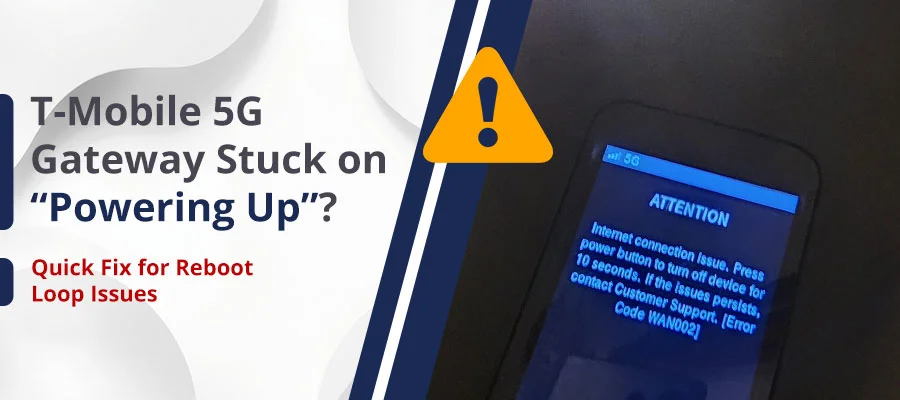
Is your T-Mobile 5G Home Internet Gateway stuck on a never-ending “Powering Up” screen? You’re not alone. Thousands of T-Mobile Home Internet users have reported this exact boot loop issue — and it usually comes down to a firmware glitch or power instability. If your T-Mobile 5G Gateway is stuck in a boot loop, this guide provides the exact steps I use to diagnose and resolve the issue without needing to wait on hold for support.
Quick Fix:
To stop the T-Mobile 5G Gateway reboot loop, hold the reset button for 15 to 30 seconds, confirm you’re using the original T-Mobile power adapter, and make sure the device is not overheating. If the loop started during a firmware update, unplug it for 20 minutes to clear the cache, then plug it back in.
Why Is Your T-Mobile 5G Gateway Stuck in a Reboot Loop? Reasons!
Before jumping to fixes, it helps to understand what’s causing the problem. There are four main culprits.
1. Faulty Firmware Update
This is the #1 cause. T-Mobile pushes automatic firmware updates overnight. If the update fails mid-install — due to a power flicker or weak signal — the gateway’s boot files get corrupted. The Arcadyan KVD21 and Sagemcom Fast 5688W models are especially prone to this.
Some users on Reddit’s r/tmobileisp reported boot loops after overnight firmware updates to their Sagemcom Fast 5688W gateway. The fix in most cases was a factory reset.
2. Overheating
T-Mobile’s gateways have no internal cooling fans. When the device works hard — scanning multiple towers, running MIMO antennas at full load, or streaming 4K for hours — it generates serious heat. The internal thermal protection kicks in and triggers a reboot to prevent hardware damage.
If your gateway feels warm to the touch, overheating may be triggering the restart cycle.
3. Power Supply Issues
5G gateways draw more power when hunting for a weak signal. If you’re using a third-party USB-C cable or plugging into a crowded power strip, the gateway may not get enough consistent voltage to finish booting — resulting in a continuous restart loop.
Always use the original T-Mobile power brick. This is non-negotiable.
4. Signal Instability
If your gateway is constantly bouncing between 4G and 5G towers, it can cause packet loss and authentication failures, often leading to streaming disruptions like Hulu Error Code p-dev340. When the SIM card can’t register on the network (a common issue that also causes SOS Only on iPhones), the device restarts and tries again.
How to Fix T-Mobile 5G Home Internet Gateway Reboot Loop {5 Steps}
Note for Users: These steps are based on common hardware diagnostics. If you are uncomfortable performing these procedures, or if the device exhibits signs of physical damage (e.g., burning smell, melted plastic), stop immediately and contact T-Mobile support. These instructions are intended for device maintenance, not to bypass professional warranty repair when necessary.
Work through these steps in order. Most users fix the issue by Step 2.
Step 1: The 30-Second Power Cycle
This is the fastest fix. It clears the RAM and forces a clean reboot.
- Unplug the gateway from the wall outlet
- Wait a full 60 seconds (the capacitors need to fully drain)
- Plug it back in directly to a wall outlet, not a power strip
- Watch the LCD screen — it should progress past “Powering Up” within 3–5 minutes
If the screen is still stuck on the T-Mobile logo after 5 minutes, move to Step 2.
Step 2: Factory Reset Using the Paperclip Method
A factory reset clears corrupted firmware boot files. This fixes most firmware hang-up situations.
- Power off the gateway
- Grab a paperclip or SIM ejector tool
- Locate the reset pinhole—it’s on the back above the USB-C port on the Sagemcom, or on the bottom near the SIM slot on the Arcadyan.
- Hold the button for 30 seconds until the LCD screen displays “Resetting” or the lights flash
- Let it reboot fully — this takes 5–8 minutes
⚠️ Note: A factory reset will erase your custom Wi-Fi name (SSID) and password. Your credentials will revert to the default ones printed on the label at the bottom of the device. Use the T-Life app (formerly the T-Mobile Internet app) to reconfigure your network settings afterwards.
Step 3: Use the Original T-Mobile Power Adapter and a Dedicated Wall Outlet”
- Plug the gateway directly into a wall outlet
- Avoid power strips, especially cheap ones with multiple devices sharing the circuit
- Check that the plug is fully seated in the outlet — a loose connection causes voltage drops
- If possible, try a different outlet in your home
5G gateways pull extra power when your signal is weak. A low-quality power strip can’t deliver consistent voltage, causing the boot sequence to fail repeatedly.
Step 4: Cool It Down
If your gateway feels warm and is in a confined space, overheating may be the issue.
- Move the gateway to an open area with airflow on all sides
- Keep it off carpets — carpet traps heat underneath the device
- Keep it out of direct sunlight or away from other electronics that generate heat
- For the Nokia “Trashcan” model: many users place a small USB-powered fan at the base. This simple fix prevents thermal throttling and keeps the device stable during heavy use.
Step 5: Re-Seat the SIM Card
A poorly seated or dirty SIM card causes the gateway to crash during network authentication — creating a loop.
- Power off the gateway completely
- Locate the SIM card tray (usually on the side or back)
- Remove the SIM card
- Gently wipe the gold contacts with a dry microfiber cloth
- Re-insert the SIM card firmly until it clicks
- Power the gateway back on
Here’s a quick test: If the boot loop stops with the SIM removed but returns when you put it back in, your SIM card is defective. Visit a T-Mobile corporate store to get a free replacement SIM.
T-Mobile Gateway Model-Specific Fixes
Different models have different weak points.
| Gateway Model | Most Common Loop Cause | Best Fix |
| Nokia (Trashcan) | Overheating | External USB fan + open placement |
| Arcadyan KVD21 | Firmware hang-up | 30-second hard factory reset |
| Sagemcom Fast 5688W | Power delivery issue | Use original adapter only; avoid power strips |
1. Arcadyan KVD21 — Firmware Glitch Fix
The KVD21 is notorious for freezing after automatic firmware updates. If you see bars flashing but no “Connected” message appears, it’s almost always a firmware hang-up. The 30-second factory reset (Step 2 above) resolves this in the vast majority of cases.
2. Sagemcom Fast 5688W — The 1.101.xx Firmware Problem
Users running the 1.101.xx firmware version have reported widespread boot loops. The fix: perform a factory reset, then immediately check your firmware version in the T-Life app. If it re-downloads the bad firmware version, contact T-Mobile support to flag your device for a different firmware channel.
Note: This was widely reported between late 2024 and early 2025 — if you’re on a newer firmware version, this specific issue may not apply to you.
3. Nokia “Trashcan” — Overheating and Battery Issues
The Nokia “Trashcan” model is well-known for overheating in enclosed spaces. If your unit feels unusually hot or shuts down repeatedly, move it to an open area with airflow. If the problem persists after cooling it down, contact T-Mobile for a warranty replacement.
LED Error Codes: What the Lights Mean
Understand what each kind of light indicates about the error in the T-Mobile 5G gateway.
| Light Color & Pattern | What It Means | What to Do |
| Solid White | Normal operation | Nothing — you’re connected |
| Blinking White | Booting up | Wait 3–5 minutes |
| Solid Amber | No internet connection | Check signal or power cycle |
| Blinking Red | Hardware fault or failed boot | Factory reset or call support |
| Bars flashing, no “Connected” | SIM authentication failure | Re-seat SIM card |
When to Call T-Mobile Support
You’ve tried all five steps. The gateway is still stuck on “Powering Up.” Here’s what that means: the internal boot files are likely corrupted beyond a factory reset, or there’s a hardware fault.
Call T-Mobile Home Internet Support at 1-844-275-9310
Tell them:
- Your gateway model (on the label underneath)
- That you’ve already done a 30-second factory reset
- The exact screen or light pattern you’re seeing
They can check for a provisioning error on their end — sometimes the reboot loop isn’t your hardware at all. It’s a T-Mobile network-side issue that they can fix remotely in minutes.
If the issue is hardware, they will ship a replacement gateway to your door under warranty at no cost.
You can also reach out to @TMobileHelp on X (Twitter) for a fast response, especially during high-volume call times.
Frequently Asked Questions
What does it mean when the T-Mobile Gateway says “Powering Up” indefinitely?
It usually means a firmware hang-up or a SIM card authentication failure. Try a 30-second factory reset first. If the screen never moves past “Powering Up” even after a reset, the internal boot files are likely corrupted. You’ll need a warranty replacement from T-Mobile.
Can a faulty power adapter cause a T-Mobile router reboot loop?
Yes. The Arcadyan and Sagemcom models require a specific voltage. A third-party USB-C cable or a low-quality power strip may not deliver enough consistent power for the gateway to complete its boot sequence, causing it to restart repeatedly. Always use the original T-Mobile power brick.
How do I know if my T-Mobile gateway is overheating?
If the device feels warm to the touch and is sitting in a closed cabinet, on carpet, or next to other devices, overheating is likely. The internal thermal protection sensor triggers a reboot to protect the hardware. Move the device to an open space and check if the loop stops.
Will a factory reset delete my T-Mobile Wi-Fi settings?
Yes. Your custom Wi-Fi name (SSID) and password will revert to the defaults printed on the bottom label. Use the T-Life app to set them back up after the reset.
Can I use my own router with T-Mobile 5G Home Internet?
Yes. Set the gateway to “IP Passthrough” mode by accessing the gateway’s admin panel at 192.168.12.1 in your browser. Log in with your admin credentials (found on the device label), then navigate to Advanced Settings → IP Passthrough.
Still Stuck in a Boot Loop?
If you have performed a full factory reset and the device remains stuck on the “Powering Up” screen, the issue may be a hardware failure or a network-side provisioning error. At this stage, your best course of action is to contact T-Mobile directly:
- Phone Support: 1-844-275-9310
- Social Support: Reach out to @TMobileHelp on X (formerly Twitter) for a faster response.
- In-Store: Visit a local T-Mobile corporate store to request a gateway diagnostic test or warranty replacement.