Why You Should Sign Out of Netflix on Hotel / Airbnb TVs
Protecting your account from strangers using it after you check out is crucial. It prevents unwanted charges on shared or family plans and safeguards your viewing history and recommendations. In 2026, with heightened data privacy concerns post recent breaches, signing out avoids data-usage issues on metered hotel networks too.
Hotels and Airbnbs often reset TVs, but not always immediately—next guests could access your profile.
Method 1 – If You’re Still in the Room (TV + Remote)
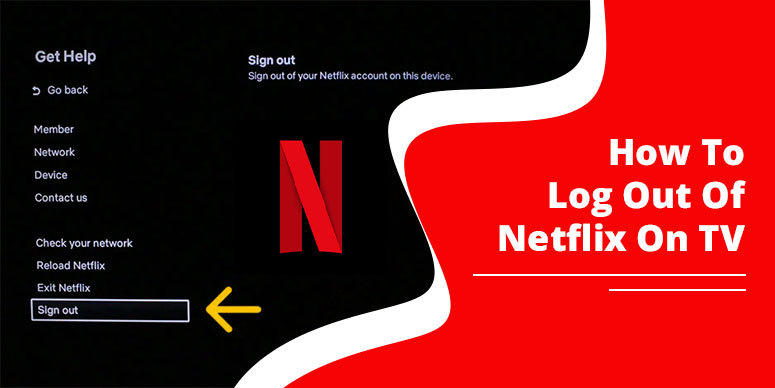
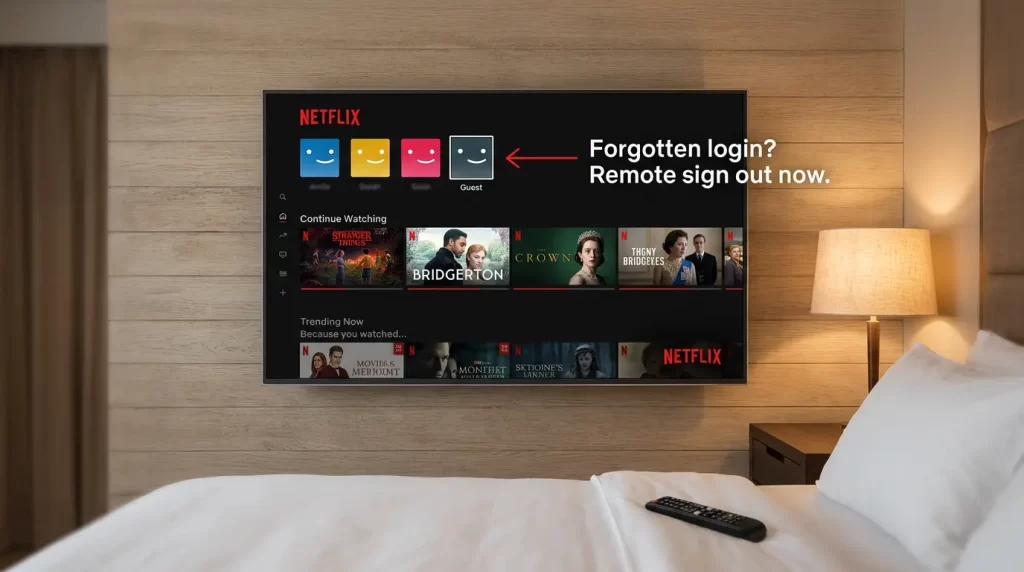
This is the simplest if you’re still there. Open Netflix on the hotel or Airbnb TV home screen. Press Left on the remote to open the sidebar, scroll to Get Help (or Settings/Account), then select Sign Out at the bottom and confirm Yes. The app restarts to the login screen.
Quick tip: If the menu seems hidden, double-check Get Help first—user-reported codes vary by model and aren’t official.
- Launch Netflix app.
- Press Left arrow for sidebar.
- Scroll down to Get Help > Sign Out > Yes.
I’ve used this on countless hotel TVs during my travels; it’s foolproof for most brands.
Brand-Specific Tips (User-Reported)
- Samsung Tizen: Press Left > Get Help > Sign Out. If the menu is hidden, some users report that trying Up, Up, Down, Down, Left, Right, Left, Right may open the logout screen.
- LG webOS: Go to Settings > Apps > Netflix > Sign Out.
- Roku: Press Left arrow > Get Help > Sign Out.
Note: The standard Get Help > Sign Out path is the safest method. Brand-specific codes are unofficial and may not work on every model.
Method 2 – Remotely Sign Out of That Specific TV (You’re Checked Out)
Perfect when you’re miles away. On a computer, go to Netflix.com, log in, click your profile icon > Account > Manage Access and Devices. Spot the hotel TV (often listed as “Smart TV” with location approx.), then click Sign Out next to it. This logs out only that device—your phone and home TV stay active!
Pro note: Family plans unaffected—only that TV session ends [].
On the Netflix mobile app (iOS/Android): Tap profile > Account (or More > Account) > Access and Devices > select the TV > Sign Out. Updated for 2026 app versions; Netflix improved device naming for easier ID.
>Netflix.com/account.
>Devices section.
>Sign Out for the TV.
This method shines for travel scenarios—you revoke access without disrupting family streaming elsewhere.
As a frequent US traveler managing monktech.net, I’ve remotely logged out from 20+ hotel TVs using this—device shows approx. location like ‘Smart TV – Florida’. Match by last-used date.
Caveat: Web shows full list (match by recent activity); app limits to recent 10. Takes immediate effect, but location is approx. via IP (city-level, e.g., “Florida”).
Method 3 – Sign Out of All Devices (Maximum Safety)
Use this if unsure about devices or suspect sharing. Netflix.com > Account > Manage Access and Devices > bottom: Sign out of all devices (or “Sign out everywhere”). Confirm; it takes up to 8 hours but kicks everyone off immediately on most.
Note: Logs out all profiles; re-login on yours.
Mobile app: Profile > Account > Access and Devices > Sign Out of All Devices. Log back into your personal devices after. Great for post-travel peace of mind—I’ve done this after Airbnbs to nuke any forgotten logins.
Pro tip: Follow with a password change under Account > Change Password for better security.
Enable 2FA for Extra Security:
- Account > Security > Two-Factor Authentication > Enable
- Use authenticator app; protects post-travel
Best practice: Use apps like Google Authenticator (no SMS risks abroad).
What If I Can’t Find the Sign-Out Option on the TV?
TV menus vary by brand (Samsung Tizen, LG webOS, Roku). Try Get Help path first; if stuck, secret code. For locked hotel TVs, clear Netflix app data via TV Settings > Apps > Netflix > Clear Cache/Data (reinstalls app).
But if checked out, skip TV fights—use Methods 2/3 remotely. Some hotels auto-logout after 24 hours, but don’t rely on it.
More Netflix fixes: Netflix troubleshooting | Complete TV logout guide.
FAQs
Q: Can I remotely sign out of Netflix on a hotel TV I no longer have access to?
A: Yes; log into Netflix.com or app, go Account > Devices, Sign Out the TV or Sign out of all devices.
Q: How to sign out of Netflix on an Airbnb TV if I already left?
A: Use Method 2 (Account > Devices > Sign Out) or Method 3 from phone/laptop.
Q: Does signing out of Netflix on TV affect my account on other devices?
A: No; specific sign-out only hits that TV. All-devices option logs out everything.
Q: What happens if I sign out of all devices on Netflix?
A: All sessions end (up to 8 hours); re-login on your devices. Removes hotel/Airbnb access.
Q: Is it safe to use Netflix on hotel / Airbnb smart TVs in 2026?
A: Yes, if you sign out properly or remotely. Avoid if paranoid; use personal hotspot.
Q: Netflix device list shows unknown TV—how to identify hotel one?
A: Check location approx. and last used date; newest unknown is likely it.
Additional Travel Security Tips for Netflix
Enable 2FA on your Netflix account via Account > Security. Monitor Viewing Activity for strangers. For family plans, use profiles to limit access. With AI-driven recommendations, protect your data to avoid skewed suggestions.
US travelers: Hotels like Hilton/Marriott often use LG/Samsung TVs—secret code works best. Airbnbs vary; always check before leaving.
Common Mistakes and How to Avoid Them
- >Forgetting after exhaustion—set phone alarm: “Log out Netflix”.
- >Assuming hotel resets—many don’t for days.
- >Not checking devices list regularly.
Bonus: Check Viewing Activity weekly for family plans.
Comparing Methods: Quick Table
| Method | When to Use | Impact | Time |
|---|---|---|---|
| 1: TV Remote | Still in room | One device | 1 min |
| 2: Specific Remote | Checked out, know device | One device | 2 min |
| 3: All Devices | Unsure/paranoid | All | Up to 8 hrs |