You spent time crafting the perfect email — clear subject line, concise message, professional tone. But it’s landing in the recipient’s Spam or Junk folder. The culprit? Your Outlook email signature.
This affects 24% of Outlook-to-Outlook emails per Microsoft SNDS data. Spam filters don’t just scan the body of your email — they analyze the entire message, footer included. An overly designed signature with too many images, external links, or decorative formatting can silently push your emails out of the inbox.
This guide is built specifically for US business users — salespeople, recruiters, consultants, HR professionals, and entrepreneurs — who use Outlook (desktop or Microsoft 365 web) and want a signature that looks polished and stays spam-safe. We cover things most big sites ignore completely.
Why Outlook Signatures Can Trigger Spam Filters
Spam filters like those used by Gmail, Yahoo, and Outlook.com itself use machine-learning models that look at the entire email as one unit — subject line, body, and footer together. Your signature is not treated separately.
Here’s the core problem: a heavily designed email signature looks exactly like a marketing newsletter footer to an automated spam filter. Think about it — a banner image, a row of social icons, bold colored text, multiple external links, and an unsubscribe-style legal disclaimer? That’s practically a promotional email template.
Specific signature elements that raise spam scores:
- Large banner or hero images — especially hosted on third-party image hosts like Wisestamp, HubSpot, or free CDNs.
- Multiple social-icon images — each icon is a separate image request, inflating your image count.
- Tracking links (UTM, click-trackers) — URLs with
?utm_source=,?ref=, or redirect domains are common in phishing; spam filters treat them with suspicion. - Heavy HTML with nested tables, web fonts, or inline CSS stacks — signals “bulk email tool” rather than a one-to-one business message.
- Links to multiple different external domains — one link to your website is fine; five links to five different platforms is a red flag.
- Legal disclaimers in tiny grey text — ironically, these are common in bulk email and can negatively signal your message.
Hidden Spam Triggers Most Guides Miss
Most articles cover the obvious ones — don’t use images, limit links. But there are quieter triggers that almost nobody talks about. These are the ones that catch professionals off guard.
When you use a signature generator tool (Wisestamp, HubSpot, Newoldstamp, etc.), your logo or banner is typically hosted on their CDN domain — not yours. Spam filters check the domain reputation of every linked or embedded URL. An image from
cdn.wisestamp.com is a third-party domain with shared reputation. If any user of that platform sends spam, the entire CDN domain can take a reputation hit that affects you.Many email signature tools automatically wrap your social links through their own redirect tracker (e.g.,
track.signatureapp.com/r?url=linkedin.com/in/yourname). These redirect URLs are identical in structure to phishing links. Even if your intent is innocent, spam filters can’t tell the difference.If you send email from
name@companyABC.com but your signature links to a website at companydba.net or your personal blog, spam filters flag the domain mismatch. Keep all links pointing to the same root domain as your email address whenever possible.Animated GIFs (seasonal greetings, “now booking” badges, blinking banners) are a strong spam signal. They appear almost exclusively in promotional email and are almost never found in genuine business-to-business correspondence.
calendly.com/yourname?utm_source=email&utm_campaign=outreach&utm_medium=signature. Strip the tracking parameters from signature links — save UTMs for landing pages only.<!-- SigGen v2.3 --> or proprietary metadata. While harmless-looking, some spam filters have learned to associate certain comment patterns with bulk-email software.7 Rules for a Spam-Safe Outlook Signature
- Use a minimal, text-first layout. Plain text or very light HTML (bold name, italic title, standard hyperlinks). No decorative banners, no tables-within-tables.
- Limit links to 1–3 maximum. Ideal set: your website, your LinkedIn, and optionally a booking/calendar link. Each link should point to your primary business domain or a well-known platform (LinkedIn, Calendly).
- Host your logo on your own domain. If you must include a logo, serve it from
https://yourcompany.com/assets/logo.png— never a third-party signature CDN. Keep it under 200 KB and no wider than 120px. - Strip all tracking parameters from signature URLs. Remove
?utm_source,?ref=,?hsa_, and any redirect wrapper URLs. Use clean, direct links only. - Use standard system fonts. Arial, Calibri, Verdana, or Georgia at 10–12pt. Web fonts (Google Fonts loaded via
<link>) in signatures add HTTP requests, complicate rendering, and signal bulk-email templates. - Avoid color-heavy or “marketing-style” design. One accent color at most (e.g., your name in your brand color). No bright CTA buttons, no gradient backgrounds, no “Book a call now!” banners.
- If your HTML signature renders as mostly images with very little visible text, spam filters score it similarly to a phishing email. Always have your full name, title, company, and phone number as visible text — not embedded in images.
How to Create a Spam-Safe Outlook Signature (Step-by-Step)
🖥️ Outlook Desktop (Windows)
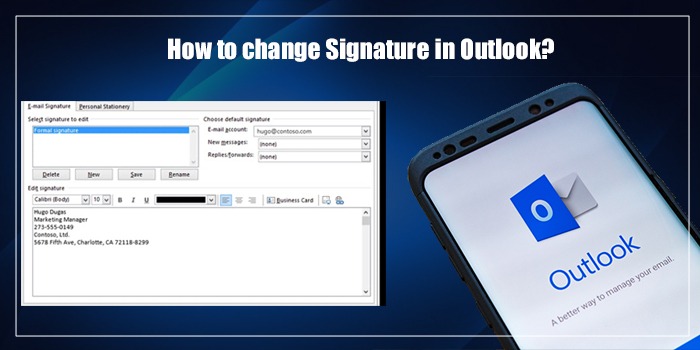
Go to File → Options → Mail → Signatures… (or press Alt then follow the menu). This opens the Signatures and Stationery panel.
Click New, name it something like “Business – Clean” to distinguish it from any fancy version you may have used before.
Copy the plain-text or light-HTML template from Section 5 or 6, then paste directly into the signature editor. Do not use the toolbar’s image or color buttons.
Use the dropdowns at the top of the editor to assign your new clean signature to both “New messages” and “Replies/forwards.” This ensures consistency across all outgoing email.
Send a test to a Gmail address and a personal Yahoo or Outlook.com address. Check that it lands in the Primary inbox — not Promotions or Spam. See Section 9 for a full test checklist.
🌐 Outlook on the Web (Microsoft 365)
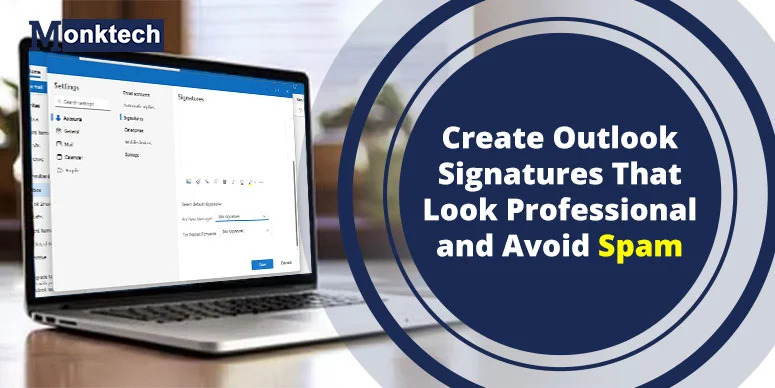
Click the gear icon (⚙️) in the top-right corner, then select View all Outlook settings at the bottom of the panel.
Go to Mail → Layout → Email signature. You’ll see a rich-text editor similar to the desktop version.
Paste directly from the templates below. Avoid using the “Insert image” button in this editor — images inserted here are embedded as base64 blobs, which can inflate message size dramatically and hurt deliverability.
Click Save, compose a new email, and verify the signature appears correctly before sending your test message.
Template 1 — Plain-Text Style Signature (Safest)
This is the gold standard for spam-safe signatures. It uses only basic HTML — no images, no external resources, no tracking. It looks clean and professional on every device and mail client, including mobile Outlook.
Best regards,

[Your Full Name]
Job Title | Company Name
Phone: [XXX-XXX-XXXX]
Email: you@yourcompany.com
Web:   https://yourcompany.com
──────────────────────────
LinkedIn: https://linkedin.com/in/yourname
- Zero images — no image-to-text ratio problem.
- Only two links, both to trusted, well-known domains.
- No HTML tables, no inline styling, no web fonts.
- Renders correctly even when HTML is stripped entirely (plain-text fallback).
- Passes most corporate firewall filters used in US enterprises.
Template 2 — Light-HTML Signature With a Small Logo
If you need a slightly more polished look for client-facing roles (sales, consulting, agency work), this light-HTML version adds minimal formatting and an optional logo — while staying well within spam-safe limits.
Only use this if your logo is already hosted at a public URL on your own company domain (e.g.,
https://yourcompany.com/logo.png). Never paste a logo hosted on Canva, Google Drive, Dropbox, or a signature-builder CDN.📋 Ready-to-Paste — Light HTML With Logo (paste in Outlook HTML source or signature editor)<!-- Spam-Safe Light HTML Signature -->
Best regards,<br><br>
<strong>Your Full Name</strong><br>
<em>Job Title</em> | Company Name<br>
Phone: 123-456-7890 | Email: name@company.com<br>
yourcompany.com<br>
LinkedIn- Logo rules to stay spam-safe: Width: 100–120px maximum. File size under 200 KB. Always include descriptive alt attribute. Use PNG or SVG. Do not link the logo image to a URL.
Do’s & Don’ts — Quick Reference
- Plain text or very light HTML
- Your full name, title, company
- 1 phone number
- 1 company website link (your domain)
- 1 LinkedIn profile link
- 1 optional booking link (no UTMs)
- 1 small logo hosted on your domain
- System fonts: Calibri, Arial, Verdana
- Font size 10–12pt
- Clean, direct URLs only
- Banner or hero images
- Rows of social media icons
- Animated GIFs or banners
- Tracking / UTM parameters in links
- Redirect wrapper URLs
- Third-party CDN-hosted images
- More than 4 external links
- HTML tables with multiple columns
- Web fonts via <link> tags
- “Book now” / “Click here” CTA buttons
- Brightly colored backgrounds
- Base64 embedded images (huge file size)
Signature Spam-Score Cheat Sheet
| Signature Element | Spam Impact | Notes |
|---|---|---|
| Full name + title (text only) | Safe | Standard in all business email |
| Phone number | Safe | No impact; actually a legitimacy signal |
| 1 website link (own domain) | Safe | Keep it clean, no UTMs |
| LinkedIn profile link | Safe | LinkedIn is a trusted domain; text link, not icon |
| Small logo (own domain, <200KB) | Low risk | Fine if hosted correctly; adds slight image ratio |
| Calendly / booking link (no UTMs) | Low risk | Clean Calendly links are generally safe |
| 2–3 social icon images | Low–Medium risk | Multiple images inflate image count quickly |
| Logo hosted on third-party CDN | Risk | Shared CDN reputation; unpredictable |
| UTM / tracking links | Risk | Looks identical to phishing redirect patterns |
| Animated GIF | Risk | Almost exclusively used in promotional email |
| 5+ external links | Risk | High link density is a strong spam signal |
| Banner image (full-width) | Risk | Marketing-email pattern; major image ratio hit |
| CTA button (“Book now”, “Click here”) | Risk | Promotional language combined with button = high flag |
| Base64 embedded image | Risk | Massively inflates message size; blocks often stripped |
How to Test If Your Outlook Signature Is Triggering Spam
Create a new personal Gmail address specifically for testing. Send your standard business email (with your signature) to this address from Outlook. Check whether it lands in Primary, Promotions, or Spam.
Yahoo’s spam filters are notoriously aggressive and often catch issues that Gmail passes. Send the same email and check inbox placement.
Microsoft’s consumer mail (Outlook.com / Hotmail) has different filters than Microsoft 365 enterprise. Test here separately.
Go to mail-tester.com, copy the unique test address they provide, send your email to it from Outlook, then click “Check your score.” It gives a 1–10 spam score and lists every issue found — including signature-related problems.
Send two versions of the same email — one with your full signature, one with a minimal plain-text signature. If the fancy version scores worse or lands in spam while the plain one doesn’t, the signature is your problem.
Your email should land in the Primary inbox on Gmail, the main inbox on Yahoo, and score 8 or higher on Mail-Tester. Anything less, and it’s worth auditing your signature and email body further.
If you also manage your work email on iPhone or Android, make sure your signature settings sync correctly. The signature configured in Outlook desktop doesn’t automatically appear in the Outlook mobile app — you’ll need to set it separately. Check your Outlook setup on iPhone to ensure both the account and signature are configured consistently.
FAQ — Outlook Signatures & Spam Filters
Do email signatures trigger spam filters?
Why is my Outlook email going to spam even though the content is professional?
Is an Outlook email signature spam-safe by default?
How many links can I safely include in my Outlook signature?
Can I use a logo in my Outlook signature without triggering spam?
https://yourcompany.com/images/logo.png). Keep it small: under 200 KB and no wider than 120px. Always include descriptive alt text. Do not link the logo to a URL, and never use a logo hosted on a third-party signature tool’s CDN. One properly hosted logo adds minimal spam risk.Do tracking links in email signatures hurt deliverability?
?utm_source=email, ?ref=sig) or redirect wrappers (used by signature analytics tools) look structurally identical to phishing links and malicious redirects. Spam filters have learned to treat them with suspicion. Remove all tracking from signature URLs. Use clean, direct links. If you need to measure click-through on your signature links, use server-side analytics (like Google Analytics on your website) rather than link-level tracking in the email itself.Should sales professionals use a different signature than regular employees?
Does a long legal disclaimer in my signature cause spam problems?
Can my Outlook signature cause emails to go to spam on Gmail specifically?
What’s the difference between a spam filter and Outlook’s Junk folder?
Quick Summary — Spam-Safe Outlook Signatures
Follow these five core principles and your Outlook signature will stay professional and inbox-friendly:
- Keep it minimal — plain text or very light HTML is always safest.
- Limit links to 3 or fewer — website, LinkedIn, optional booking link. No UTMs.
- Host images on your own domain — never on a third-party CDN.
- Avoid marketing-style elements — no banners, animated GIFs, CTA buttons, or social icon rows.
- Test before you send at scale — use Mail-Tester.com and send to Gmail, Yahoo, and Outlook.com inboxes.
Your email signature is a small but meaningful part of your professional presence. The best signatures — the ones that consistently land in the inbox — are the ones that look like they came from a real person, not a marketing campaign. Clean, minimal, and direct is not just spam-safe; it’s also more credible to the recipient.
Take 10 minutes today to audit your current Outlook signature against the rules in this guide, swap in one of the ready-to-paste templates, and run a quick deliverability test. It’s a small change with a disproportionate impact on how reliably your emails actually get read.