In this guide, you’ll learn:
- How to print from your iPad using AirPrint (and what to do when it fails)
- Why the HP Smart App can be more reliable than AirPrint on complex networks
- A simple, battle‑tested troubleshooting checklist
- Pro tips for remote printing, Wi‑Fi setup, and security
Make Sure iPad and Printer Are on the Same Wi‑Fi
Here’s the most common issue: your iPad and your HP printer must be on the same 2.4GHz or 5GHz Wi‑Fi network.
They can’t just be near each other. They need to be on the same digital highway, able to communicate directly. If your iPad is on “Home‑WiFi” and your printer is on “Home‑WiFi_5G”, they won’t see each other. If your router has a guest network and one device is on it, printing will fail.
Quick Checklist:
- On your iPad, go to Settings > Wi‑Fi. Note the network name.
- On your printer’s display panel, navigate to Network Settings or Wireless Settings. It should display the connected network. (No screen? Print a network configuration sheet—check your manual for the button combo).
- Match them. If they’re different, you’ve found your problem.
This is based on how Wi‑Fi protocols work. Devices must be on the same subnet to discover each other via Bonjour, the protocol AirPrint uses. There’s no way around it.
4 Proven Methods to Print from iPad to HP Printer in 2026
Check out these 4 simple methods to print from your iPad to an HP printer. Let’s find the guide with some helpful tips!
Method 1: Print Using AirPrint
AirPrint is Apple’s zero‑configuration printing protocol. When it works, it’s seamless. You tap a few buttons and your document prints.
Here’s how to do it right:
- Open your document or photo.
- Tap the Share icon (the square with the up arrow).
- Scroll and tap Print. If you don’t see it, swipe left on the bottom row.
- Tap Select Printer. If your HP printer is compatible and on the network, it should appear.
- Choose your options and hit Print.
However, in crowded office environments or complex home networks, AirPrint discovery can fail. If your printer isn’t showing up after a couple of attempts, move to Method 2 and try the HP Smart App.
Method 2: Print Using the HP Smart App
While many experts recommend AirPrint first, the HP Smart App is often more reliable, especially on segmented networks.
I prefer this method because it gives you control. You’re not relying solely on automatic discovery. You’re using HP’s own software to talk to HP’s own hardware. The connection is typically more stable.
Step‑by‑Step Setup:
- Download HP Smart: Get it from the App Store. It’s free.
- Create an Account: This unlocks remote features like Print Anywhere, which lets you print over the internet to printers registered to your HP account.
- Add Your Printer: The app will guide you. This often involves holding your iPad near the printer for a quick pairing via Wi‑Fi Direct.
Once set up, you can print, scan, and check ink levels from one place. The “Print Anywhere” feature is useful for remote work—you can send documents to a printer at your office or home from a different location.
Method 3: Printing Without Wi‑Fi (The USB Lifeline)
You can print directly from your iPad to your HP printer with a USB cable. This is a reliable fix when Wi‑Fi is down or blocked.
How it works:
- You need Apple’s Lightning to USB Camera Adapter (for older iPads) or a USB‑C to USB Adapter (for newer models).
- Connect the adapter to your iPad, then connect a standard USB printer cable to the adapter and your printer.
- Turn on the printer. Your iPad will usually recognize it instantly, and you can print right from the Share menu like with AirPrint.
When is this useful? In locked‑down enterprise networks where wireless printing is blocked for security, a USB adapter can be a reliable alternative. It’s also perfect for a quick, secure connection when printing sensitive documents.
Method 4: Printing via Email (Using HP ePrint)
HP ePrint gives your printer a unique email address. Any document you send to that address prints automatically.
To use it:
- Register for HP ePrint at HP.com.
- Assign your printer a custom email address.
- Send emails with attachments to this address from any device—even if your iPad is at a different location.
It’s ideal for situations where you need to print remotely. For example, you can send invoices or documents to an office printer from home.
Important Notes for U.S. Users
If you’re in the United States:
- Most home routers in the U.S. broadcast both 2.4GHz and 5GHz under the same SSID, but some still split them. Make sure your iPad and printer are on the same SSID.
- If your router uses client isolation or a guest network, AirPrint discovery will fail. Turn these off for the network you use for printing.
- Check HP’s official site for AirPrint‑compatible HP printer models available in the U.S. Not all older HP printers support AirPrint.
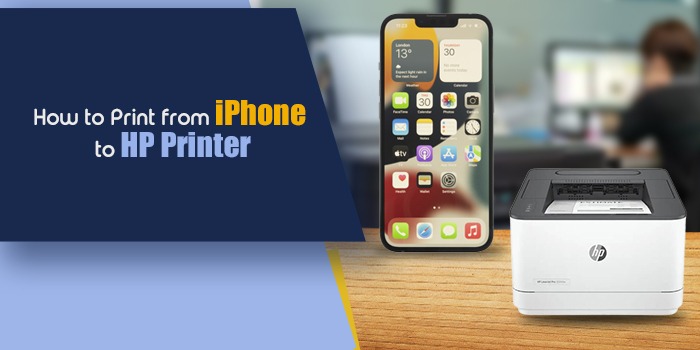
Read Also: How to Print From iPhone to HP Printer: AirPrint, HP Smart & USB (2026 Guide)
Frequently Asked Questions
How do I get my iPad to recognize my HP printer?
Make sure both devices are on the same Wi‑Fi network. If your printer still doesn’t appear, restart your iPad, printer, and router, then try again.
Can I print from iPad without using AirPrint?
Yes. You can print via the HP Smart app or by using a USB connection with an adapter (if your printer has the right port).
Why does AirPrint work sometimes but not other times?
AirPrint relies on Bonjour discovery, which can fail if:
- Your iPad and printer are on different networks (including 2.4GHz vs 5GHz SSIDs).
- Your router has client isolation or a guest network enabled.
- Your printer’s firmware is outdated.
Do all HP printers support AirPrint?
No. Not all HP printers support AirPrint. Check HP’s official AirPrint compatibility list before relying on this method.
Before You Start: Quick Checks
Before troubleshooting, confirm:
- Your HP printer model supports AirPrint (check HP’s website).
- Your iPad is running iPadOS 15 or later (iPadOS 17–18 recommended).
- Your router’s Wi‑Fi isolation / guest network features are off for the network you’re using.
Troubleshooting: HP Printer Not Showing on iPad
Printer Not Found in Share > Print
- Verify iPad and printer are on the same Wi‑Fi network (same SSID).
- Restart the printer and router.
- Check that AirPrint is enabled on the printer (most modern HP printers have this by default).
Printer Shows but Job Won’t Print
- Make sure there’s paper and ink/toner.
- Check for error messages on the printer display.
- Try printing a test page from the printer’s menu.
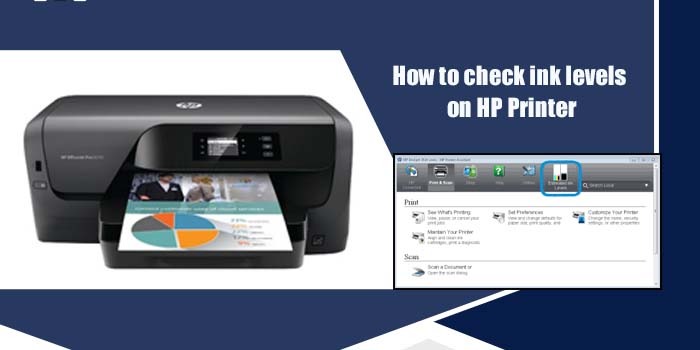
- In HP Smart, check ink levels and run a printer self‑test.
Wi‑Fi, Guest Network, and Client Isolation Issues
- Do not use a guest network for printing.
- Disable client isolation if your router supports it.
- If your router separates 2.4GHz and 5GHz into different SSIDs, connect both iPad and printer to the same band.
Security & Privacy Note
When using HP Smart’s “Print Anywhere”, your print jobs travel over the internet to HP’s servers and then to your printer. Avoid printing highly sensitive documents unless you trust HP’s privacy policy and your network is secure.
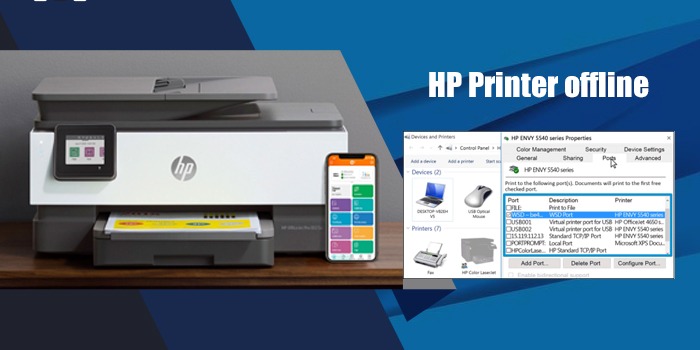
Read Also: How to Fix HP Printer Offline on Windows 10 & 11 (2026 Guide)